

Updated
October 24, 2026
Best WooCommerce Inventory Management Software for Stores Selling In-Person and Online
WooCommerce inventory management software helps retailers coordinate stock between online and physical sales. Options such as SKU IQ, Square, ATUM, Katana, Cin7 Core, and Zoho Inventory suit different retail workflows.


TL;DR
- WooCommerce inventory management software helps retailers coordinate stock across online and physical sales channels, reducing inventory discrepancies between systems.
- The right software depends on where your business manages inventory, whether that is WooCommerce, a POS, or a dedicated inventory platform.
- Stock direction, product variations, multiple locations, order handling, and failed-sync recovery are important factors to compare before choosing a tool.
- Testing a small product sample before launch helps confirm that POS sales, online orders, variations, returns, and location-specific stock update as expected.
- SKU IQ can help retailers keep their existing WooCommerce and supported POS setup while coordinating inventory and product data between both systems.
WooCommerce inventory management software helps stores keep stock accurate as products sell online and in person. The right tool depends on your POS, inventory source, locations, and product setup.
Inventory coordination is a common concern for retailers managing several sales channels. Zebra’s 18th Annual Global Shopper Study found that 84% of retail decision-makers face high pressure to synchronize real-time inventory across channels.
WooCommerce already supports product and variation-level stock management. Retailers may need additional software when the same inventory also changes through a POS or separate inventory system.
This guide compares WooCommerce inventory management software for stores selling online and in person. It evaluates POS coexistence, stock direction, variants, locations, orders, support, and recovery.
What is the best WooCommerce inventory management software for stores selling online and in person?
The best WooCommerce inventory management software depends on where your store controls inventory. A POS connector fits a different workflow from a WooCommerce plugin or dedicated inventory platform.
The six options below cover several common setups. Prices reflect official vendor information checked in October 2026.
Table 1: WooCommerce inventory management software compared by retail setup, inventory approach, location support, and starting price.
These prices do not represent equivalent software. A free WooCommerce extension and a $349 inventory platform address very different operational requirements.
Start with the system that currently records your physical sales. Then determine which platform should control the quantity customers see in WooCommerce.
Why do some stores need extra inventory software for WooCommerce?
WooCommerce includes native stock management for products and variations. Extra software becomes useful when another system also sells, stores, or changes those products.
A physical sale illustrates the issue. If the last medium black T-shirt sells at the counter, WooCommerce needs the updated quantity before another customer orders it online.
The same question applies to returns and stock corrections. The software needs clear rules for deciding which quantity should appear in each system.
1. What happens when an item sells at the physical checkout?
An in-store sale should reduce the quantity available to online customers when both channels share stock. The exact process depends on the connection.
For example, Square for WooCommerce checks Square for inventory changes caused by POS sales. Stock changes appear in WooCommerce according to the configured synchronization process.
Other platforms place a separate inventory system between the store and WooCommerce. Katana, for example, can push its available inventory to WooCommerce when stock synchronization is enabled.
2. Which system should control the stock quantity?
Choose one clear inventory source before configuring synchronization. Otherwise, staff may update quantities in one system while another system later overwrites them.
Square for WooCommerce demonstrates why this decision matters. You can choose WooCommerce or Square as the source for product data. However, inventory still checks Square to account for POS activity when inventory synchronization is enabled.
Katana uses another model. Once continuous stock synchronization is active, Katana sends available inventory to WooCommerce based on the selected Katana location.
3. How should variants match between WooCommerce and your inventory system?
Variant matching deserves its own test because a product can contain several independently stocked items. WooCommerce can track inventory for individual variations.
A T-shirt could have separate SKUs for medium black and large black. The connected software needs to identify those variations correctly before changing quantities.
Square uses SKUs to match WooCommerce products and variations. Its WooCommerce integration supports variable products, subject to Square's limits for attributes and variations.
4. What changes when you have several inventory locations?
Location support determines which physical stock contributes to online availability. Simply supporting multiple locations does not show how WooCommerce receives those quantities.
A retailer may want WooCommerce to sell from one warehouse while excluding store display stock. Another business may want several locations contributing to online availability.
Check the exact location rule before setup. A platform should match the way your business allocates physical inventory to online orders.
Which WooCommerce inventory management tools are worth comparing?
Six tools stand out because they address different WooCommerce inventory requirements. The best fit depends on how your business manages physical sales and inventory.
The options below include POS connectors and WooCommerce inventory tools. Dedicated inventory platforms are also included for businesses with broader operational requirements.
1. SKU IQ: Best for connecting WooCommerce with an existing retail POS
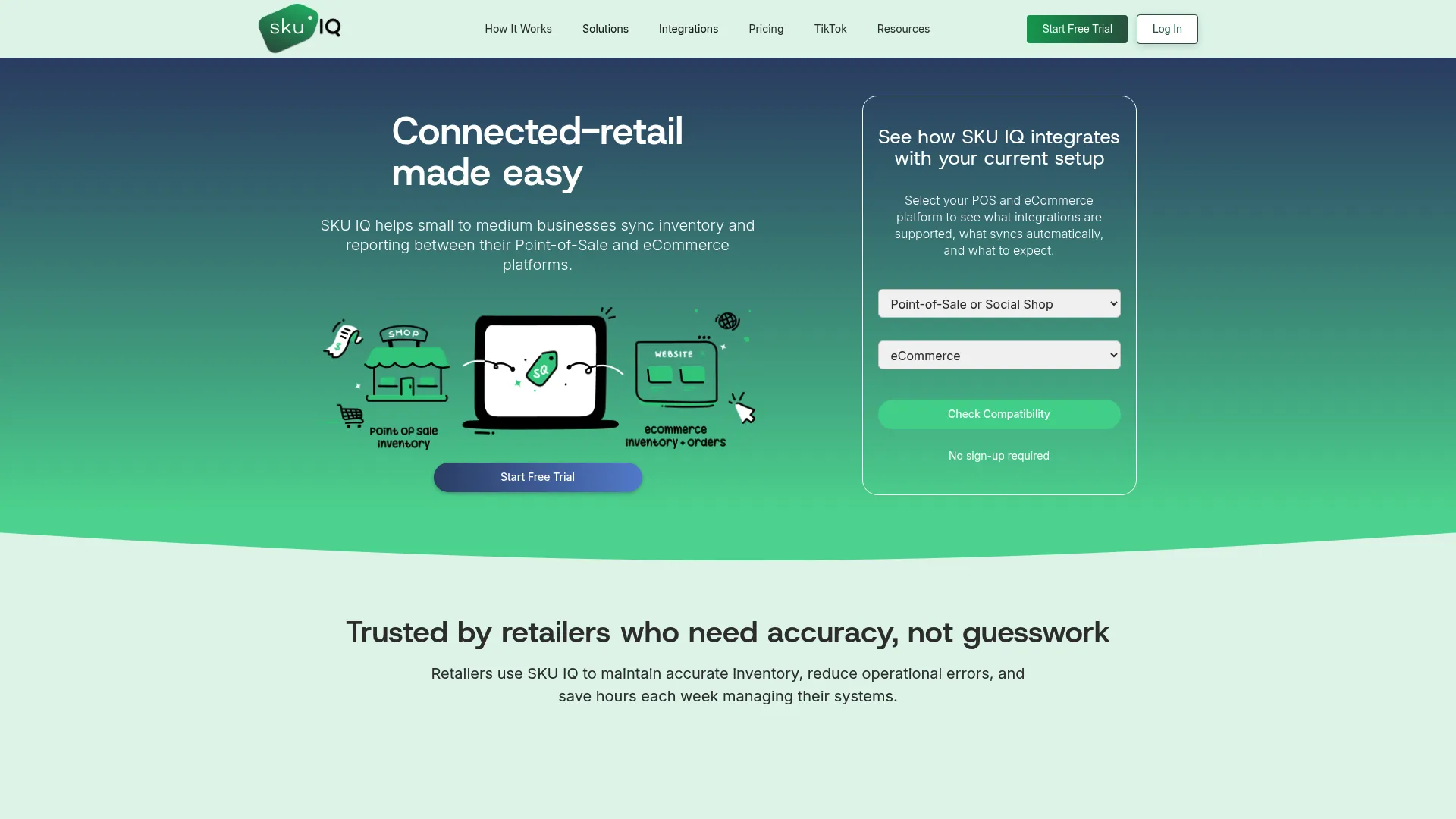
SKU IQ connects WooCommerce with supported retail POS systems. It suits retailers that want to keep their current ecommerce site and physical checkout system.
Its WooCommerce integration supports product and inventory synchronization between connected systems. Retailers can configure the connection based on their existing POS setup.
Best fit: Retailers that already have WooCommerce and a supported POS they want to keep.
How SKU IQ works with WooCommerce
Key features
- Keeps inventory quantities coordinated between WooCommerce and supported POS systems as sales occur
- Connects matching products across WooCommerce and the POS for consistent inventory tracking
- Provides a unified view of orders from connected sales channels in one place
- Supports additional retail locations for businesses managing inventory across several physical stores
SKU IQ pricing
The SKU IQ pricing page lists Basic at $19 per month. Plus costs $49, while Pro costs $99.
Multi-location support costs $10 per additional location. Basic users can add Attribute Sync or Auto Push for $15 each.
2. Square for WooCommerce: Best for stores already using Square POS
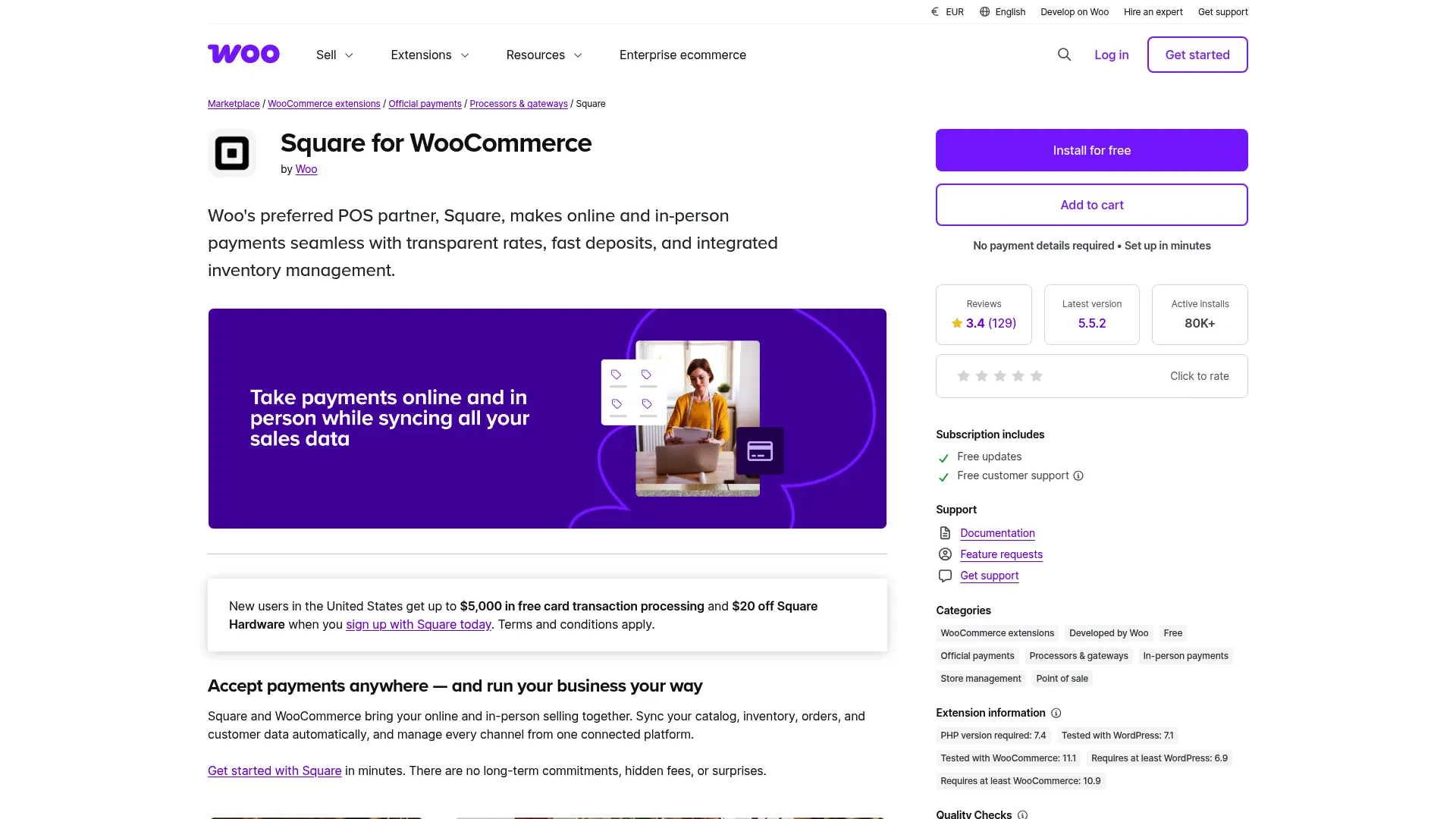
Square for WooCommerce connects WooCommerce and Square for product and inventory synchronization. It is particularly relevant when Square already handles physical checkout.
The official extension supports inventory and product synchronization. Order fulfillment status can also synchronize when retailers enable the relevant setting.
Best fit: WooCommerce stores already using Square for in-person payments and POS inventory.
How Square works with WooCommerce
Key features
- Updates WooCommerce inventory based on stock changes recorded through the connected Square location
- Moves supported product information between WooCommerce and Square according to configured settings
- Matches WooCommerce product variations with Square items using SKUs for accurate identification
- Provides records that help retailers identify products that failed during synchronization
Square for WooCommerce pricing
Square for WooCommerce is a free extension. Square payment processing and other Square services can carry separate costs.
Review the Square for WooCommerce page for current extension requirements and compatibility information.
3. ATUM Inventory Management: Best for managing stock primarily inside WooCommerce
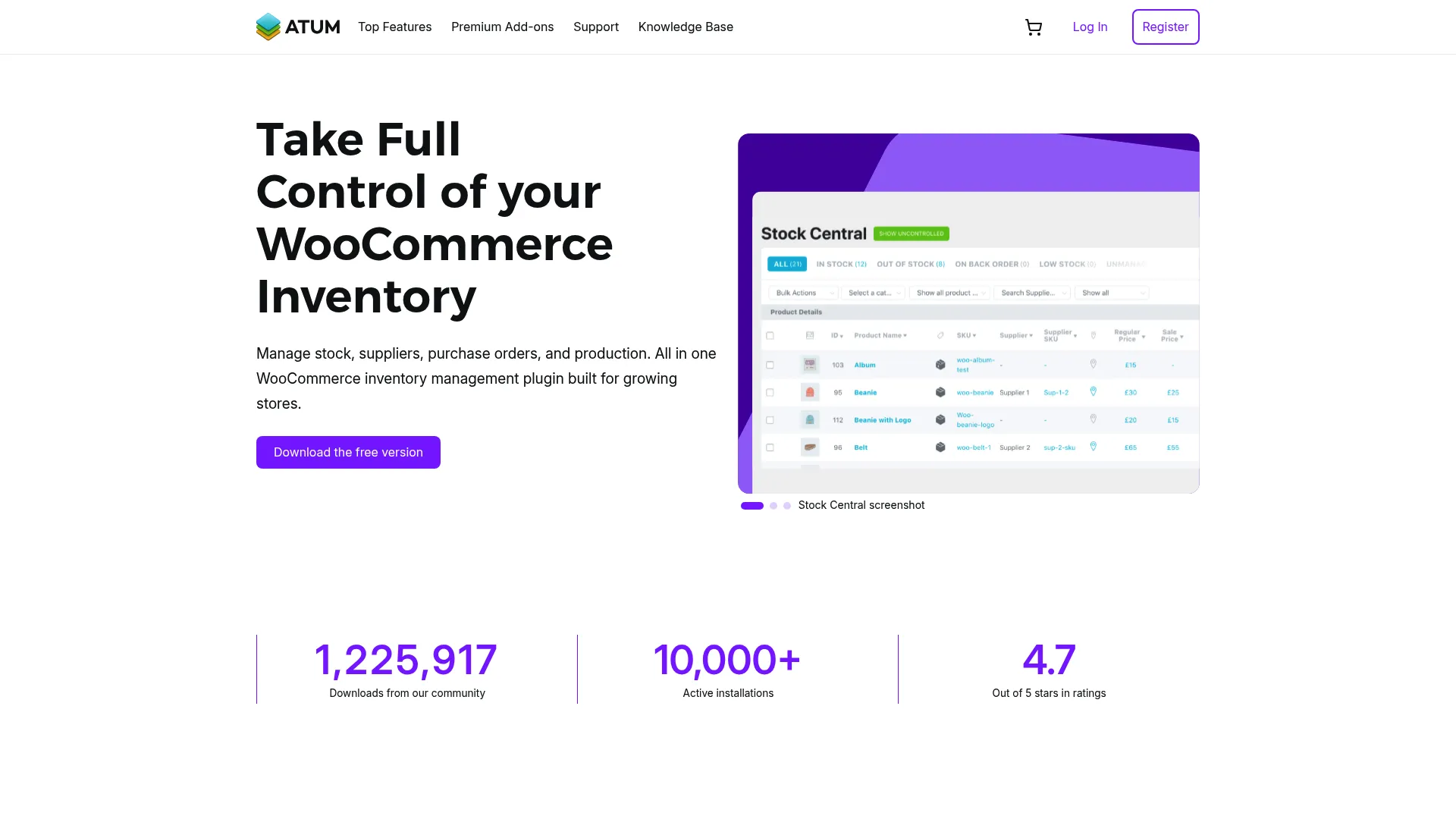
ATUM Inventory Management takes a different approach from a POS connector. Its inventory tools operate within the WooCommerce environment.
ATUM suits businesses that want more inventory controls while keeping WooCommerce central to stock management. An external POS may require a separate connection.
Best fit: Retailers that want WooCommerce to remain central to inventory management.
How ATUM works with WooCommerce
Key features
- Adds detailed stock management tools directly within the existing WooCommerce environment
- Creates separate inventories for warehouses, stores, suppliers, or other physical stock sources
- Maintains separate inventory records for individual WooCommerce product variations when required
- Controls which inventory source fulfills demand first using configurable stock allocation rules
ATUM Inventory Management pricing
The core ATUM Inventory Management plugin is free. Advanced inventory capabilities are available through separate premium add-ons.
Multi-Inventory is one such add-on. Check ATUM's official website for current licensing and add-on pricing.
4. Katana: Best for WooCommerce businesses managing production and inventory
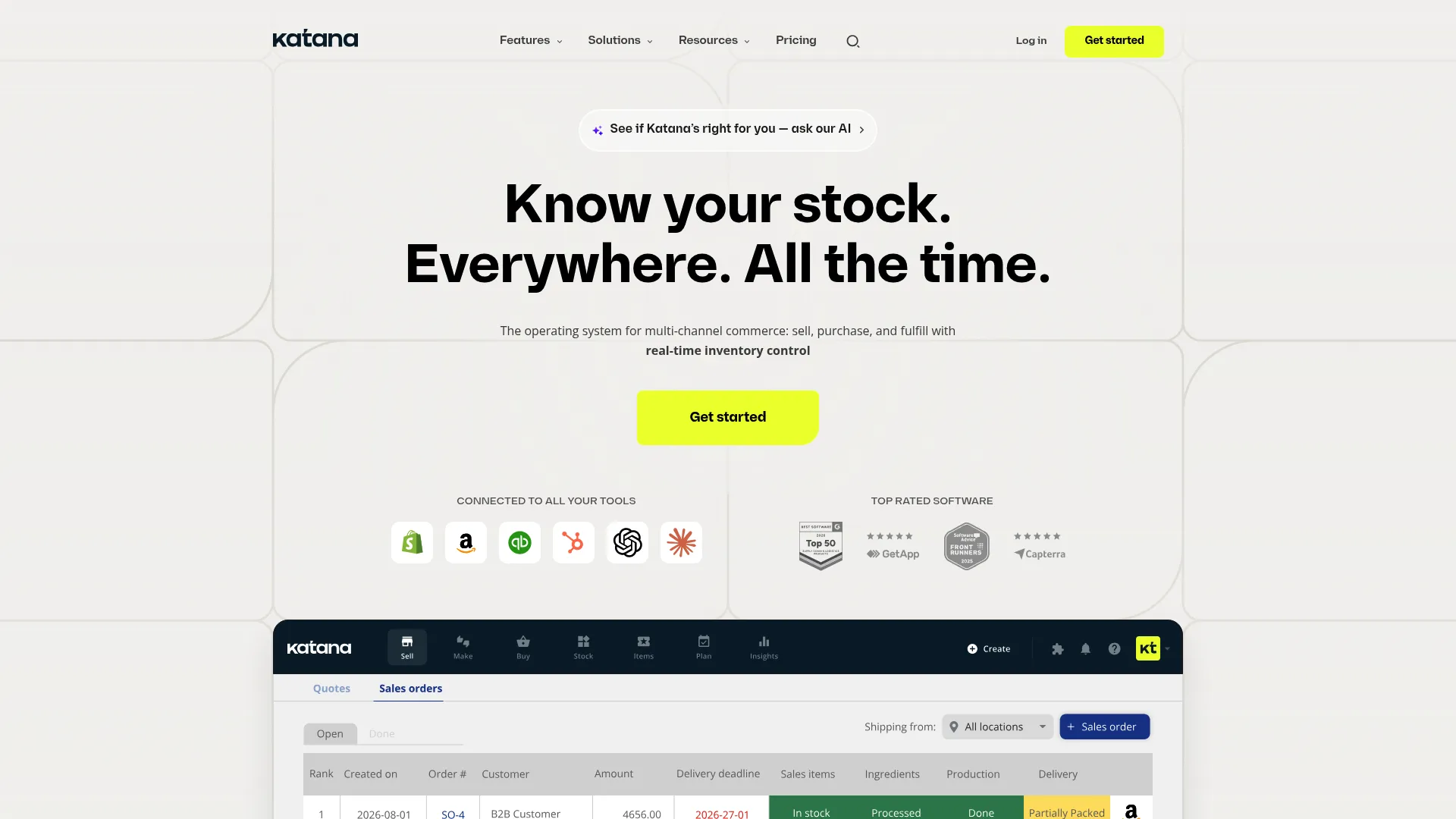
Katana suits product businesses that manage production alongside inventory. WooCommerce orders can enter Katana while its inventory records support wider operational workflows.
The native integration can import WooCommerce products and orders. Katana can also send available stock from a selected inventory location back to WooCommerce.
Best fit: WooCommerce businesses producing goods or managing inventory beyond basic retail stock counts.
How Katana works with WooCommerce
Key features
- Sends available inventory from the selected Katana location directly to WooCommerce
- Imports WooCommerce sales orders into Katana for inventory and operational processing
- Imports WooCommerce product variants and connects them using their individual SKU information
- Assigns a specific Katana inventory location to each connected WooCommerce store
Katana pricing
Katana pricing currently includes a free plan. Core provides broader inventory and operational capabilities for growing businesses.
Additional locations and operational add-ons can increase the total monthly cost. Check the current plan limits against your WooCommerce workflow before choosing a tier.
5. Cin7 Core: Best for growing businesses with purchasing and warehouse requirements
Cin7 provides inventory management beyond basic WooCommerce stock synchronization. Cin7 Core combines inventory with purchasing, order processing, and warehouse workflows.
WooCommerce can connect to Cin7 Core for inventory and order management. This setup suits businesses whose operational requirements extend beyond the online storefront.
Best fit: Growing product businesses that need purchasing or warehouse control alongside WooCommerce.
How Cin7 Core works with WooCommerce
Key features
- Sends available inventory quantities from Cin7 Core to connected WooCommerce stores automatically
- Imports WooCommerce orders into Cin7 Core for inventory and fulfillment processing
- Manages stock across several stores, warehouses, and other inventory locations
- Records WooCommerce integration activity to help teams investigate synchronization and connection problems
Cin7 Core pricing
Check the Cin7 pricing page for current Core plans and included capabilities.
Integration requirements and the selected plan can affect the final cost. Compare the required WooCommerce connections and user allowances before choosing a plan.
6. Zoho Inventory: Best for smaller businesses needing inventory and order management
Zoho Inventory connects WooCommerce with a separate inventory and order management environment. It gives businesses another place to manage stock outside the WooCommerce dashboard.
WooCommerce product and order information can connect with Zoho Inventory. This setup suits businesses seeking structured inventory controls without moving immediately to a larger enterprise platform.
Best fit: Smaller businesses that need structured inventory and order management alongside WooCommerce.
How Zoho Inventory works with WooCommerce
Key features
- Coordinates stock information between WooCommerce and Zoho Inventory through the configured integration
- Brings eligible WooCommerce sales orders into Zoho Inventory for further processing
- Connects WooCommerce products with Zoho Inventory records using consistent product information
- Supports multiple inventory locations according to the limits of the selected plan
Zoho Inventory pricing
Zoho Inventory pricing includes a free plan. Paid plans increase allowances for inventory operations and business requirements.
The Standard plan is the first paid tier. Higher plans increase limits for areas such as users, locations, and monthly orders.
How do these WooCommerce inventory tools handle real store workflows?
WooCommerce inventory software differs most when an actual transaction changes stock. Compare what happens after a store sale, online order, return, or manual adjustment.
The table below focuses on those operational differences instead of counting features.
Table 2: How WooCommerce inventory tools handle stock ownership, variants, locations, orders, and synchronization recovery.
A checkmark for inventory synchronization tells only part of the story. Stock direction determines which quantity eventually reaches WooCommerce after a change.
Order behavior can differ as well. Inventory synchronization does not automatically mean every in-person transaction becomes a WooCommerce order.
Square illustrates that distinction. Square POS sales can affect WooCommerce inventory, but they do not become WooCommerce orders.
Should WooCommerce or your POS be the inventory source of truth?
The inventory source should be the system where your team reliably records stock changes. Choose it before enabling automated synchronization.
A store handling receiving and stock counts inside its POS may benefit from POS-led quantities. A WooCommerce-led business may prefer to keep product administration inside WordPress.
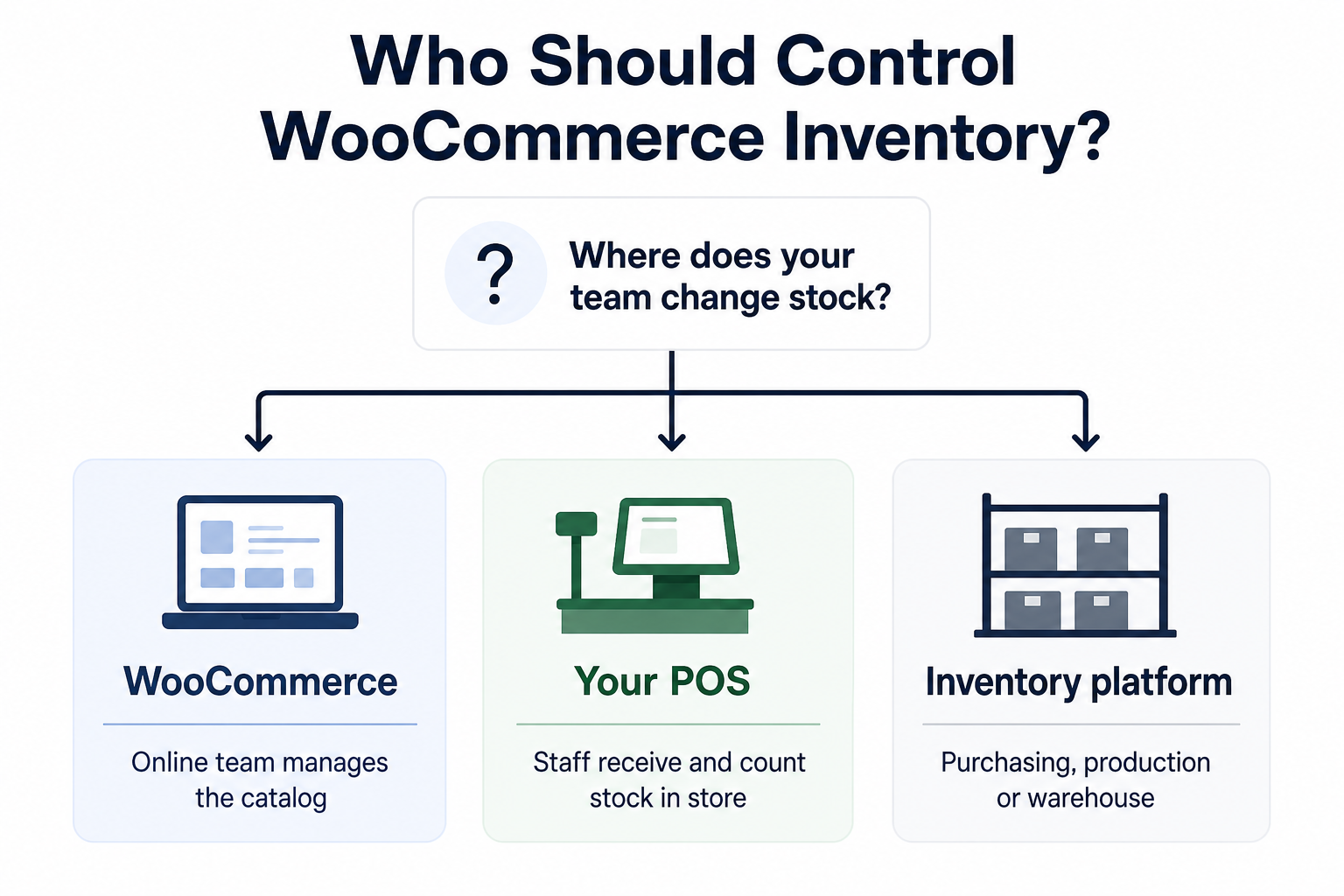
1. When should WooCommerce control inventory?
WooCommerce can work as the primary product-management system when online operations drive catalog administration.
This setup works best when connected systems respect the chosen WooCommerce workflow. Confirm how physical sales return inventory information before selecting this model.
2. When should the POS control inventory?
POS-led inventory can suit stores where staff receive products and make stock corrections at the physical location.
Square provides a clear example. WooCommerce can remain the product-data source, while Square inventory is still checked for POS activity.
3. When should a separate inventory platform control stock?
A dedicated inventory system becomes useful when operations extend into purchasing or production. Warehouse workflows can also justify moving inventory control outside WooCommerce.
Katana can serve as the inventory source and send stock from its selected location to WooCommerce.
How should stock move between WooCommerce and your physical store?
Stock should follow a documented direction between WooCommerce and every system that changes inventory. Terms such as "real-time sync" provide little useful information without that detail.
Map the movement for sales and returns first. Add manual adjustments after the main transaction path works correctly.
1. How does one-way inventory synchronization work?
One-way synchronization gives one system authority over the quantity shown elsewhere. Updates travel from that inventory source to the connected platform.
Katana offers a clear example. When stock synchronization is active, Katana sends inventory from the selected location to WooCommerce.
This model can reduce conflicting adjustments because staff know where quantities should be changed.
2. How does two-way inventory synchronization work?
Two-way workflows allow activity in connected systems to influence inventory. The rules still need a clear source when changes occur.
SKU IQ supports configurable synchronization between WooCommerce and compatible POS systems. Retailers should verify the exact behavior for their POS combination before setup.
Square also exchanges inventory information with WooCommerce. POS activity feeds back into online stock through scheduled inventory checks.
3. What happens after a manual stock adjustment?
A manual correction should occur in the system designated for inventory management. Otherwise, the next automated update may replace it.
Square for WooCommerce states that a later Square inventory check can replace a quantity entered manually in WooCommerce.
Document this rule for store staff. A clear adjustment process reduces the chance of employees correcting the same discrepancy in separate systems.
4. How should returns and cancelled orders affect inventory?
Returns require a defined restocking rule because an order reversal does not always mean the item immediately becomes sellable.
Check how your selected integration handles cancellations and refunds. Then confirm when returned merchandise becomes available to WooCommerce customers again.
Test your normal return workflow before launch. Include online returns and merchandise originally sold at the physical checkout.
What should you check before choosing WooCommerce inventory management software?
Start with the transaction path your store uses every day. Compatibility alone gives limited information about how inventory behaves after the connection goes live.
Use the following checks to compare each shortlisted tool against the same store workflow.
1. Confirm your exact WooCommerce and POS combination
Check the specific POS connection instead of assuming general WooCommerce support covers your setup.
Review supported editions and locations. Include any separate inventory software already involved in stock management.
2. Identify the inventory source of truth
Decide where staff should make inventory corrections and receive new stock.
Write that choice into your implementation plan. Staff should know which system owns the quantity before automated updates begin.
3. Verify stock direction
Ask the vendor to describe what happens after one online sale and one POS sale.
Repeat the question for manual stock changes. Specific answers are more useful than a general promise of inventory synchronization.
4. Test simple products and variations
Start with a basic SKU. Then test a variable WooCommerce product with separately tracked quantities.
Confirm the SKU and variant relationship in both systems. Square, for example, requires SKUs for product matching.
5. Check each physical inventory location
Test stores and warehouses separately when they maintain independent quantities.
Confirm which location supplies the WooCommerce quantity. Then check how transfers or stock corrections affect online availability.
6. Follow online and in-store orders separately
Place a WooCommerce order and trace where it appears. Repeat the test through the physical POS.
Inventory movement and order synchronization may follow different rules. Document both before training staff.
7. Review failed-sync recovery
Ask how staff see an unsuccessful inventory update. Then find out how they retry it.
Look for synchronization records or documented recovery procedures. Vendor support becomes especially important when staff cannot identify the correct quantity.
8. Calculate the cost of your actual configuration
Entry pricing rarely tells the whole cost for a multi-location retailer.
Include the required number of locations and your expected order volume. Add any paid synchronization features your workflow requires.
What happens when WooCommerce inventory synchronization fails?
A failed synchronization can leave WooCommerce showing an older quantity until the connection succeeds again. Recovery should therefore be part of software evaluation before launch.
Look for visible error records and a documented resync process. Staff should also know which system contains the authoritative quantity during an interruption.
1. How can staff identify a failed update?
Logs or synchronization records make failures easier to trace.
Square for WooCommerce provides Sync Records for monitoring synchronization. Staff can review product names, SKUs, and errors when an item fails to update.
2. Can staff retry or resync inventory?
A retry mechanism can help resolve a temporary connection problem.
Square for WooCommerce provides manual synchronization controls. Staff can also review Sync Records to check progress.
3. What happens after the connection returns?
Test reconnection behavior because recovery can affect existing stock quantities.
Katana advises users to keep WooCommerce stock import off during most reconfigurations. Re-importing quantities can add inventory to existing Katana stock and cause double counting.
4. Which quantity wins after reconnection?
The answer should follow your chosen inventory source.
Document that rule before launch. Staff can then verify the authoritative quantity first instead of correcting both platforms independently.
How can you test WooCommerce inventory software before using your full catalog?
Test WooCommerce inventory software with a small product group before connecting the full catalog. Include products that reflect the workflows your staff handles during a normal week.
A useful test group includes one simple product and one variable product. Add a product stocked at more than one location when that matches your setup.
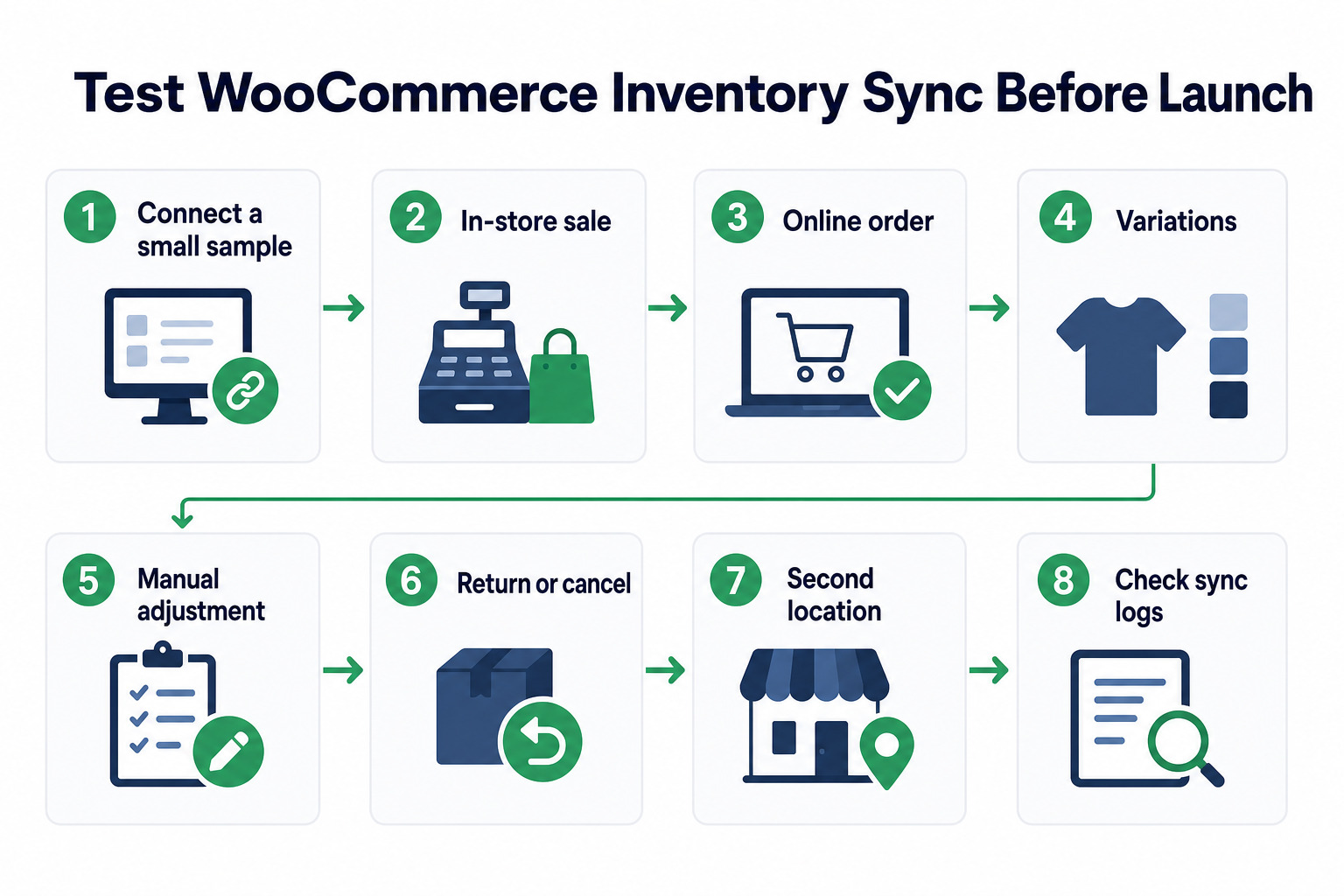
1. Connect a small product sample
Start with products whose current quantities you can verify manually.
Record the starting quantity in WooCommerce and the connected system. That gives you a baseline for every subsequent test.
2. Make an in-store sale
Sell one unit through the physical checkout.
Check which system changes first. Then confirm the quantity WooCommerce displays after the expected synchronization period.
3. Place a WooCommerce order
Order a product that is also available in the store.
Follow the quantity into the POS or inventory platform. Check that the remaining physical stock matches the workflow you configured.
4. Test a product with several variations
Use a product such as a T-shirt with size and color variations.
Sell one specific variation. Confirm that its quantity changes while unrelated variations retain their existing counts.
5. Make a manual stock adjustment
Add or remove a unit using your designated inventory system.
Check the resulting WooCommerce quantity. Make further adjustments only after confirming where future corrections should occur.
6. Process a return or cancellation
Return an online order and check the restocking behavior.
Repeat the process for a physical sale when your integration supports that workflow. Confirm when the returned item becomes available online again.
7. Repeat the test for another location
Run the same sale from a second store or warehouse.
Check whether WooCommerce receives the expected quantity from that location. Location-specific testing matters when stock pools remain separate.
8. Check the recovery process
Review the documented recovery workflow before going live.
Find the sync records or logs. Confirm who contacts support when a failed update requires vendor assistance.
How can SKU IQ connect WooCommerce with your existing POS?
SKU IQ connects WooCommerce with supported POS systems so retailers can keep the software already used online and at checkout. Inventory synchronization connects those systems without requiring a complete platform replacement.
Retailers can coordinate supported products and inventory between WooCommerce and their connected POS. The exact synchronization behavior depends on the POS combination and selected configuration.
Quantity Sync and unlimited linked items are included across current plans. Plus adds Attribute Sync and Auto Push, while Pro includes Image Sync and faster synchronization.
Multi-location support can be added when a retailer operates additional locations. Before setup, confirm that SKU IQ supports your exact WooCommerce and POS combination.
Ready to connect your store? Start a free SKU IQ trial and test WooCommerce inventory sync with your supported POS before expanding your catalog.
Frequently asked questions about WooCommerce inventory management software
1. Can WooCommerce sync inventory with a physical store?
Yes, when compatible software connects WooCommerce with the store's POS or inventory system.
The exact behavior depends on the integration. Check which platform controls quantities and how physical sales update WooCommerce before enabling synchronization.
2. Can WooCommerce connect to an existing POS?
WooCommerce can connect with supported POS systems through direct extensions or third-party connectors.
Square has a WooCommerce integration for product and inventory synchronization. SKU IQ provides connections between WooCommerce and supported POS platforms.
3. How often should WooCommerce inventory sync with a POS?
The required frequency depends on sales volume and overselling risk. A store selling limited stock online and in person benefits from faster updates.
Check the vendor's actual synchronization method instead of relying on the term "real-time." Square for WooCommerce, for example, uses a configurable synchronization interval and scheduled inventory checks for POS activity.
4. Can WooCommerce inventory synchronization prevent overselling?
Inventory synchronization can reduce overselling risk by keeping online quantities aligned with stock changes elsewhere. Its effectiveness depends on synchronization frequency and the integration's inventory rules.
Test low-stock products before launch. This shows how quickly an in-store sale changes the quantity available online.
5. Do WooCommerce POS integrations automatically sync returns and refunds?
Return and refund behavior varies by integration. Inventory synchronization does not guarantee that every return, refund, or POS transaction follows the same synchronization path.
Check when returned items re-enter available inventory. Test online and physical returns separately before relying on the workflow.
6. Do WooCommerce inventory integrations require matching SKUs?
SKU requirements depend on the integration, but consistent identifiers help systems match the correct products and variations.
Square for WooCommerce uses SKUs to match products between WooCommerce and Square. Products need matching SKUs for synchronization to work correctly.
Share this blog:







Sync and Manage Inventory Across Your Retail Systems
- No more spreadsheets or manual updates
- Real-time sync between POS and eCommerce
- One product catalog, every sales channel
- Save hours managing multiple systems

Ready to stop worrying about inventory?
Start a free trial and experience how much easier retail operations become when your systems stay in sync.