

Updated
October 28, 2026
How to Prevent Overselling When You Sell In-Store and Online
Selling in-store and online can lead to overselling when inventory updates fall behind. SKU IQ helps keep inventory aligned across connected systems, reducing manual updates and the risk of selling unavailable products.


TL;DR
- Overselling happens when POS and eCommerce inventory updates fall out of sync, leaving already-sold products available online.
- Unified shared inventory gives both in-store and online customers access to the same stock while improving inventory efficiency.
- Automated POS-to-eCommerce synchronization keeps stock quantities aligned across connected channels and reduces reliance on manual inventory updates.
- Safety stock buffers and consistent staff procedures can reduce last-item conflicts that inventory synchronization alone may not prevent.
- SKU IQ connects supported POS and eCommerce platforms to synchronize inventory, product data, and orders across compatible systems.
Selling through a physical store and an eCommerce site gives retailers more opportunities to reach customers. It also requires accurate inventory records across both sales channels.
Overselling occurs when inventory quantities fall out of sync between a store’s POS and eCommerce platform. An in-store sale may reduce POS inventory while the website continues showing the same product as available.
Stock availability has a measurable impact on retail performance. According to the National Retail Federation, persistent stockouts cost retailers nearly $1 trillion worldwide each year. Accurate inventory updates can help retailers maintain reliable product availability across their sales channels.
Preventing overselling requires a shared inventory process that keeps stock quantities aligned after each transaction. Automated POS-to-eCommerce synchronization helps update inventory across connected systems while reducing manual stock adjustments.
This guide covers why overselling happens and how shared inventory can reduce double-selling. You’ll learn how POS-to-eCommerce sync and safety buffers support accurate stock management. We’ll also cover practical store workflows and how SKU IQ keeps inventory aligned across supported platforms.
What Is Overselling in Retail?
Overselling occurs when a retailer accepts an order for a product that is no longer available in physical inventory. It commonly affects retailers that sell the same stock through physical and online stores.
A product may sell at the register while the eCommerce platform still lists it as available. Another customer can then order the same unit online before the inventory quantity updates.
Keeping POS and eCommerce inventory synchronized helps reduce this risk. Each recorded sale updates available quantities across connected channels, giving customers a more accurate view of current stock.
Why Overselling Happens in Multi-Channel Retail
Overselling usually starts when a retailer’s POS and eCommerce platform maintain separate inventory records. Delayed updates between these systems can leave one channel displaying stock that has already sold elsewhere.
Manual inventory updates make this problem harder to control. CSV uploads or end-of-day adjustments create a period when online quantities may differ from the physical stock available in the store.
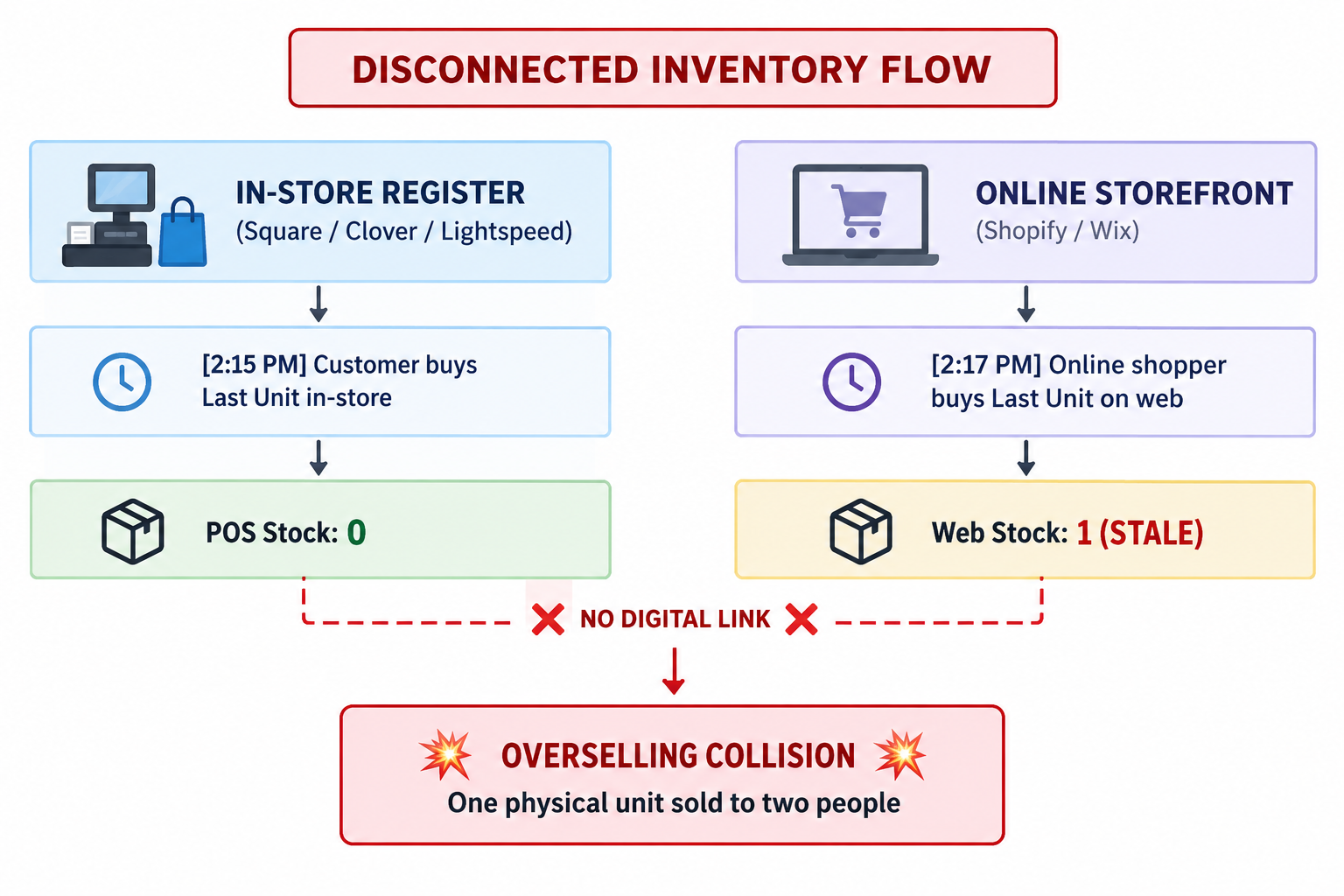
1. The Anatomy of a Stockout Race Condition
A stockout race condition occurs when the time window between an in-store checkout and an online inventory adjustment is long enough for an online shopper to complete an order.
If you update online stock once daily, inventory may remain outdated for several hours between adjustments. During that period, customers can order items online that have already been sold in-store.
2. The Hidden Costs of an Out-of-Stock Online Order
An oversold order can create additional costs beyond the lost sale. These costs can include payment fees, wasted acquisition spend, and staff time.
- Non-refundable payment processing fees: Payment providers such as Shopify Payments, Square, and PayPal may retain some or all original processing fees when a transaction is refunded. Policies vary by provider, so an oversold order can still leave the retailer with payment processing costs after issuing a refund.
- Wasted customer acquisition cost (CAC): If you spent ad dollars on Meta, Google, or local marketing to win that online buyer, cancelling their order wastes that entire acquisition spend.
- Customer experience impact: Canceling an order because inventory is unavailable can reduce customer confidence and create a poor first-purchase experience.
- Staff time and operational work: Your team must contact the customer and process the refund. Staff may also need to verify shelf counts and correct inventory records.
Shared Stock vs. Split Inventory: Which Model Protects Cash Flow?
Retailers managing the same products across physical and online channels can use two primary inventory models: split inventory or unified shared stock.
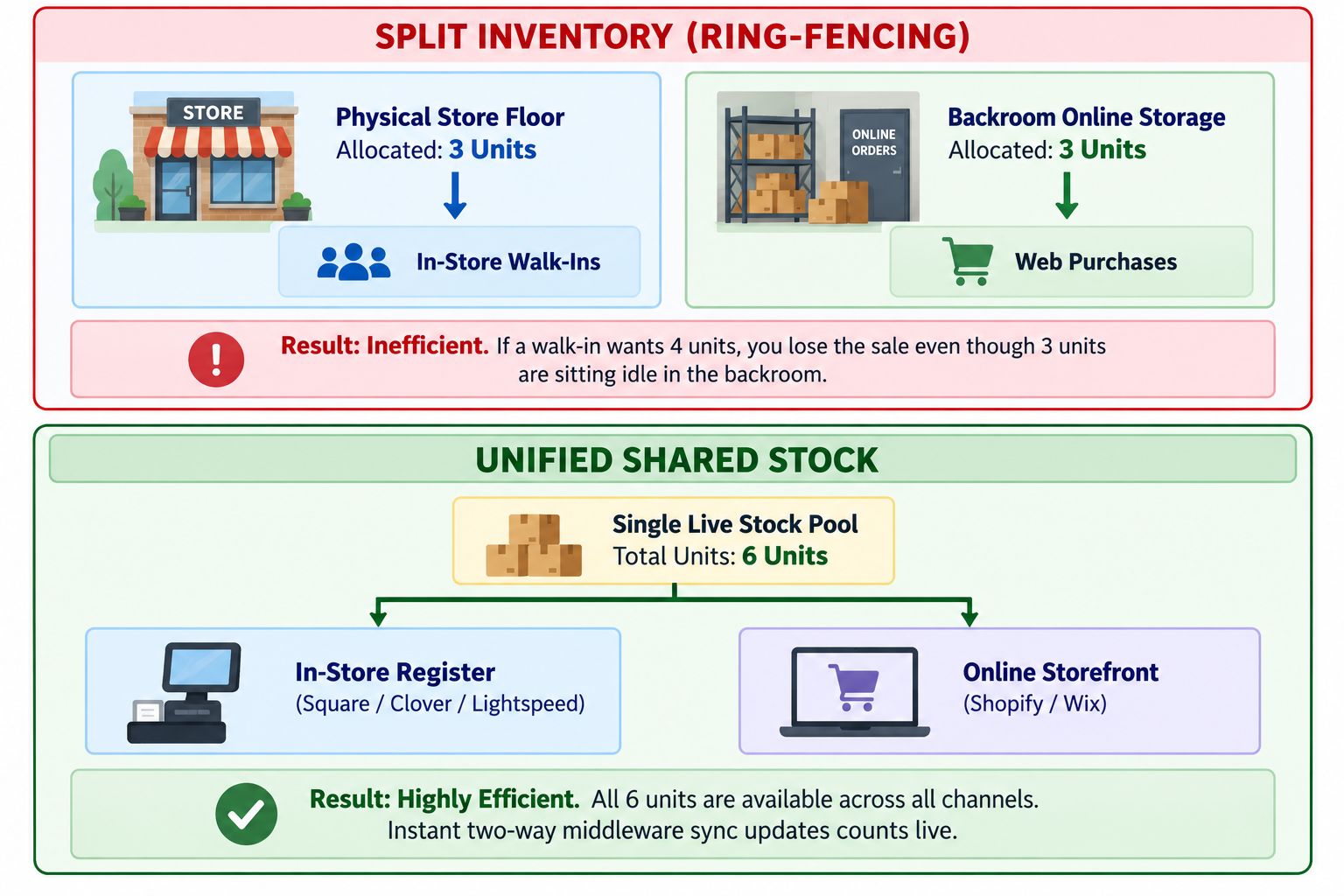
Model 1: Split Inventory (Ring-Fencing)
In this model, you physically divide your inventory. If you receive 10 units of a candle, you place 5 on the store shelf for walk-in shoppers and stash 5 in a backroom bin marked "Website Only."
The problem: Split inventory can leave sellable stock reserved for one channel while another channel runs short. Suppose five candles are allocated to your store and five to your website.
A walk-in customer requesting six candles could encounter an in-store stockout while five units remain reserved for online sales. This setup can limit access to available inventory and tie up working capital.
Model 2: Unified Shared Stock
In this model, all 10 candles sit in one collective pool. Whether a shopper enters your physical front door or lands on your homepage, all 10 units are available for purchase.
The benefit: Shared stock makes available units accessible across both sales channels. Retailers can sell existing inventory without reserving separate quantities for each channel.
The requirement: Automated two-way synchronization helps keep shared inventory quantities aligned between the POS and online store.
Inventory Model Comparison
The table below compares split inventory and unified shared stock based on their operational impact and inventory management requirements.
How Automated POS-to-eCommerce Sync Solves the Problem
Automated POS-to-eCommerce sync keeps inventory quantities aligned as sales occur across connected channels. A completed in-store transaction can trigger an inventory update on the eCommerce platform.
Middleware provides this connection without requiring retailers to replace their existing POS hardware. It passes inventory data between supported systems so each channel works from updated stock quantities.
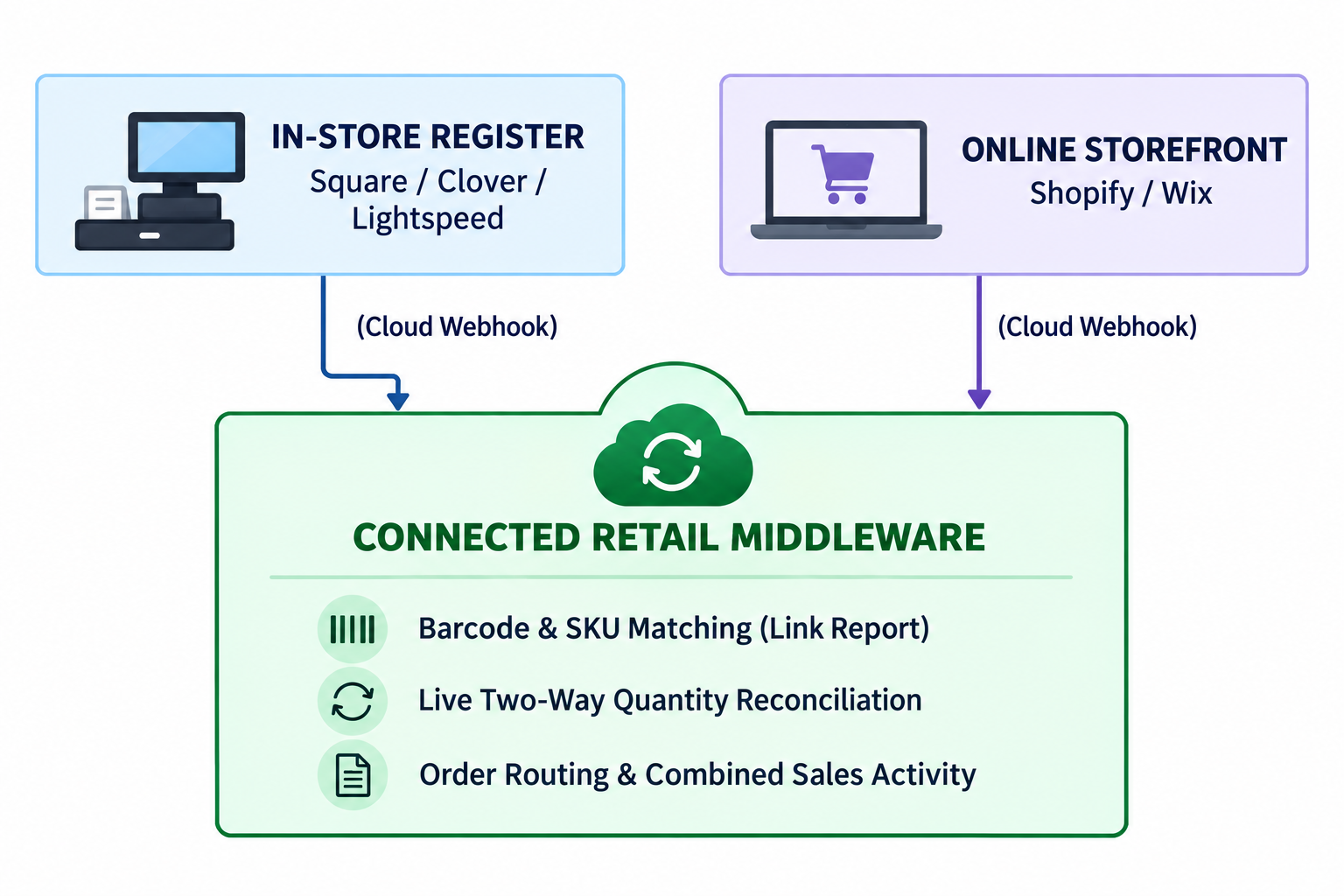
1. How Middleware Bridges Your Register and Website
Middleware operates quietly in the cloud:
- Receives transaction data: After an associate completes a sale, the connected system sends transaction data that the middleware can process.
- Translates the data: The middleware catches the webhook, identifies the matching product record in its catalog database, and calculates the new remaining quantity.
- Updates the connected channel: The middleware sends the updated quantity to the connected eCommerce platform so its inventory can be adjusted.
- Syncs in the other direction: An online sale can also update the connected POS inventory. This helps staff start the next business day with current stock quantities.
2. Keep SKUs and Barcodes Consistent
Automated sync depends on correctly matching the same product across platforms. For example, a Shopify SKU must map to the corresponding product in your POS.
- Match by SKU or barcode: Maintain clean, consistent SKU codes or manufacturer barcodes across both platforms.
- Use a link report: SKU IQ's Link Report checks existing inventory for matches based on product title, SKU, or UPC. Retailers can review the results and select the appropriate primary system before linking items.
Why Inventory Sync Alone May Not Prevent Overselling in Store and Online
Automated inventory sync keeps stock quantities aligned between your POS and eCommerce store. However, certain in-store activities can affect available stock before they appear in either system.
Retailers can address these situations by pairing inventory sync with clear store procedures and low-stock safeguards.
- Inventory sync delays: Inventory updates may take a few seconds to move between connected platforms. An in-store and online purchase placed close together could involve the same remaining unit.
- Items in a customer’s basket: A shopper may pick up the last available item and continue browsing before checkout. Until the item is scanned, the POS still records it as available for online purchase.
- Damaged products: An item damaged on the sales floor may remain available in the system until staff update its inventory status. Prompt adjustments help keep online quantities aligned with sellable stock.
Automated synchronization works best alongside clear inventory procedures. Safety stock buffers and prompt POS updates can further reduce the risk of selling unavailable products across channels.
4 Practical Steps to Prevent Overselling in Store and Online
Preventing overselling requires accurate inventory data and consistent processes across your sales channels. The four steps below cover inventory setup, safety stock, staff procedures, and handling stock discrepancies when they occur.
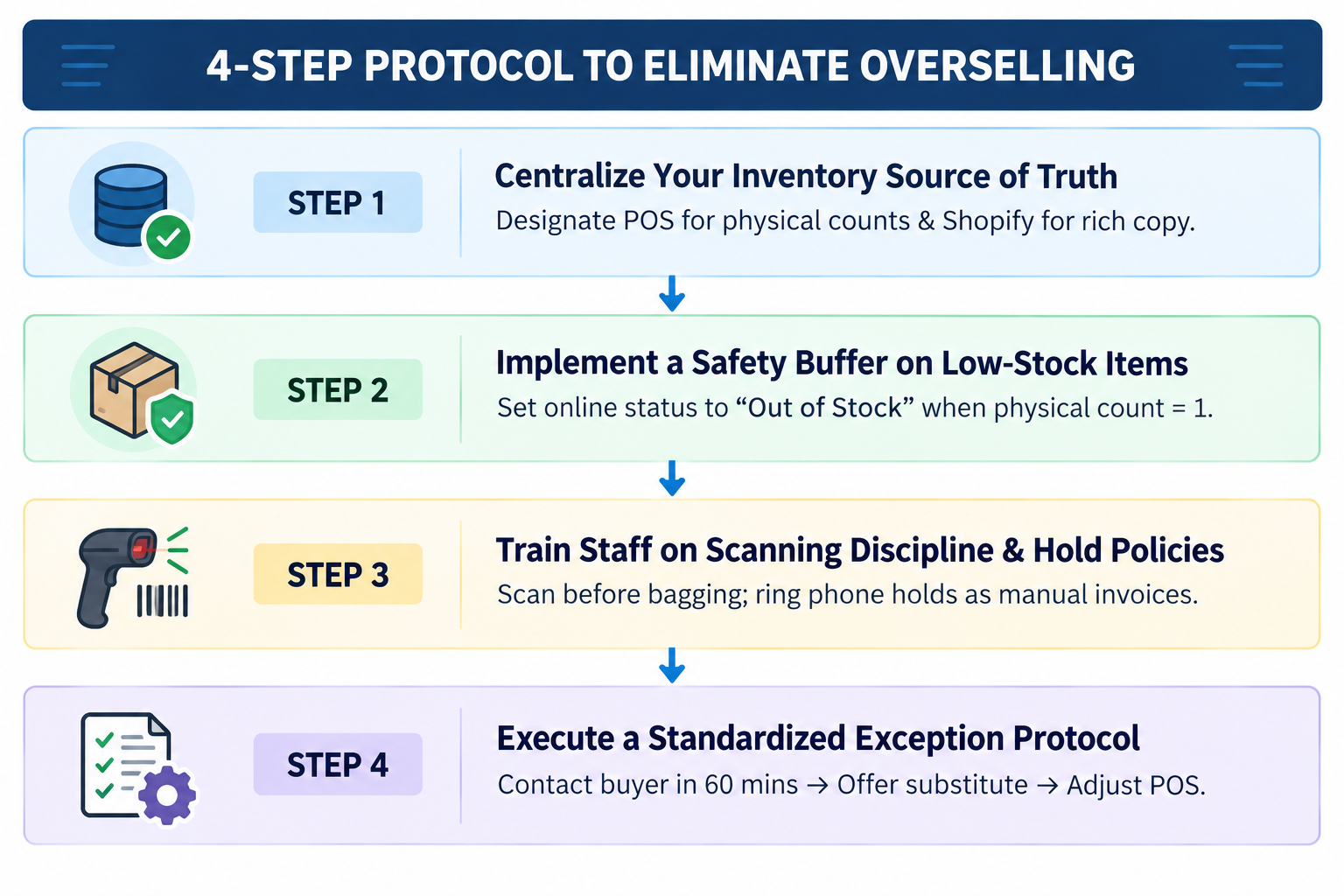
Step 1: Centralize Your Inventory Source of Truth
Define which system controls each type of product and inventory data:
- Choose a primary system for inventory: Decide which connected platform controls on-hand quantities and in-store pricing based on your retail setup.
- Manage online content in your eCommerce platform: Use Shopify, Wix, or BigCommerce for customer-facing descriptions and product images. Keep online merchandising fields there when your integration supports that setup.
Step 2: Implement a Safety Buffer on Low-Stock Items
A safety stock threshold can reduce the risk of a last-item race condition on fast-moving products.
- How it works: You configure your online storefront or middleware with a safety buffer rule (for example, Threshold = 1).
- The outcome: When your physical stock for a specific SKU drops to one unit, your online storefront automatically marks the item as "Out of Stock" or switches the button to "Join Waitlist."
- The benefit: Reserving the final unit for in-store sales reduces the chance of an online order competing for the same item.
Step 3: Train Staff on Prompt POS Scanning and Hold Policies
Consistent checkout and return procedures help keep inventory records accurate:
- Scan first, bag second: Enforce a strict checkout rule: items must be scanned through the register before they are placed into shopping bags or handed to customers.
- Record customer holds: If a customer reserves an item, record the hold in your inventory workflow instead of relying on a paper note. Use a supported POS reservation method or adjust the available quantity according to your store's process.
- Standardize return intake: When an online return arrives via mail or a customer brings an item back to the counter, inspect the item thoroughly before scanning it back into active POS inventory.
Step 4: Establish an Immediate Exception-Handling Playbook
When an edge case occurs and an out-of-stock item is purchased online, follow this three-step recovery workflow:
- Customer outreach: Contact the buyer promptly and explain the stock discrepancy clearly.
- Alternative resolution: Offer an available substitute or process a refund based on the customer's preference.
- Inventory correction: Audit the physical shelf and update the affected SKU in the POS.
How SKU IQ Helps Prevent Overselling Across POS and eCommerce
SKU IQ connects supported POS and eCommerce platforms so retailers can synchronize inventory without building a custom integration. It also supports product catalog and order synchronization across compatible platforms.
SKU IQ connects supported POS systems with eCommerce platforms to keep inventory and product data aligned. Order synchronization is also available for supported integrations.
1. Inventory Synchronization Across Connected Systems
SKU IQ keeps inventory quantities aligned between supported POS and eCommerce platforms. When a completed sale changes inventory in one connected system, SKU IQ can synchronize the updated quantity with the other platform.
This near-real-time synchronization reduces manual inventory adjustments and helps maintain consistent stock counts across channels.
2. Guided Link Report for Catalog Matching
Product records can use different identifiers across connected platforms. SKU IQ's Link Report checks inventory for potential matches based on title, SKU, or UPC.
Retailers review the matches and select the appropriate primary system before linking products. Linked items can then share inventory quantities and supported product data.
3. Attribute-Level Sync Controls
Retailers can keep selected product information managed within the platform best suited to that data. SKU IQ allows attribute-level control. You can configure physical stock quantities and prices to pull from your POS, while product descriptions, rich photography, and web categories remain governed by Shopify or Wix.
4. Combined Multi-Channel Activity Dashboard
SKU IQ provides a central dashboard for viewing inventory, recent orders, and synchronization activity across connected platforms. Retailers can also review recent synchronization activity when investigating inventory discrepancies.
5. Catalog Migration and Auto Push
SKU IQ supports product catalog migration between compatible platforms. This can reduce manual product entry when moving existing catalog data from one system to another.
Ready to connect your POS and online store? Start a 14-day SKU IQ free trial to connect supported POS and eCommerce platforms and keep inventory aligned across channels.
FAQs
1. How fast does POS-to-eCommerce inventory sync happen?
With dedicated cloud middleware like SKU IQ using event-driven webhooks, inventory quantity changes typically reflect across platforms within seconds of a completed transaction at your cash register.
2. What is a safety stock buffer, and should small retail shops use one?
A safety stock buffer is an automated rule that marks an item as "Sold Out" online once on-hand physical stock drops to a low number (usually one unit). Independent retailers selling unique, high-turnover, or fragile products should use a one unit buffer to eliminate the risk of simultaneous in-store and online checkouts.
3. Can I connect my existing Square, Clover, or Lightspeed POS to Shopify without buying new hardware?
Yes. Whether your store runs on Square, Clover, or Lightspeed, you do not need to replace your register terminals, cash drawers, receipt printers, or barcode scanners. Middleware connects your existing POS software to your eCommerce store via cloud APIs, keeping your current in-store setup intact.
4. What should I do if an online customer purchases an item that was already sold in-store?
Contact the customer immediately with transparent, empathetic communication. Apologize for the physical inventory discrepancy, offer an alternative color or size variant, or provide an immediate full refund along with a discount code on their next purchase. Then, audit your physical shelf and adjust the POS record immediately.
5. Do I need identical SKU numbers across my POS and online store for sync to work?
While having matching SKUs or barcodes makes initial setup faster, it is not mandatory. Onboarding tools like SKU IQ's Link Report analyze your existing product titles, barcodes, and variants to help you map and link items between platforms before automated synchronization starts.
Share this blog:







Sync and Manage Inventory Across Your Retail Systems
- No more spreadsheets or manual updates
- Real-time sync between POS and eCommerce
- One product catalog, every sales channel
- Save hours managing multiple systems

Ready to stop worrying about inventory?
Start a free trial and experience how much easier retail operations become when your systems stay in sync.