

Updated
October 28, 2026
WooCommerce Inventory Management: A Practical Guide for Brick-and-Mortar Retailers
WooCommerce inventory management helps retailers track products, variations, and stock across their online store. SKU IQ connects WooCommerce with supported POS systems to synchronize inventory and reduce duplicate catalog work.


TL;DR
- WooCommerce inventory management helps retailers track accurate stock across products and variations.
- Variation-level tracking keeps separate sizes and colors tied to their actual stock.
- Backorders and Hold Stock address different WooCommerce inventory and payment scenarios.
- POS syncing requires clear product matches, starting quantities, and stock correction rules.
- SKU IQ connects WooCommerce and supported POS systems while reducing duplicate inventory updates.
Selling through a physical store and WooCommerce should not mean maintaining two disconnected versions of your inventory. Your product records need to identify the same items, while quantities should reflect sellable stock. Your team also needs a clear process for inventory updates.
WooCommerce has a significant presence across the web. According to W3Techs, WooCommerce is used by 8.1% of all websites, highlighting the platform’s widespread use among online businesses.
For a small retailer, accurate inventory setup matters more than a long list of software features. WooCommerce provides controls for online stock, but managing product variations requires a clear setup. Shared inventory with your cash register adds another consideration. The goal is to keep running your store without adding a second round of data entry to every stock change.
This guide covers the WooCommerce inventory settings retailers should configure first. It also shows how to organize products and keep physical and online stock aligned. It also explains a manageable checking routine, common causes of mismatched counts, and how SKU IQ can help connect WooCommerce with a supported point-of-sale system.
What is WooCommerce Inventory Management?
WooCommerce inventory management covers how retailers organize product records and track available quantities. It also controls whether products are available for purchase. It includes stock notifications and separate counts for variations such as sizes and colors. For physical retailers, keeping those counts aligned with a separate POS requires a supported connection or another reliable update process.
Three terms are worth separating:
- Product record: The item’s details, including its name and available options.
- Stock quantity: The number of units recorded for a product or variation.
- Stock status: Whether the item is in stock, out of stock, or on backorder.
An “in stock” label does not necessarily mean WooCommerce is counting units. When stock management is disabled, availability can be set without maintaining quantities.
A separate point-of-sale system, or POS, records activity at your cash register. Turning on stock management in WooCommerce does not, by itself, pass those in-store sales to your online store. That requires a supported connection or another reliable update process.
Start by identifying the inventory job you need to handle. Online stock tracking has different requirements from POS syncing or advanced inventory planning.
How to Organize Products and SKUs in WooCommerce
Before importing products or connecting systems, check that your starting records are worth copying.
A SKU, short for stock keeping unit, is an identifier your store uses for an item. For separately tracked variations, use consistent identifiers that help staff and your chosen connection distinguish each item.
For example, “Everyday tee” could be the product name, “Blue / Medium” the variation, and “TEE-BLU-M” its SKU. This is an illustrative naming pattern, not a required WooCommerce format. WooCommerce allows variation SKUs to be left blank and can inherit the parent product’s SKU, so check that your identifier choices suit the connection you plan to use.
Review:
- Product names and size or color labels.
- SKUs and any duplicate records.
- Prices and the products you intend to sell online.
- Opening quantities, excluding damaged or otherwise unsellable items.
If products already exist in both systems, review how they will be matched before importing more records. Moving a catalog during setup is a one-time job. Keeping that catalog and its stock updated afterward is an ongoing job. Plan for both.
How to Set Up WooCommerce Inventory Management
Start at WooCommerce > Settings > Products > Inventory. WooCommerce’s documentation lists the store-wide stock controls here.
1. Enable Stock Tracking and Low-Stock Notifications
Enable stock management, then check the relevant product and variation records. The global setting does not supply your opening quantities. Enter accurate counts and choose product-level or variation-level tracking.
Turn on low-stock and out-of-stock notifications. Set the recipient to someone who will review them and act. An alert nobody owns is another unread email.
Choose thresholds that fit how you replenish each item. A low-stock threshold prompts a notification when the configured count is reached; it does not automatically place a supplier order. WooCommerce also has an out-of-stock threshold and stock display settings.
You can choose to show stock quantities, show them only when low, or not display the amount. Decide whether unavailable products should remain visible in the catalog, too. For variations, hiding unavailable options depends on the stock configuration and whether backorders are allowed.
2. Configure Backorders and Unpaid-Order Stock Holds
A backorder lets a customer order stock you do not currently have. WooCommerce can allow variation quantities to go below zero when backorders are enabled.
For a store selling from shelf stock, keep backorders disabled unless accepting those orders is a deliberate policy. If you allow them, make the expected wait clear and have a plan to fulfill the order.
Review Hold Stock (minutes) separately. This setting holds stock for unpaid orders in Pending payment. When the configured limit is reached, the pending order is canceled and held stock is released. It does not apply to orders in On hold, and it is not a universal timer for every shopping cart.
Save your settings and test the customer-facing result. Check whether an unavailable item can still be purchased and review its availability message. Confirm that stock emails reach the correct recipient.
How to Manage Stock for WooCommerce Product Variations
A product with options needs more thought than a single total.
In WooCommerce, an attribute is an option such as size or color. A variation is the combination the customer buys, such as Blue / Medium. A product containing these combinations is called a variable product.
Consider this illustrative stock count for an everyday tee:
- Blue / Small: 3
- Blue / Medium: 1
- Black / Medium: 4
You have eight shirts, but only one blue medium. A total of eight cannot tell a customer whether their preferred combination is available.
When each variation represents separate physical stock, enable Manage Stock? for the relevant variation and enter its quantity. WooCommerce’s variation-level tracking allows a sale to reduce the count for that variation rather than the other options.
Parent-level stock works differently: variations can draw from a shared product-level quantity. That suits options that genuinely use the same physical stock pool. WooCommerce also supports mixed setups. Some variations can have individual counts while others use the parent quantity.
For separate sizes and colors on your shelves, individual variation counts are the clearer starting point. Use a shared parent quantity only when it matches how the physical goods are actually stocked.
Shared stock between variations is not the same as shared stock between your POS and WooCommerce. One controls where variations draw their quantities inside WooCommerce; the other requires updates between two systems.
How to Sync Inventory Between WooCommerce and Your Physical Store
Two systems showing the same quantity should not turn one shelf into two inventories.
If five shirts are available to both in-store and online customers, a count of five in each system represents the same five physical shirts, not ten. The purpose of a connection is to pass supported changes between systems so their records reflect that shared supply.
The harder question is not where the quantity appears. It is which stock changes reach both systems, and who handles the exceptions.
1. Match POS and WooCommerce Products Before Syncing
Before connecting, confirm the exact POS and WooCommerce pairing, such as Clover + WooCommerce or Square + WooCommerce. Then review whether each online product or variation matches the correct item at the register.
Decide which opening values to keep if the records differ. A connection cannot decide whether the shelf count, POS record, or old online quantity reflects reality without a clear starting decision.
Also agree where staff will make stock corrections. Product information may follow different rules: where supported, you might maintain stock through the POS but write product descriptions online. You do not necessarily need one system to control every field.
Ask which information the connection passes, in which direction, and how it handles changes. Stock updates, product creation, and order handling are separate capabilities.
2. Test Inventory Updates for Sales, Returns, and Adjustments
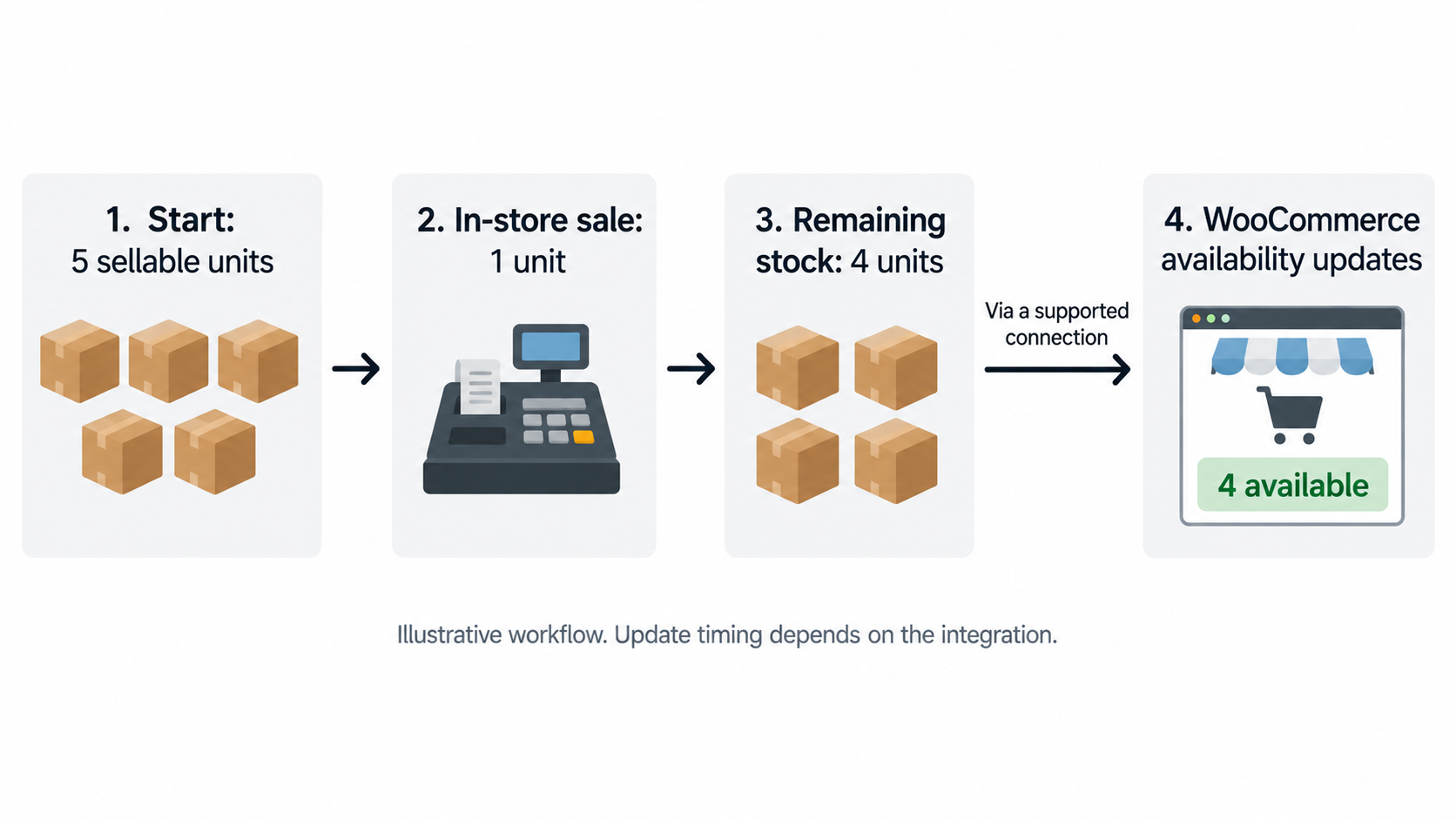
For an illustrative in-store sale, the intended sequence is:
Five sellable units → one unit sold → four units remain → WooCommerce availability updates through the connection.
Update timing depends on the integration. Do not assume both systems change at precisely the same moment.
Before relying on the setup, test an in-store sale, an online sale, a cancellation, a resellable return, a damaged return, and a delivery adjustment. For each, confirm what changes in each system and whether any manual action is needed.
Pay particular attention to returns. A refund, a physical return, and making an item sellable again are different events. Find out which actions adjust stock so staff do not apply the same change twice.
A combined order view is useful, but it does not establish that every order or refund is automatically entered into your POS. Verify the workflow your store actually needs.
WooCommerce Inventory Management Best Practices for Small Retailers
A connection can pass recorded changes between systems. Your team still needs a consistent process for recording what happens to physical stock.
Follow these best practices to keep WooCommerce inventory accurate:
- Record stock movements consistently: Log every inventory change in the agreed system so sellable quantities stay accurate.
- Count deliveries before updating stock: Confirm the number of sellable units received before adding new inventory to your records.
- Track variations separately: Maintain individual stock counts for sizes, colors, or other variations when each represents separate physical inventory.
- Review inventory issues daily: Check low-stock alerts and unresolved orders. Review any sync exceptions reported by your connection.
- Run regular cycle counts: Count a manageable group of products instead of waiting for a full inventory count. Prioritize fast-selling products and items that frequently show discrepancies.
- Handle returns carefully: Inspect returned products before adding them back to sellable inventory. Damaged or unsellable returns should stay out of available stock.
- Investigate discrepancies before correcting them: Identify why the physical count and recorded quantity differ. Then make one documented adjustment through your agreed process.
- Test connected inventory workflows: Confirm how sales and returns affect both systems. Test cancellations and manual stock adjustments separately.
Common WooCommerce Stock Problems and How to Troubleshoot Them
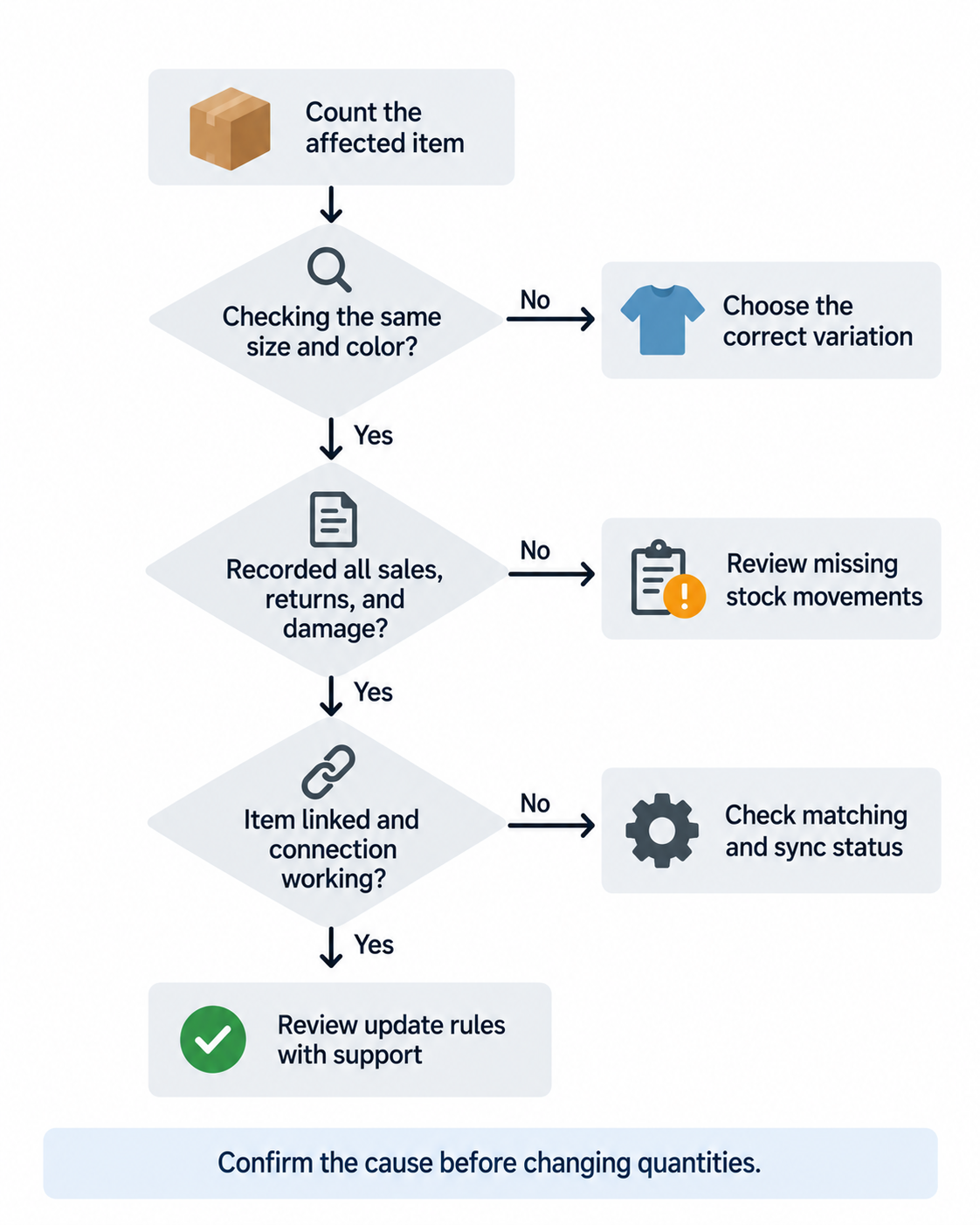
Changing a number can make two screens agree without fixing the reason they differed. Start with the affected item and trace the stock movement.
- A size is available online but missing on the shelf. Check the specific variation. A parent product total may include other sizes or colors. Count the item and review whether its stock is tracked at the correct level.
- An in-store sale has not appeared online. Check whether that exact item is linked, whether the connection is working, and what update timing it supports. Do not assume every catalog item was linked during setup.
- Stock increased twice after a return. Review the order history and staff actions. Look for an automatic adjustment followed by a manual one before making another correction.
- Quantities changed unexpectedly after an import or initial link. Review the starting values and matching decisions. Repeating a bulk update without checking its rules can repeat the same mistake.
These are checks to guide an investigation, not automatic diagnoses. If the correct quantity or update path is unclear, protect the affected item’s availability while you review it. Ask your integration provider for help rather than rerunning imports or changing unfamiliar settings on a live store.
How to Choose a WooCommerce Inventory Management Plugin or POS Connection
A longer feature list does not tell you whether a tool solves your problem.
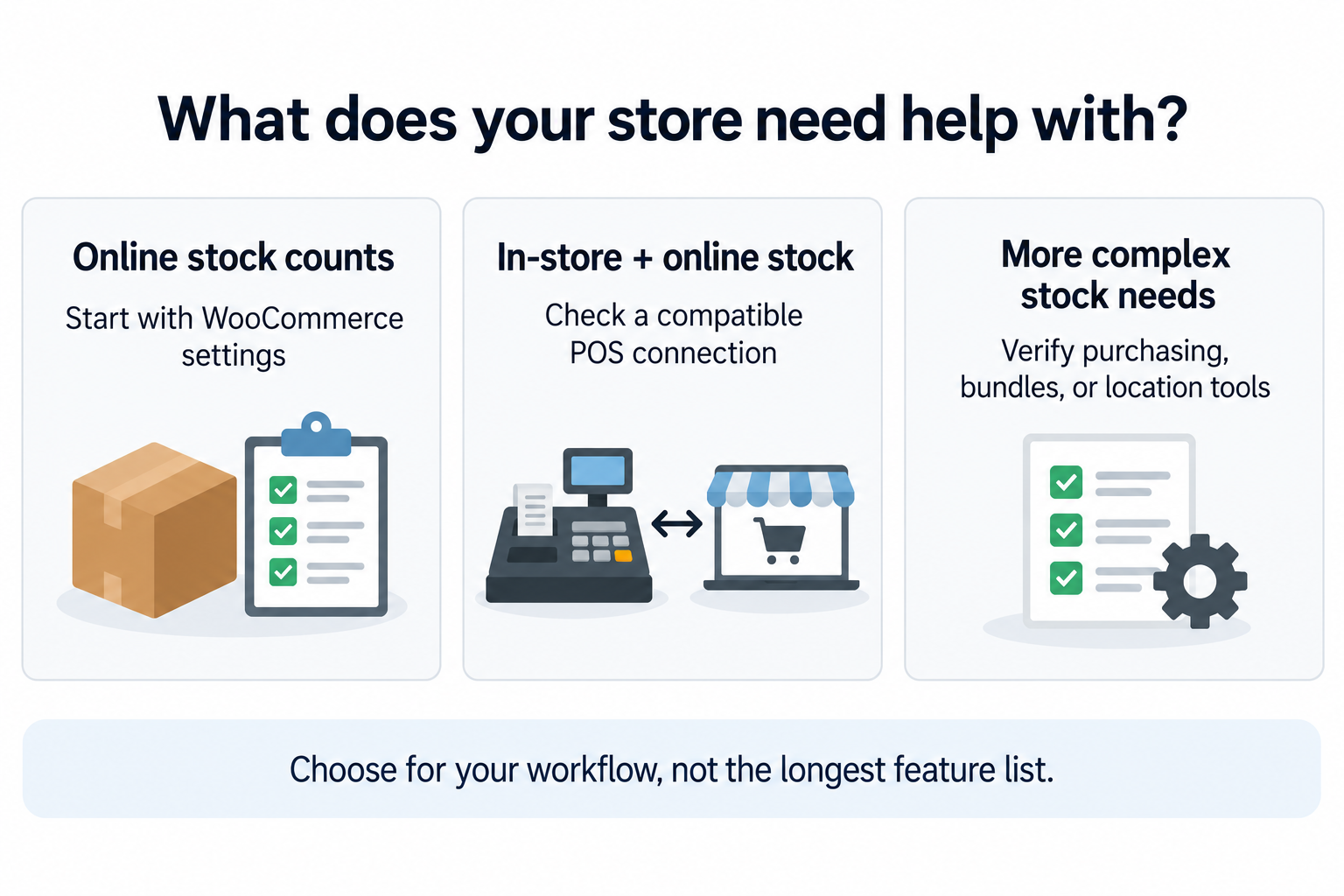
For basic online quantities and stock alerts, start with WooCommerce’s built-in controls. If the main job is keeping a separate POS and WooCommerce aligned, evaluate a connection for that pairing.
Purchasing, forecasting, bundle components, and location-specific fulfillment deserve separate checks. The WooCommerce Marketplace, for example, lists an Inventory Management extension with purchasing and forecasting features. Those should not be confused with the core stock settings covered above.
Before choosing a WooCommerce inventory management plugin or connection, ask:
- Does it support my exact POS version and WooCommerce setup?
- How are products and variations matched?
- Which updates pass between systems, and how quickly?
- What happens with cancellations, refunds, returns, and stock corrections?
- Does it support the locations and stock allocation rules I need?
- How will I find failed updates, get setup help, and understand the total cost?
Make the first practical step small: choose one product with variations and list the stock movements it goes through. Use that list to evaluate the tool, not the other way around.
How SKU IQ Helps with WooCommerce Inventory Management
SKU IQ connects WooCommerce with supported retail POS systems, helping retailers manage in-store and online inventory without maintaining separate product records. It works alongside your existing POS and WooCommerce store. Setup starts with connecting your WooCommerce store to SKU IQ, then linking or moving your products.
Here’s how SKU IQ can support your inventory workflow:
- Connect your existing catalog: Link or migrate corresponding products between your POS and WooCommerce. Review product matches and starting values during setup to establish accurate records.
- Keep inventory quantities aligned: Once products are linked and sync rules are configured, inventory synchronization helps WooCommerce quantities reflect supported in-store stock changes.
- Reduce duplicate product updates: Product synchronization can share supported catalog changes between connected systems, reducing the need to update the same information twice.
- Support product variations: SKU IQ supports variations, helping retailers connect products with options such as sizes and colors across WooCommerce and their supported POS.
- Control how information syncs: Configurable rules let you choose how supported attributes move between systems. Your POS does not need to control every WooCommerce product field.
- View orders in one place: SKU IQ provides a unified order view, giving retailers better visibility into orders across connected sales channels.
Accurate opening counts and product matches remain important. Staff should also record physical changes such as deliveries, damage, and returns consistently.
Ready to simplify WooCommerce inventory management? Start your free SKU IQ trial and see how connected inventory can support your retail workflow.
FAQs
1. Does WooCommerce have built-in inventory management?
Yes. WooCommerce includes quantity tracking, stock status, notifications, and product or variation-level inventory settings. These manage online stock; they do not automatically connect a separate POS or include every purchasing and forecasting feature.
2. Can I manage WooCommerce inventory without a developer?
The stock and variation settings covered here are available through WooCommerce’s admin screens. Connecting a separate POS still requires a supported integration and careful setup. For unfamiliar behavior, use the provider’s guidance rather than editing code.
3. How do I track stock for different sizes and colors?
Use a variable product and enable stock management for each variation with separate physical inventory. Enter the appropriate quantity and use identifiers that distinguish the variations. If you connect a POS, check that each variation matches the correct item.
4. Can my physical store and WooCommerce share the same stock?
Yes, provided your workflow has a reliable process for updating both systems, such as a supported connection. Treat the physical units as one shared supply. Verify product matching, update timing, and how sales, returns, and adjustments affect each record.
5. Is parent-level stock the same as sharing stock with my POS?
No. Parent-level stock lets variations within a WooCommerce product draw from a shared quantity. Keeping stock aligned with a separate POS requires an update process between the two systems. These solve different problems.
6. Should I enable backorders in WooCommerce?
Only if you intend to accept orders for unavailable stock and can explain when it will arrive. Backorders can allow quantities below zero. They are a selling policy, not a repair for inaccurate inventory.
Share this blog:







Sync and Manage Inventory Across Your Retail Systems
- No more spreadsheets or manual updates
- Real-time sync between POS and eCommerce
- One product catalog, every sales channel
- Save hours managing multiple systems

Ready to stop worrying about inventory?
Start a free trial and experience how much easier retail operations become when your systems stay in sync.