

Updated
October 28, 2026
How Fashion Retailers Can Connect In-Store and Online Shopping


TL;DR
- Keeping inventory synced between your POS and online store helps maintain accurate stock levels across both sales channels.
- Matching sizes, colors, SKUs, and quantities at the variant level helps prevent inventory discrepancies.
- Moving your existing product catalog to your online store reduces duplicate data entry and simplifies setup.
- Routing online orders into your existing POS workflow makes fulfillment and reconciliation easier to manage.
- SKU IQ connects supported POS and ecommerce platforms to keep inventory, product, variant, and order data aligned.
You already have a register you trust, whether it is Square, Clover, or Lightspeed. It holds your products, prices, and inventory. Once you add an online store, keeping that information consistent across both systems becomes essential.
A product sold in-store may still appear available online if inventory does not update across channels. The same problem can happen in reverse, leaving staff to correct stock counts, handle unavailable orders, or update product information manually.
Customer shopping behavior makes that connection increasingly important. McKinsey found that omnichannel customers shop 1.7 times more often than single-channel shoppers. Capital One Shopping reports that 86% of shoppers research products online, even if they ultimately buy in-store. Your online store can influence a purchase before a customer reaches the checkout counter.
Connecting online and in-store shopping starts with the systems behind the customer experience. Shared inventory, correctly matched variants, consistent product information, and connected order workflows give both channels the same information to work from.
This guide covers the five areas fashion retailers should address when connecting online and in-store shopping: shared stock, variant matching, catalog migration, online order routing, and the customer experiences these connections can support.
What connecting online and in-store experiences means for fashion retailers
Connecting online and in-store means your register and your website read and write the same information for the same item. One stock record. Matched variants. A catalog entered once. Orders in one place. These connections create the operational foundation for the experiences customers see.
It helps to separate two things that get talked about as if they were one.
Connecting is the plumbing. It is the link between your point of sale, the system at your counter that rings up sales and tracks stock, and your ecommerce storefront. When that link works, a sale on either side updates the other. Nobody outside your store ever sees this part.
The omnichannel experience is what customers notice. Accurate stock on your website. Returning an online purchase at your counter. Showing a customer the size you don't have on the rack. These are outcomes, not projects. These experiences depend on the underlying connection between your systems.
Fashion retail advice often focuses first on customer-facing omnichannel features. Larger retailers often invest heavily in customer-facing omnichannel features. A boutique with one store and a small team benefits more from getting its core systems aligned first. It needs its two systems to agree on how many navy dresses are left.
So let's start there. If you want to see which platform pairs can be connected, connect your POS and online store is the place to check yours.
One shared stock record, not a second system
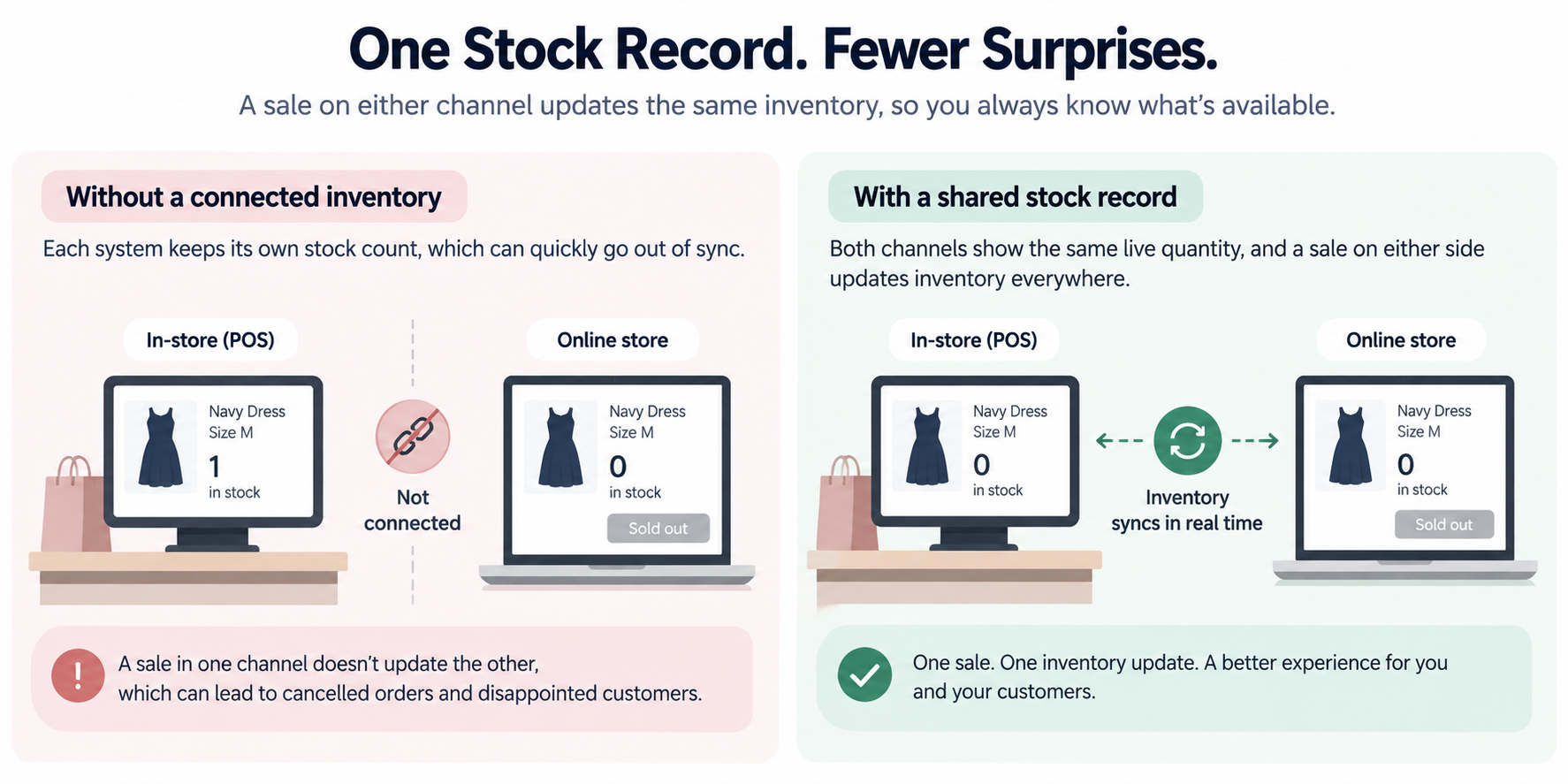
One shared stock record means the register and the website hold the same quantity for the same item, and a sale on either side lowers it on both. Without that, you are running two inventories and hoping they stay close.
A stock mismatch can quickly create a customer service problem. A customer buys the last medium navy dress online at 9 p.m. Your website shows zero, while your register still shows one. The systems have not exchanged the updated quantity. Saturday morning someone tries that dress on, loves it, and you have to explain that it's sold. You refund the online order if you catch it in time, or you eat the cost of a cancelled sale if you don't. Either way you spent time on a problem that had nothing to do with selling clothes.
The reverse happens too, and it's worse. You sell the dress in-store on a busy Saturday. The website keeps taking orders for it all weekend. Now you're emailing customers to apologize, and one of them leaves a review about it.
This does not mean replacing your POS. This is the part boutique owners worry about most, so it's worth saying plainly: connecting your systems does not require you to abandon the register you know. You keep ringing up sales the way you always have. The connection runs underneath, moving quantities between the two systems so you don't have to think about it.
If you're on Shopify and Square, that's the most common pairing for a boutique opening its first online store, see how Shopify and Square connect.
Variant matching: Where fashion retailers lose the most time
A variant is one sellable version of a product, a specific size and color. A dress in four sizes and three colors has twelve variants, which means twelve separate quantities that can drift out of step. Variant matching is where apparel retailers lose the most time.
1. A variant is not a product
On your website, the navy dress is one product page. In your inventory, there are twelve things. Four sizes, three colors, twelve quantities.
That distinction matters because most inventory problems in fashion happen at the variant level, not the product level. Your product page can look perfectly accurate while one variant has the wrong quantity. The dress, photos, and description may all appear correctly. A customer orders a medium in navy, you have none, and the product page gave no sign of trouble.
When you connect your systems, the matching has to happen at that level. Not "the navy dress is linked," but "the navy dress in medium is linked to the navy dress in medium." Twelve links, not one.
2. What has to match on both sides
Four things need to line up for each variant:
- Size: The same size scale on both sides. If your POS says "M" and your website says "Medium," they are two different things until you tell the system otherwise.
- Color: Same color name, spelled the same way. "Navy" and "Navy Blue" are not the same value to a computer.
- SKU: The code you use to identify that exact item. This is the most reliable thing to match on, because it's unique and it doesn't drift.
- Quantity: How many you actually have. This is the number that has to stay in step after everything else is matched.
One more thing worth knowing before you start: adding or removing a variant later is its own update. If you add a new color next season, that's a new variant to link, not an automatic change. It's a small task, but it's a task, and it's easier to handle if you confirm your variant list before you link anything.
If your storefront is Wix and your register is Clover, Wix and Clover is the pairing to look at.
Catalog migration: Entering products once, not twice
Moving your existing POS catalog into a new online store is a one-time launch project. Keeping it in sync afterward is the ongoing job. They are different tasks, and confusing them is why opening an online store feels bigger than it should.
Boutique owners may expect catalog setup to require extensive manual product entry. Existing catalog data can reduce the amount of manual product entry required during setup. It contains your prices, sizes, and current stock counts. The work is moving it across and confirming it landed correctly, not recreating it by hand.
1. Linking products across both systems
When you connect the two systems, the first step is matching what you already have on each side. The system proposes which POS item matches each online item. You review these matches through a link report instead of starting with a blank spreadsheet.
You confirm the matches that are right and fix the ones that aren't. For a boutique with a few hundred products, this is a session, not a project. For a larger catalog, it takes longer, and it's the step where support can help by linking in bulk.
2. Choosing the source of truth per field
Here's the decision that surprises people: for each field, you pick which record to keep.
Say your POS has the correct prices because that's where you update them, but your website has better descriptions because you wrote them carefully for online shoppers. You can keep prices from the POS and descriptions from the website. The system then brings the other side into line so both agree.
This is worth thinking through before you start, because it's much easier to decide once than to fix later. A common setup for a boutique: prices and stock from the POS, descriptions and images from the website.
Once the catalog is across and linked, new items you add can be pushed to the other side automatically, so you're not repeating this process every time you buy something new.
If you're running Shopify with Lightspeed, Shopify and Lightspeed covers that pairing.
Routing online orders into the POS workflow
An online order should show up where you already fulfill and reconcile, not in a second system you have to remember to check. If a sale on your website means opening a different dashboard to process it, the connection is only half finished.
The sequence you want is simple. An order comes in online. The stock drops on both sides, so the item stops being sellable before someone else buys it. You fulfill it from the same place you handle everything else, and it lands in your records alongside your in-store sales.
That last part matters more than it sounds. When online and in-store sales end up in the same place, your end-of-day numbers are one set of numbers. You're not adding two reports together at month end, and you're not wondering whether a sale got counted twice.
One honest caveat. Exactly how orders move between systems depends on which POS and which storefront you're using, and that behavior varies by pairing. Order behavior varies by setup. Check which platform pairs are supported before relying on a specific workflow.
The in-store and online customer experience
Connected inventory and order data support several customer-facing experiences. Accurate availability is one of the most immediate benefits. Here's what actually changes for your customers.
1. Accurate stock on the website
Accurate online inventory helps customers know what is available before they visit your store. When your website reflects your actual stock, shoppers can check availability before making the trip.
A customer can arrive knowing the dress she wants is available. Your staff also spends less time correcting stock discrepancies or explaining why an item shown online is no longer available.
2. Cross-channel returns and exchanges
Buying online and returning in-store is one of the most requested features in retail, and it only works when both sides can see the same sale. If your website sold it and your register has no record of it, your staff can't process the return without a workaround.
When the sale exists on both sides, a customer walks in with an online order and your staff handles it like any other return. That's a small thing that reads as competence to a customer, and it's the difference between shopping with you again and not.
3. Endless aisle and cross-channel loyalty
Two more things become possible, and both are worth keeping in proportion.
Endless aisle means showing a customer the full selection in-store, even items you don't have on the rack. If she wants the size you're out of, you can order it for her from the same stock record. It's useful, but it's a nice-to-have, not the reason to connect your systems.
Loyalty across channels means recognizing the same customer whether she bought in-store or online. Larger brands invest heavily here, and the tools are real. But a loyalty program layered on top of two inventories that disagree will just frustrate people faster. Get the stock right first.
For the same reason, we'd put shoppable video and live streaming in the same category: genuinely effective for brands built around them, and not where a one-store boutique should start. If you're on WooCommerce with Clover, WooCommerce and Clover are your pairing.
The setup sequence
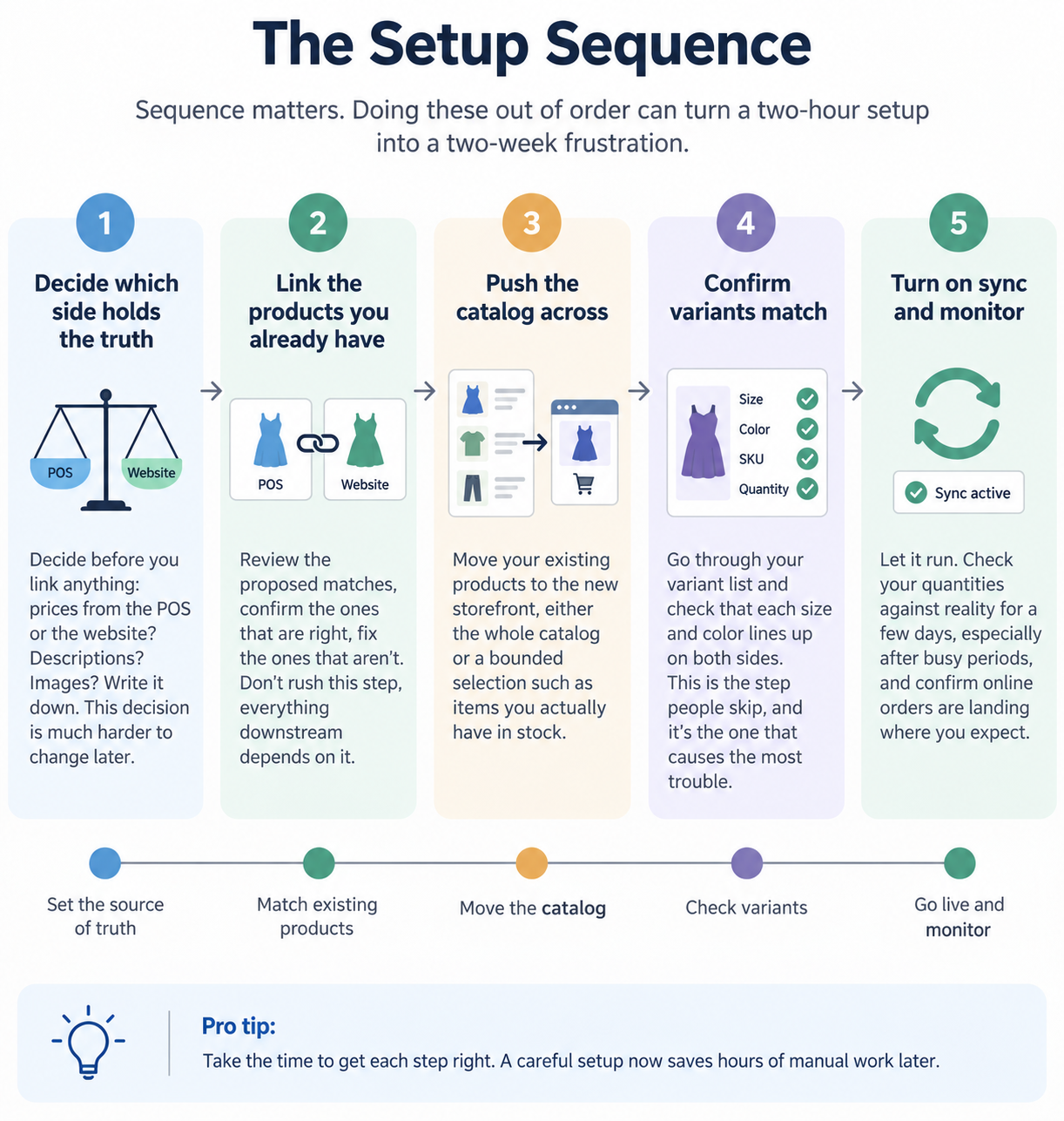
Sequence matters here. Doing these out of order is what turns a two-hour setup into a two-week frustration.
1. Pick which side holds the truth for each field. Decide before you link anything: prices from the POS or the website? Descriptions? Images? Write it down. This decision is much harder to change later.
2. Link the products you already have on both sides. Review the proposed matches, confirm the ones that are right, fix the ones that aren't. Don't rush this step, everything downstream depends on it.
3. Push the catalog across so nothing is entered twice. Move your existing products to the new storefront, either the whole catalog or a bounded selection such as items you actually have in stock.
4. Confirm variants match, size, color, SKU, quantity. Go through your variant list and check that each size and color lines up on both sides. This is the step people skip, and it's the one that causes the most trouble.
5. Turn on ongoing sync and watch the first week of orders. Let it run. Check your quantities against reality for a few days, especially after busy periods, and confirm online orders are landing where you expect.
Common issues when connecting your POS and online store
Even with the right setup sequence, a few mistakes can create inventory and order issues later. Watch for these common issues as you connect your systems and start syncing products, variants, and stock.
1. Treating variants as products
The symptom: your product page looks fine, but individual sizes drift out of step. The fix: match at the variant level, not the product level. Twelve links for a dress in four sizes and three colors.
2. Assuming sync is instant and infallible
The symptom: a brief window where both channels still show the same item as available. The fix: understand that updates travel through each platform's connection, and that timing depends on those systems. This is a limitation to plan around, not a defect to complain about.
3. Letting the catalog grow past what the connection handles well
The symptom: slower, less predictable syncing as your product count climbs. The fix: know your catalog size before you commit. Very large catalogs, in the tens of thousands of parent products, can become brittle, because the connection depends on each platform's own limits.
4. Buying the experience layer first
The symptom: a loyalty app or a video tool sitting on top of two inventories that disagree. The fix: shared stock first, always. Every experience feature is only as good as the stock record underneath it.
How SKU IQ helps fashion retailers connect online and in-store experiences
SKU IQ is the connection layer between the register you already use and the online store you're opening. It works alongside your existing POS as a connection layer between your retail systems. It links the two systems you have and keeps them in step.
Here's what that looks like in practice:
- One shared stock record. A sale on either side updates the other, so you stop selling the same dress twice.
- Variant-level matching. Size and color line up on both sides, not just the product.
- Catalog migration. Your existing POS catalog moves to your online store instead of being typed in again.
- Orders in one place. Online orders land in the POS workflow you already use.
- A combined view. Products, inventory, orders, and recent sync activity in one place, for when you want to check.
Setup is guided and no-code. You review the proposed product matches, choose which side holds the truth for each field, and confirm your variants. For a boutique with a few hundred products, that's a session. Larger catalogs take longer, and support can link in bulk.
Start a free trial today and link your first products, no developer, no new register, no second inventory.
FAQs
1. Can a small boutique sync inventory between its POS and online store without hiring a developer?
Yes. The connection is set up through a guided, no-code process: you link the products that already exist on both sides, choose which record to keep for each field, and the systems keep quantities in step from then on. No development work is required from the merchant.
2. What happens when the same item sells in-store and online at the same time?
The quantity drops on both sides as each sale is recorded, so the item stops being sellable once stock reaches zero. Because updates travel through each platform's connection, there can be a brief window where both channels still show the item, which is why keeping quantities accurate matters more than speed.
3. Do I have to re-enter my whole catalog to open an online store?
No. Your existing POS catalog can be pushed across to the new storefront, either in full or as a bounded selection such as items with positive quantity. That turns opening the online store from a weeks-long typing project into a guided launch step you do once.
4. How do size and color variants stay matched between the POS and the website?
Each sellable version, a specific size and color, is matched to its counterpart on the other side, and quantities sync at that level rather than at the product level. Adding or removing a variant later is its own update, so it is worth confirming your variant list before you link.
5. Where do online orders show up if I want to keep using my POS?
Online orders can be brought into the POS workflow so you fulfill and reconcile in the system you already use, rather than checking a second dashboard. Exact behavior varies by platform pair, so confirm your specific POS and storefront combination before you rely on it.
6. How long does it take to connect a POS to an online store?
The connection itself is quick; the variable is your catalog. Linking a small boutique's products is a short session, while a large catalog takes longer and may need support to bulk-link. Plan for the linking step, not the setup step, to be the real work.
Share this blog:







Sync and Manage Inventory Across Your Retail Systems
- No more spreadsheets or manual updates
- Real-time sync between POS and eCommerce
- One product catalog, every sales channel
- Save hours managing multiple systems

Ready to stop worrying about inventory?
Start a free trial and experience how much easier retail operations become when your systems stay in sync.