

Updated
October 28, 2026
WooCommerce POS Integration: Best Options for a Small Physical Retail Store
WooCommerce POS integration comes in three forms: a native POS, a connector app, or a full inventory suite. SKU IQ fits the connector route, linking your existing POS with WooCommerce to help keep supported product, inventory, and order data connected across both systems

TL;DR
- WooCommerce POS integration comes in three forms, including a native POS, connector app, and full inventory suite, with each serving different retail needs.
- Connector apps let retailers connect their existing POS with WooCommerce while keeping the register their staff already use.
- Setting the sync direction before connecting systems helps determine which platform controls stock, prices, descriptions, and other supported data.
- The right WooCommerce POS integration depends on your existing POS, number of locations, catalog size, and operational requirements.
- SKU IQ connects supported POS systems with WooCommerce to help keep product, inventory, and order data connected without replacing your existing register.
"WooCommerce POS integration" describes two different purchases, and most of what ranks for it never tells you which one you are making.
One option is a point-of-sale system that runs inside WooCommerce. Another is a connector that links the register already on your counter with your WooCommerce store. That register keeps doing its job while the connector helps both systems stay aligned.
Both get called integration. They cost differently, they take different amounts of work to set up, and they fit different stores. Choosing the wrong option often becomes obvious a month later. Staff need retraining, the catalog gets entered again, or you pay for warehouse features your store never uses.
This guide explains the three types of WooCommerce POS integration, how to choose the right one, and what to check before setup. It also covers sync direction, costs, common mistakes, and where SKU IQ fits if you want to keep your existing register.
What WooCommerce POS integration actually means
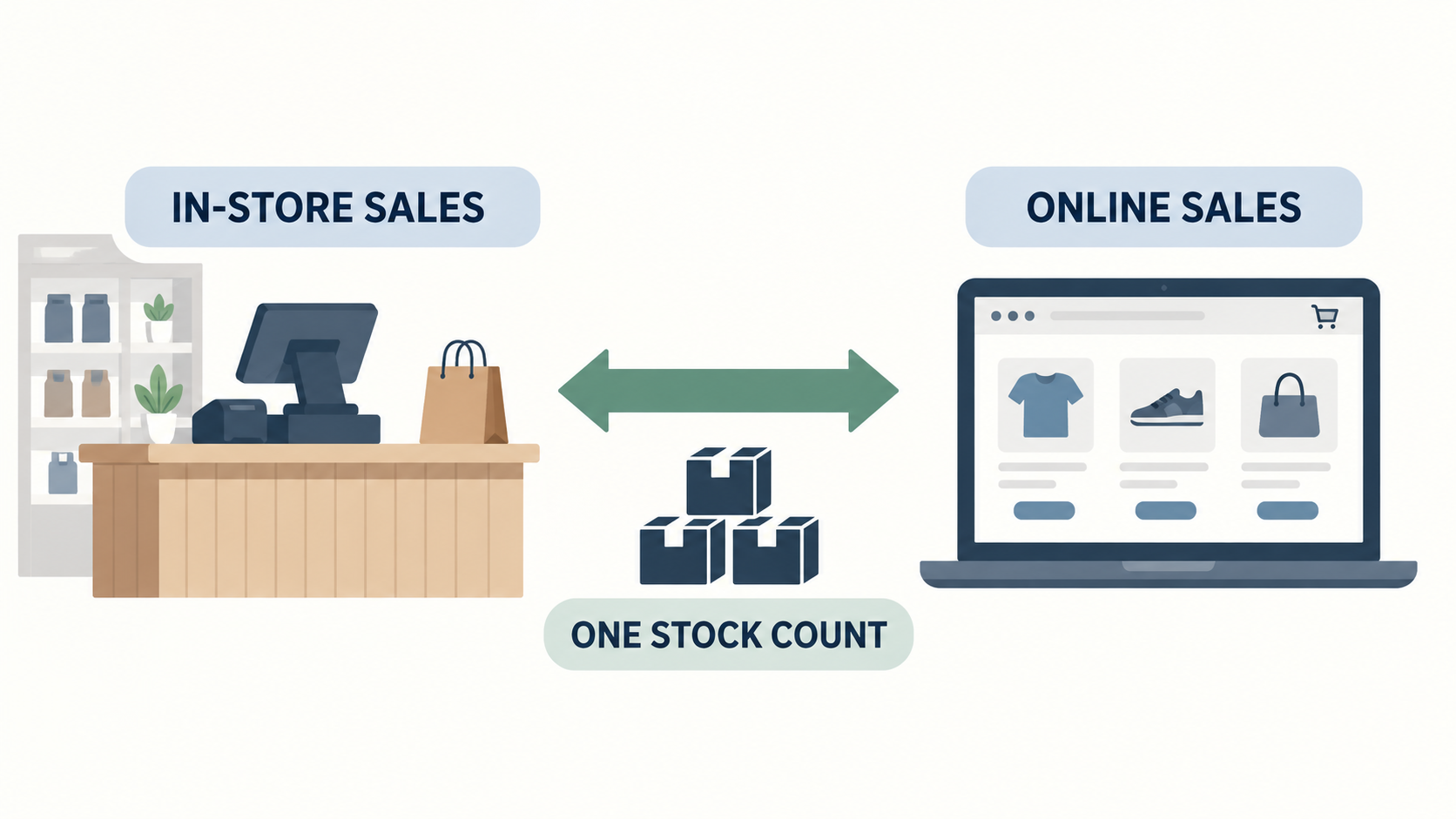
WooCommerce POS integration is the link between the till where you ring up in-store sales (the point-of-sale (POS)) and your WooCommerce store, so the two agree on your stock, your products, and your orders. One version of it replaces your till with software that lives inside WooCommerce. The other connects the till you already own.
Start with the problem on the online side. Your stock is real and finite: you own twelve of something, not twelve in the shop and twelve on the web. Without a connection, the store and the register each hold their own count. An item sells on the counter, the website still thinks it is available, someone orders it, and now you are emailing an apology and refunding a sale you never had stock for. The same thing happens in reverse when an online order never comes off your shop floor count.
Now the problem on the counter side. Your staff already know your register. They know where the returns button is, how the scanner beeps, what to do when a card declines. A point-of-sale system that runs inside WordPress asks them to learn a new one, and asks you to buy new hardware and reset your payments setup. That is a real cost, and most comparison articles leave it out because it does not fit neatly in a feature table.
Those two challenges lead to three different integration approaches: a native WooCommerce POS, a connector app, and a full inventory suite. Each exists for a different starting point, and the rest of this guide is about matching your store to the right one.
The three kinds of WooCommerce POS integration, and who each one is for
The three options below show what each tool does, who it suits, and the key trade-offs to consider.
1. Native WooCommerce POS
A native WooCommerce POS runs inside your WordPress and WooCommerce installation. Sales and catalog data live in the same system, removing the need for a separate stock source.
- What the tool does: Turns WooCommerce into the system you use to ring up sales and manage your catalog.
- Who it suits: Online-first retailers or new stores that are comfortable making WooCommerce their source of truth.
- Key trade-off: Staff need to learn a new interface, while in-store hardware and payment processes may need to change.
2. Connector apps
A connector app acts as middleware between your existing register and WooCommerce. It keeps supported information aligned without replacing the POS your staff already use.
- What the tool does: Connects your existing POS to WooCommerce and syncs supported stock, product, and order data.
- Who it suits: Established retailers that already use a POS and want to add or connect a WooCommerce store.
- Key trade-off: Supported fields and sync directions vary depending on the POS and WooCommerce connection.
3. Full inventory suites
Full inventory suites go beyond connecting sales channels. If your goal is connecting WooCommerce with an existing register, compare that approach with SKU IQ's WooCommerce integrations. They add operational tools for businesses with more complex inventory requirements.
- What the tool does: Supports functions such as purchasing, receiving, warehousing, forecasting, wholesale pricing, and multiple locations.
- Who it suits: Retailers managing warehouses, multiple locations, wholesale operations, or more complex inventory workflows.
- Key trade-off: A single-store retailer may pay for additional functionality and setup that the business does not need.
How the three kinds of WooCommerce POS integration compare
The table below compares the three options by fit, trade-offs, and examples.
Five questions that tell you which WooCommerce POS integration type you need
Answer these before you open another pricing page. The five answers point at one of the three categories, and only then does comparing individual products make sense.
1. Which system do your staff already know?
Retraining the counter is the most expensive hidden cost in this decision. If your team is fluent on the register and the shop runs on it, a connector protects that. A native POS throws it away.
2. How many locations do you run?
One or two is connector territory. If you are running a stockroom and several store locations with stock moving between them, you have outgrown connectors and a full suite starts to earn its cost.
3. Who should own your stock count, the store or the register?
Whichever system is right more often should win, and for most retailers that is the register, because that is where the sale physically happens. This answer becomes a setting later, so decide it now.
4. How many products and variants do you actually sell?
Catalog size, not order volume, is what strains an integration. A "variant" is one version of a product, such as the same shirt in medium and large or the same candle in three scents, and each one needs to match correctly across two systems. If you already sell on WooCommerce, our WooCommerce inventory management guide shows how to set up stock for each variation before you connect anything.
5. Do you need purchasing, warehousing, or wholesale?
If all three answers are no, you are shopping in the wrong category, however good the suite is.
How WooCommerce POS integration works when you keep your register
Retailers with an established POS can use the connector approach to preserve familiar checkout workflows. This section covers when that approach works well and when another integration type may be a better fit.
Stores that already rely on a POS can use a connector to link WooCommerce with their current setup instead of replacing the register.
A connector is the right answer when the counter works and the online store is the new part. You keep selling the way you already sell. The store gets its stock from the same count the counter uses. Online orders land where your staff already look, instead of in a dashboard nobody opens. You buy no new hardware, and you retrain nobody.
Three situations make a connector the wrong answer. You have no POS at all, in which case there is nothing to connect and a native WooCommerce POS is simpler. You run several locations with a warehouse and transfers between them, which is a full suite's job.Another consideration is catalog size, because connectors work through each platform's API. Very large catalogs may take longer to sync and require additional validation during setup.
A connector is also not a POS, not your storefront, and not a warehouse system. It is the link between systems you already chose. When it is sold as anything more than that, the disappointment arrives later.
Sync direction in WooCommerce POS integration decides more than any feature list
Two things matter more than any comparison table: what actually moves between your systems, and which side is allowed to win. This section covers both, then gives you three checks to run before you connect anything.
What actually moves between the two systems
"Sync" means the two systems agreeing on what you have. In practice, four things move: stock quantities, product details like titles and descriptions, variants, and orders. Which of those travel in which direction, and how quickly, depends on which POS and which storefront you are pairing, because a connection can only do what each platform's API allows. So "works with everything" is not a feature. It is a warning.
Why the WooCommerce POS integration direction setting matters more than the checklist
Here is the thing most comparison articles never mention: you usually get to decide which side wins per attribute. Descriptions might come from your store, where good copy is easy to write. Prices might come from the register, where you actually make pricing decisions. Stock might flow both ways so either channel can sell down the count.
Deciding this before the first sync is what prevents the problem buyers usually discover afterwards, the one where connecting the two systems quietly overwrote product data with whichever version the tool happened to prefer. Most connectors walk you through an initial match-up step for exactly this reason, and that is the moment to slow down.
Three checks before you connect anything:
- Confirm your exact POS-and-storefront pair is supported. Pairs are not interchangeable.
- Confirm which fields sync, and in which direction, before you trust the default.
- Confirm your catalog size sits inside the tool's documented limits.
What WooCommerce POS integration costs a small store, and the three mistakes that cost more
Prices move, so this section stays with the shape of the spending rather than quoting numbers. It then names the three mistakes that end up costing more than the subscription itself.
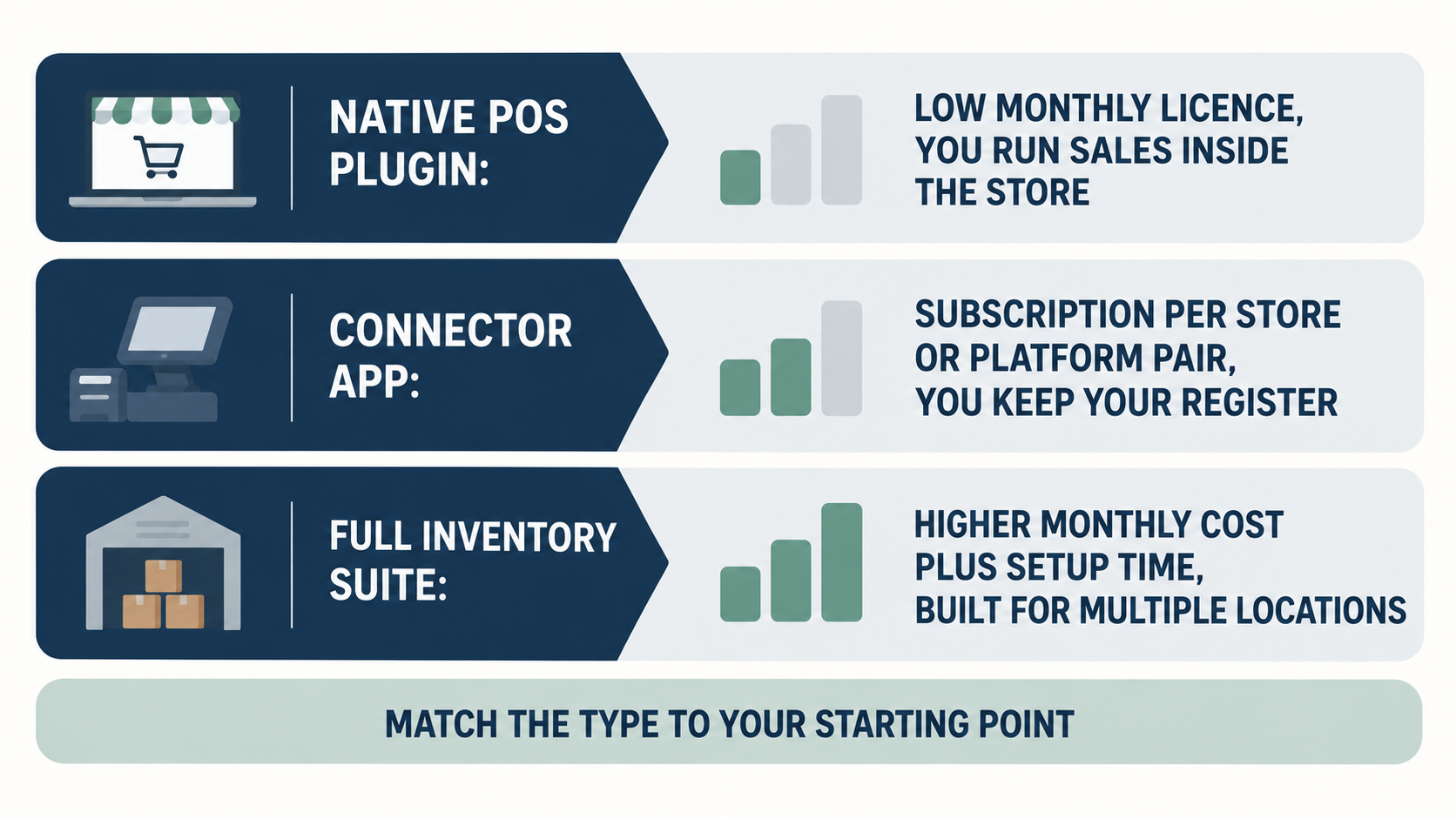
Native WooCommerce POS plugins are usually a low monthly or annual license, sometimes free, and you pay in staff retraining and hardware instead. Connector apps are subscriptions, typically priced per store or per platform pair. Full inventory suites cost the most per month and add implementation time on top.
The right comparison is not license against license. It is the fee against the work it removes: an hour a week of re-entering stock, a refunded sale you could not fulfill, an evening spent fixing counts that drifted apart.
Three mistakes show up again and again:
- Buying a suite for a one-store operation. You pay for purchasing, warehousing, and multi-location logic you will never configure.
- Installing a POS plugin when the counter already works. You take on retraining, new hardware, and a rebuilt payments setup to solve a problem you did not have.
- Connecting two systems without deciding who owns each attribute first. This one is free to prevent and annoying to undo.
Match the type of tool to where you are starting. Only then compare individual products.
How SKU IQ supports WooCommerce POS integration
SKU IQ is a connector rather than a POS, storefront, or full inventory suite. It links a supported POS with WooCommerce. Retailers keep their existing counter setup while connecting it with their online store.
Here is where SKU IQ fits into the process:
- Match existing products: SKU IQ proposes matches between products in your POS and WooCommerce, helping you connect existing catalogs.
- Keep stock aligned: Stock quantities stay in step between supported connected systems as sales take place.
- Manage new products: Items added later can be picked up and pushed across, reducing repeated product entry.
- Set data rules: Where supported, you can decide which system controls details such as descriptions or prices.
- Review connected activity: A combined view helps you check products, inventory, orders, and recent sync activity across connected systems.
SKU IQ publishes WooCommerce connections for Clover and WooCommerce, Square and WooCommerce and Lightspeed Retail and WooCommerce. Check your specific platform pair and supported fields before setup.
SKU IQ also has clear boundaries. It does not replace your register or run warehouse operations. Supported platforms, fields, and sync behavior depend on each platform’s API, making it important to confirm compatibility before connecting your systems.
Connect WooCommerce to your existing POS with SKU IQ
If your existing POS already works for your store, SKU IQ can connect it with WooCommerce without changing how you sell at the counter. Keep your familiar setup while supported product, inventory, and order data stays connected across your systems. Setup starts with connecting your WooCommerce store to SKU IQ, then your POS, and then reviewing the proposed product matches.
Ready to connect your POS and WooCommerce? Start your free trial.
FAQs
1. What is a WooCommerce POS integration?
A WooCommerce POS integration connects the system used for in-store sales with your WooCommerce store. It helps keep supported data aligned across the connected systems. The integration can take three forms: a POS that runs inside WooCommerce, a connector for your existing POS, or a full inventory suite for broader inventory operations.
2. Can I connect Square, Clover, or Lightspeed to WooCommerce instead of switching POS?
Usually yes, if your exact platform pair is supported. That is what connector apps do, and it is why many one-store retailers never change registers. Confirm your specific pair and which fields sync before you assume it works, because support is decided pair by pair, not by brand.
3. Does WooCommerce POS integration sync inventory both ways?
Most connectors can move stock in both directions, but the more useful question is who wins per attribute. Setting the source of truth for stock, prices, and descriptions before your first sync is what stops one system from overwriting the other later.
4. How much does WooCommerce POS integration cost?
A native plugin is usually a low monthly or annual license, a connector is a subscription priced per store or platform pair, and a full suite costs more per month plus setup time. Weigh the fee against the double entry it removes rather than comparing licenses head to head.
5. Do I need WooCommerce POS integration if I sell only online?
No. With no counter, there is nothing to connect. This guide is for retailers running a physical store and an online store at the same time, so a purely online seller should skip straight to a different article.
6. Will connecting my POS to WooCommerce keep my existing products?
Yes, that is the purpose of the initial match-up step. The connector proposes matches between your two catalogs, you choose which side's values to keep for each record, and the linked records are kept in agreement from then on.
Share this blog:







Sync and Manage Inventory Across Your Retail Systems
- No more spreadsheets or manual updates
- Real-time sync between POS and eCommerce
- One product catalog, every sales channel
- Save hours managing multiple systems

Ready to stop worrying about inventory?
Start a free trial and experience how much easier retail operations become when your systems stay in sync.