

Updated
October 24, 2026
How to Connect Lightspeed Retail Inventory to Shopify
Synchronizing Lightspeed Retail inventory with Shopify helps retailers maintain consistent stock counts across physical and online stores. SKU IQ can help automate this process, reduce inventory discrepancies, and prevent overselling.


TL;DR
- SKU IQ connects Lightspeed Retail R-Series and X-Series with Shopify eCommerce to synchronize inventory quantities across both platforms.
- Stock quantity changes sync automatically between linked products, typically taking around three minutes on average.
- Before connecting, back up inventory data, enable inventory tracking, and verify product identifiers, structures, and quantities.
- Use SKU IQ's Link Report to match existing products by title, SKU, or UPC, and product pushing to create missing records.
- Test inventory synchronization before linking your full catalog, and regularly review stock counts, variants, locations, and unlinked products.
You can connect Lightspeed Retail inventory to Shopify so your store and online stock counts match. It works with both R-Series and X-Series, and once products are linked through SKU IQ, stock changes show up in both places.
Inventory accuracy carries a direct cost. The National Retail Federation reports that persistent stockouts cost retailers nearly $1 trillion worldwide each year. Keeping store and online quantities coordinated can reduce the inventory discrepancies behind unavailable products and missed sales.
Here is a simple case. A customer buys the last blue jacket on your Shopify store at 2 p.m. Without a sync, your shop still shows it in stock, so a walk-in customer may buy it too. With a sync, the count drops in both places within about three minutes.
The sync works with the systems you already use, so your POS and online store stay as they are. This guide covers six areas of a Lightspeed and Shopify sync: catalog preparation, account setup, product linking, order records, location settings, and post-launch checks.
Can Lightspeed Retail inventory sync with Shopify?
Yes. SKU IQ connects supported Lightspeed Retail systems with Shopify eCommerce so linked products can communicate stock quantity changes between platforms.
SKU IQ currently supports Lightspeed Retail R-Series and X-Series, formerly Vend. Shopify appears on its list of supported eCommerce platforms. Shopify POS and other Lightspeed versions sit outside that list.
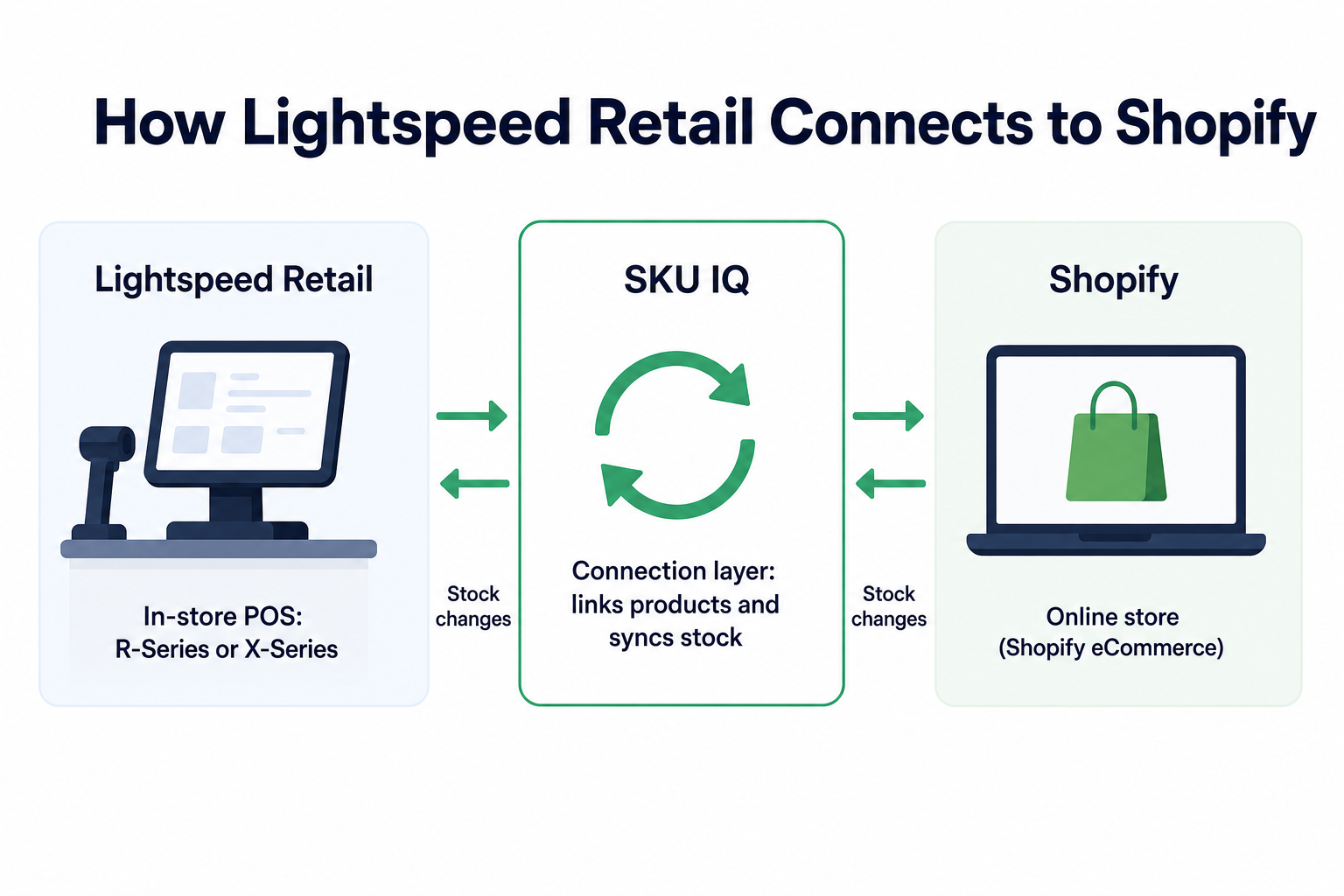
Lightspeed stays the physical-store POS, while Shopify remains the eCommerce storefront. SKU IQ sits between them as the connection layer. Retailers can review the broader set of supported SKU IQ integrations before setup.
Which Lightspeed Retail versions can connect through SKU IQ?
SKU IQ currently supports Lightspeed Retail R-Series and Lightspeed Retail X-Series, formerly Vend. Other Lightspeed versions are currently outside its supported-platform list.
Each follows its own authorization and inventory rules, so identify your version first.
1. Lightspeed Retail R-Series
R-Series connects through an authorization process. In SKU IQ, select Connect and sign in with your regular Lightspeed Retail credentials, then authorize the application.
Lightspeed redirects you back to SKU IQ once authorization completes. You can also review SKU IQ's Lightspeed R-Series integration page for compatibility and inventory-sync information.
R-Series plans can vary by customer, so SKU IQ advises confirming that your plan supports third-party integrations and inventory tracking before connecting.
2. Lightspeed Retail X-Series
SKU IQ also supports Lightspeed Retail X-Series, formerly Vend. The X-Series requires inventory tracking for items that need to synchronize with eCommerce.
Products with inventory tracking turned off may report zero or null stock values. SKU IQ warns that this can distort online availability or increase overselling risk.
What should you do before syncing Lightspeed inventory with Shopify?
Prepare both catalogs before linking products or choosing an inventory source. Start by checking inventory tracking, identifiers, product structures, and current quantities.
A clean starting point makes product matching easier. It also helps you select an accurate quantity when SKU IQ creates each link.
1. Back up your inventory data
Create a backup of important product and inventory information before linking the catalogs. SKU IQ provides backup guidance for both supported Lightspeed systems and Shopify.
SKU IQ also recommends backing up both platforms before completing a linking event. That backup gives you a reference point if catalog information needs checking later.
2. Turn on inventory tracking
Shopify products that need quantity sync must have inventory tracking enabled. SKU IQ lists this as a preparation step before connecting Shopify.
X-Series users should also check inventory tracking in Lightspeed. SKU IQ states that this setting must be active for X-Series stock quantity sync to work correctly.
3. Check product identifiers and structures
SKU IQ's Link Report checks for potential matches using three identifiers:
- Product title
- SKU
- UPC
Consistent identifiers can make those relationships easier to verify. Products also need the same general structure on both platforms. A single product on one side seldom matches a variable product on the other.
4. Identify your accurate starting quantities
SKU IQ asks you to select a Primary System, or source of truth, during linking. The chosen platform provides the inventory quantity used to unify the linked records.
Review your quantities before making that selection. If neither side reflects physical stock accurately, correct the inventory before expanding the connection.
How do you set up a Lightspeed Shopify inventory sync?
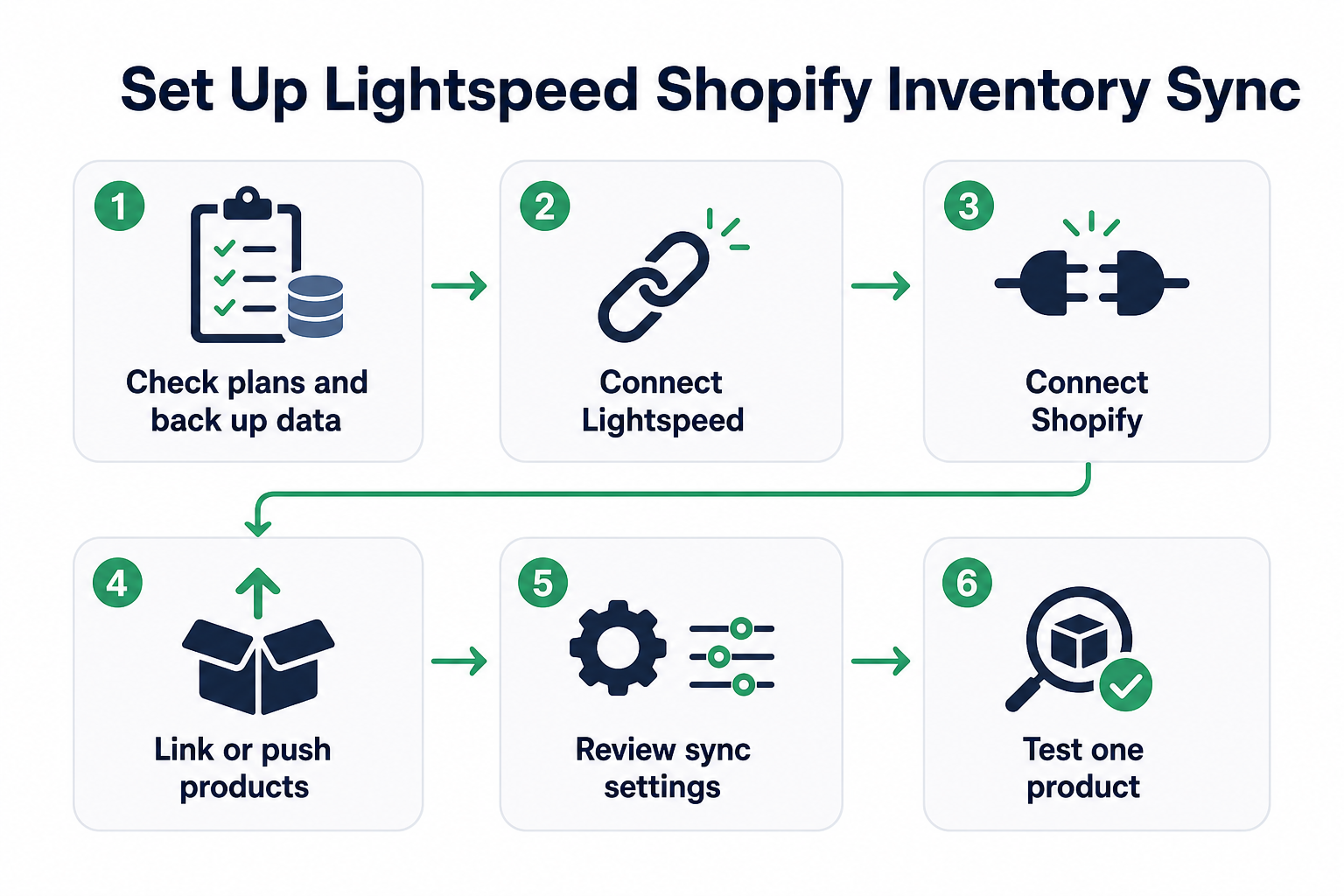
Connect Lightspeed and Shopify to SKU IQ, then establish relationships between corresponding products. Once products are linked, SKU IQ can communicate their stock quantity changes across the connected platforms.
Use a desktop or laptop where possible. SKU IQ recommends a larger screen for the connection process.
1. Connect Lightspeed Retail to SKU IQ
Start the setup and select your supported Lightspeed Retail system.
R-Series users select Connect, sign in to Lightspeed, then choose Authorize Application. The authorization redirects to SKU IQ after completion.
Follow the X-Series connection flow if you use Lightspeed Retail X-Series. Keep inventory tracking enabled for products you plan to synchronize.
2. Connect Shopify eCommerce
Select Shopify as your eCommerce platform and authorize SKU IQ to access the store.
These Shopify plans currently work with SKU IQ:
- Shopify Basic
- Shopify Grow
- Shopify Advanced
- Shopify Plus
- Enterprise Commerce: compatibility depends on the features in the retailer’s plan
SKU IQ currently excludes Shopify Starter, Retail, and Free Trial plans. Check the current Shopify integration requirements before starting setup.
3. Link products that already exist in both systems
Use the Link Report when matching products already exist in Lightspeed and Shopify. SKU IQ reads both inventories and checks for potential matches.
The report can match products using title, SKU, or UPC. Review each suggested relationship before confirming it.
You also select which system has the inventory quantity you want to use. SKU IQ applies that quantity when the products form their syncing relationship.
4. Push products that exist on only one platform
Product pushing serves a different purpose from linking. Use it when an item exists on one connected platform and needs a corresponding record on the other.
For example, a retailer with an established Lightspeed catalog and a new Shopify store may need to push products across. Existing catalogs on both platforms generally require product linking first.
5. Review your synchronization settings
Stock quantity sync is always enabled for linked products. Product attributes and order data have their own supported settings and behaviors.
Decide where relevant product information should be managed. SKU IQ's integration tools allow retailers to define the appropriate source of truth for their setup.
6. Test a representative product
Start with one product before linking a large catalog. SKU IQ specifically recommends linking a test product first to confirm the expected synchronization behavior.
Choose a product that represents your normal catalog structure. Include a variant product in testing if variants make up a significant part of your inventory.
Complete a controlled inventory change and check the corresponding quantity. Allow for the normal synchronization window before investigating a delay.
What information can be synced between Lightspeed Retail and Shopify?
Inventory quantities form only one layer of the connection. Product information and order data have separate synchronization behaviors, so each needs its own setup decisions.
SKU IQ states that linked products can communicate stock quantity changes across connected platforms. The Link Report creates the relationship required for that communication.
Order data follows another workflow. Retailers should confirm the supported behavior for their exact Lightspeed and Shopify setup before configuring order operations.
The table below shows how each data type behaves once Lightspeed Retail and Shopify are connected.
Table 1: Inventory, product records, product data, orders, and locations have distinct roles in a Lightspeed Shopify connection.
SKU IQ states that stock changes take around three minutes on average to appear across platforms. Performance and platform rate limits can change that timeframe.
A short synchronization delay is therefore different from a product-linking problem. A quantity that remains unchanged may require a check of its product relationship or configuration.
How does Shopify order syncing work with Lightspeed Retail?
SKU IQ can send completed eCommerce invoices to Lightspeed Retail, creating a combined order record in the POS. The feature provides order information in the POS and operates separately from payment processing.
That distinction separates order records from inventory synchronization. An eCommerce sale can affect synchronized stock while the associated order information follows its configured order workflow.
SKU IQ also supports routing online orders for fulfillment to a single location in certain multi-store Lightspeed-Shopify setups. These configurations require manual setup by their implementation team.
Some order-sync configurations require location names and an employee assignment. A payment category may also be needed for online orders.
Confirm your exact order workflow before building fulfillment procedures around it. This check is especially important for multi-location retailers.
How can you prevent duplicate products and incorrect inventory?
Consistent identifiers and matching product structures make catalog linking more reliable. SKU IQ checks titles, SKUs, and UPCs when looking for potential product matches.
Review those details before running a large linking event. A few catalog corrections beforehand can reduce manual matching later.
1. Give products clear identifiers
Use consistent SKUs or UPCs when available. Exact product names can also help SKU IQ identify potential matches.
R-Series users should pay particular attention to the SKU field. SKU IQ reads the Custom SKU by default, although it can be configured to use other supported R-Series SKU fields.
2. Match product structures
Products need the same general structure across both platforms for standard linking. A single product on one side will not match a differently structured variant set automatically.
Check variant structures before changing names or identifiers simply to force a match.
3. Link existing records
Use the Link Report for products already present in Lightspeed and Shopify. Linking forms the relationship used to communicate stock adjustments and supported product changes.
Creating another copy of an existing product can add unnecessary duplicate records to the catalog.
The table below shows when to link a product and when to push it.
Table 2: Linking connects records that already exist, while pushing creates records that are missing.
4. Choose the correct starting quantity
Select the platform with the more accurate inventory quantity as your Primary System during linking. SKU IQ then uses that value to unify the stock count.
A physical stock check can help when the recorded quantities differ significantly.
5. Test before linking the full catalog
SKU IQ recommends starting with a test product. Verify its quantities before moving to a larger batch.
Include a product with variants if your store regularly sells items by size or another option.
How should multi-location retailers approach the connection?
Multi-location retailers should confirm their setup with SKU IQ before relying on a standard single-location workflow. Lightspeed R-Series accounts with multiple locations require additional setup assistance.
Location decisions shape more than the displayed inventory number. They can also determine where an eCommerce order is recorded or fulfilled.
SKU IQ supports routing online orders to a single location for fulfillment in certain Lightspeed-Shopify configurations. Its implementation team handles the required setup.
Map the role of each location before enabling that workflow. Identify which store holds the relevant inventory and where online orders should go.
For example, a retailer with two Lightspeed stores may stock the same SKU at both locations. Its Shopify setup needs a clear relationship with the inventory and fulfillment process used by those stores.
Clear location rules give staff a consistent process when Shopify sales reach the connected retail workflow.
What should you check after your Lightspeed Shopify sync goes live?
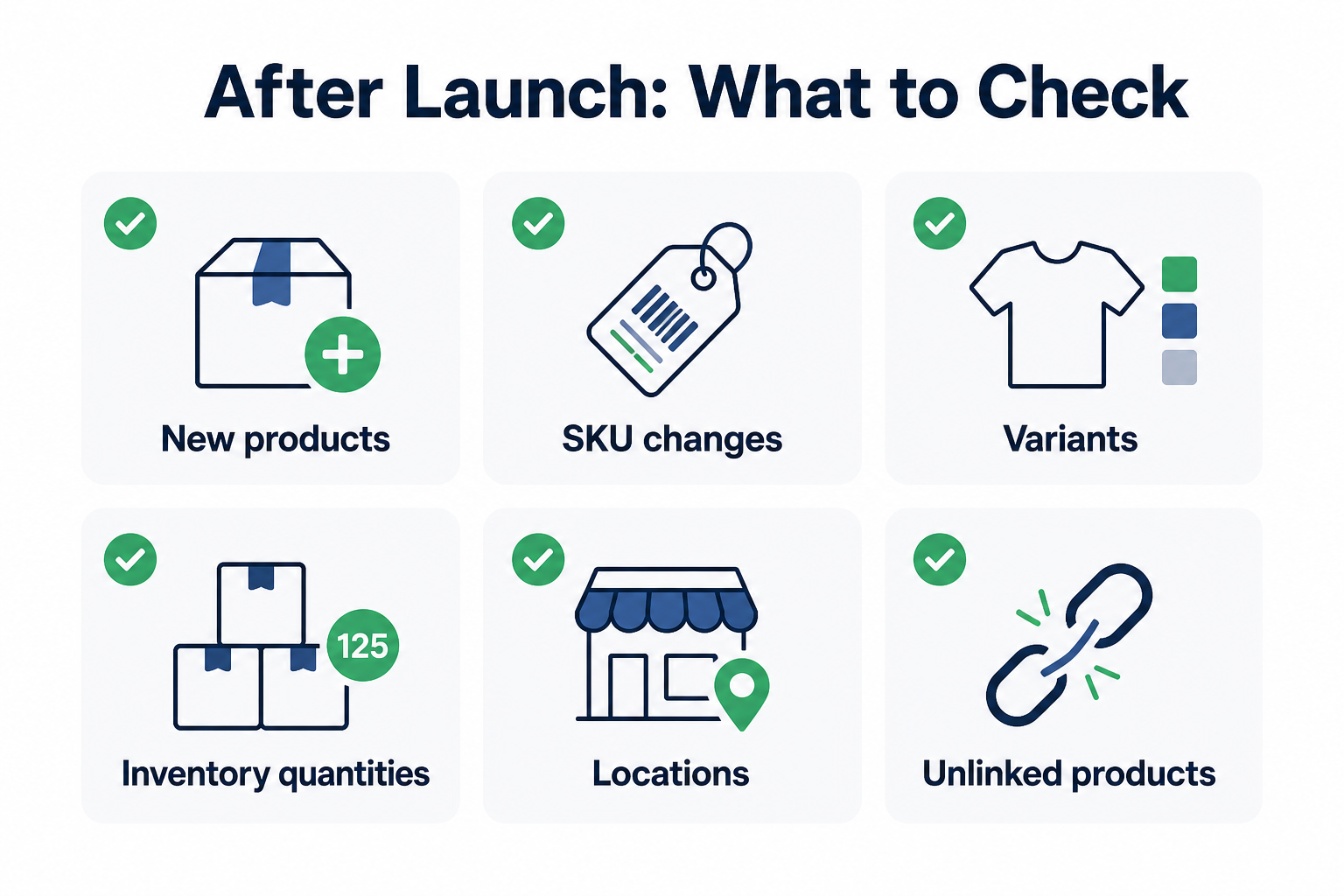
Check product relationships and inventory behavior as the catalog changes. New products or variants can require additional linking or synchronization decisions.
A regular review also makes unusual quantity differences easier to identify before they affect more products.
- New products: Confirm that new items follow the appropriate linking or pushing workflow.
- SKU changes: Keep identifiers consistent across corresponding product records.
- Variants: Check new sizes or other options against the matching product structure.
- Inventory quantities: Investigate differences that remain after the normal synchronization window.
- Locations: Review the setup when adding stores or changing fulfillment processes.
- Unlinked products: Use SKU IQ reports to identify products that lack a syncing relationship.
The Link Report can be refreshed when you need current matching information. SKU IQ emails the user when a large report finishes generating, so staff do not need to keep the page open.
A regular physical inventory process still has value alongside synchronization. The connected systems communicate recorded quantity changes, while a stock count confirms what is physically available.
How can SKU IQ connect Lightspeed Retail with Shopify?
SKU IQ connects supported Lightspeed Retail systems with Shopify eCommerce while retailers keep the platforms they already use. Linked products can then communicate inventory changes across the connection.
The setup can support several parts of the retailer's workflow:
- Link existing products: Connect corresponding records already present in Lightspeed and Shopify
- Push products: Create corresponding products when items exist on only one platform
- Sync inventory: Communicate stock quantity changes between linked items
- Manage supported product data: Configure available product synchronization settings
- Handle supported order records: Bring eCommerce order information into Lightspeed for supported configurations
SKU IQ acts as the connection layer rather than requiring retailers to replace their POS or eCommerce storefront. See the Lightspeed Shopify integration for more information about the connection.
Keep Lightspeed at the counter and Shopify online. Start your SKU IQ free trial and connect inventory across both channels.
Frequently asked questions about Lightspeed Shopify inventory sync
1. Does Lightspeed Retail integrate with Shopify?
Yes. SKU IQ currently supports connecting Lightspeed Retail R-Series and X-Series with Shopify eCommerce. Shopify POS and other Lightspeed versions are outside SKU IQ's current supported-platform list.
2. Can Lightspeed inventory sync with Shopify automatically?
Yes. SKU IQ says stock quantity sync is always enabled for linked products. Stock changes take around three minutes on average, although platform performance and rate limits can affect timing.
3. Does SKU IQ support both Lightspeed R-Series and X-Series?
Yes. SKU IQ currently supports Lightspeed Retail R-Series and Lightspeed Retail X-Series, formerly Vend. Retailers should identify their version first because setup requirements differ between the two products.
4. Can SKU IQ connect Lightspeed to Shopify POS?
SKU IQ currently supports Shopify eCommerce rather than Shopify POS. Supported Shopify eCommerce plans include Basic, Grow, Advanced, and Plus. Enterprise Commerce compatibility depends on the retailer's plan features.
5. What happens if the same products already exist in Lightspeed and Shopify?
Use SKU IQ's Link Report to connect corresponding products. It checks product titles, SKUs, and UPCs for potential matches. Products also need compatible structures before they can form a standard linking relationship.
6. Can Shopify orders appear in Lightspeed Retail?
Yes, supported configurations can send completed eCommerce invoices to Lightspeed Retail for record keeping. SKU IQ states that this function provides order information and does not process the associated payment.
7. Should you back up products before connecting Lightspeed and Shopify?
Yes. SKU IQ recommends backing up data before linking products. The linking process uses your selected Primary System to establish the inventory quantity shared by the newly connected records.
Share this blog:







Sync and Manage Inventory Across Your Retail Systems
- No more spreadsheets or manual updates
- Real-time sync between POS and eCommerce
- One product catalog, every sales channel
- Save hours managing multiple systems

Ready to stop worrying about inventory?
Start a free trial and experience how much easier retail operations become when your systems stay in sync.