

Updated
October 28, 2026
Shopify Inventory Management: Features, Limits, and How Physical Stores Keep Stock in Sync
Shopify inventory management helps retailers track stock across locations and manage online orders. SKU IQ connects these POS platforms with Shopify to keep inventory synced after online and in-store sales.


TL;DR
- Shopify inventory management tracks stock across locations and helps retailers maintain accurate quantities for online orders.
- Physical stores need POS sales reflected in Shopify to maintain accurate inventory across both sales channels.
- Consistent SKUs and barcodes help match product records between Shopify and an in-store POS.
- Two-way synchronization updates inventory after online and in-store sales, reducing overselling and manual stock adjustments.
- SKU IQ connects Shopify with Square, Clover, or Lightspeed to keep inventory synced while retailers continue using their existing POS.
Adding Shopify eCommerce gives brick-and-mortar retailers another way to reach customers and generate sales. Selling across an online store and an in-store POS also makes accurate inventory tracking more complex, especially when in-store purchases affect online availability.
Your physical POS tracks products sold at the checkout counter, while Shopify maintains its own inventory records for online shoppers. Keeping these records aligned becomes difficult when the two systems operate separately.
Without an automated connection, in-store sales may not immediately update Shopify inventory. This can leave unavailable products listed for purchase online, increasing the risk of overselling and order cancellations.
Accurate inventory data becomes especially important as customers shop across physical and digital channels. A 2026 IBM and National Retail Federation study found that 72% of surveyed consumers still shop in stores. It also found that 54% of brand executives report persistent challenges across channels and systems.
Keeping inventory coordinated across Shopify and your physical POS can reduce manual stock adjustments and help maintain accurate product availability. It also gives staff a more reliable view of inventory as sales occur across both channels.
This guide covers Shopify inventory management features and the built-in limitations physical retailers may encounter. You’ll also learn how to sync Shopify eCommerce inventory with an in-store POS and how SKU IQ connects Shopify with Square, Clover, or Lightspeed.
What Is Shopify Inventory Management?
Shopify inventory management is the built-in system within the Shopify admin that tracks product quantities, calculates fulfillment availability, and logs stock movements across designated digital locations.
Shopify’s inventory engine calculates sellable stock based on active order states instead of relying on static inventory records. Shopify organizes item quantities into four inventory states:
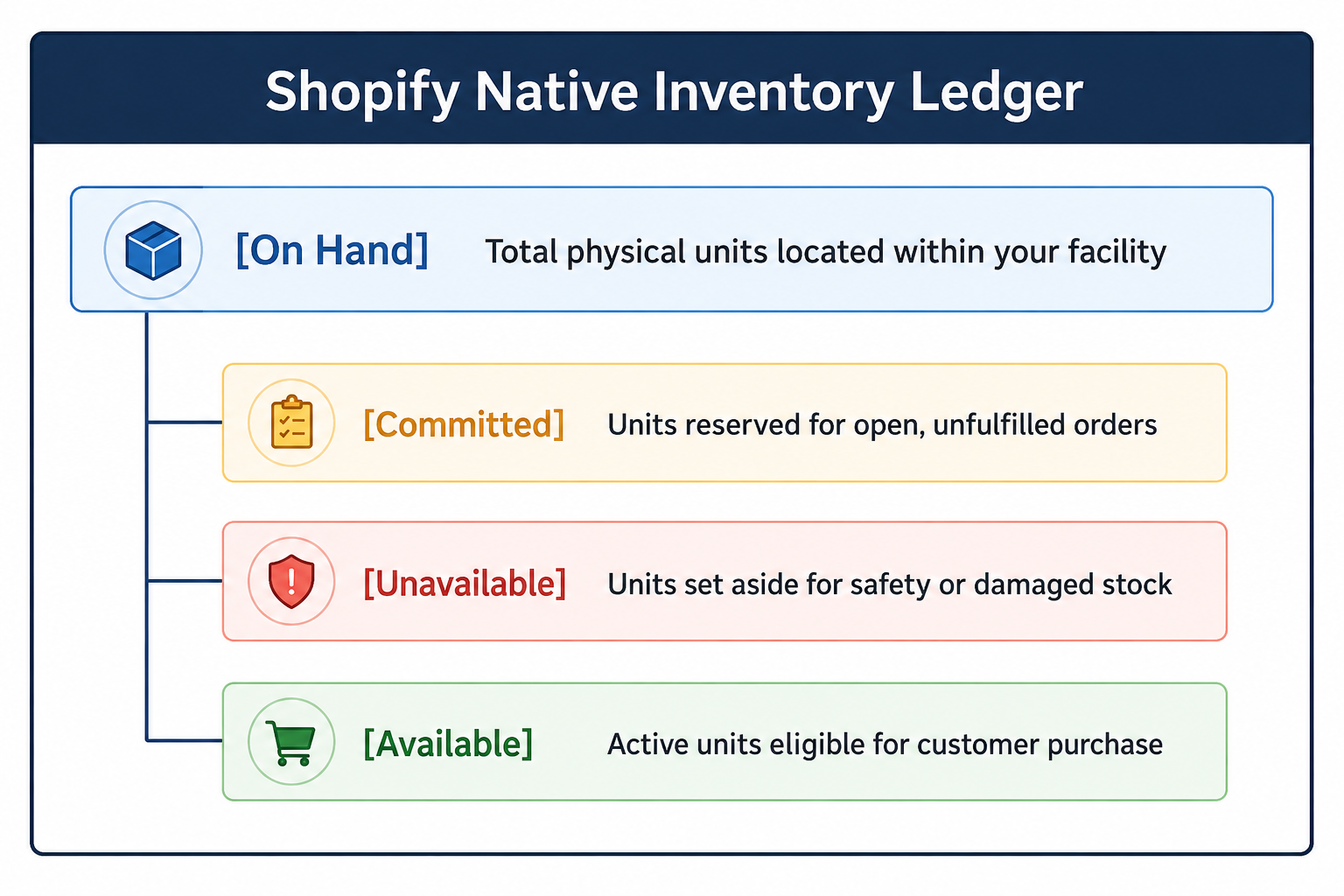
- On Hand: The total physical count of a SKU currently sitting in your store, backroom, or warehouse.
- Available: The actual quantity available for online purchase. This equals On Hand minus Committed and Unavailable units.
- Committed: Units tied to an order that has been placed and paid for, but not yet picked, packed, and fulfilled by staff.
- Unavailable: Units reserved for draft orders, set aside for safety buffers, or marked as damaged.
When an online customer completes a purchase, Shopify immediately shifts the purchased quantity from Available to Committed. This automatic reservation protects your store during sudden traffic spikes, preventing multiple web shoppers from claiming the same inventory.
Shopify Inventory Management Features: What Works Out of the Box
For direct-to-consumer brands selling through Shopify eCommerce, Shopify provides a suite of standard inventory tools:
1. Multi-Location Management
Shopify allows retailers to track stock across multiple physical locations. These can include stores, storage facilities, pop-up locations, and third-party fulfillment centers. Store owners can set location priority rules to dictate which location fulfills web orders first based on geography and on-hand quantities.
2. Manual Adjustments and Reason Codes
Staff can adjust inventory counts directly within the Shopify admin or mobile app.Staff can select a reason when adjusting inventory, such as Correction, Count, Damaged, or Received. Shopify records inventory adjustments so retailers can review changes later.
3. Purchase Orders and Vendor Receiving
Merchants can create purchase orders (POs) for suppliers directly inside Shopify. When inventory arrives, staff can record partial or complete receipts. Shopify then updates the corresponding On Hand quantities.
Core Mechanics of Shopify Inventory Tracking
The table below breaks down the primary mechanisms driving native Shopify inventory management, how they operate during daily transactions, and their specific operational limitations for physical retailers:
Built-In Limits of Shopify Inventory Management for Physical Stores
Shopify provides native inventory tools for online retail, but retailers connecting Shopify eCommerce with a separate, supported third-party POS system may have additional inventory management needs.
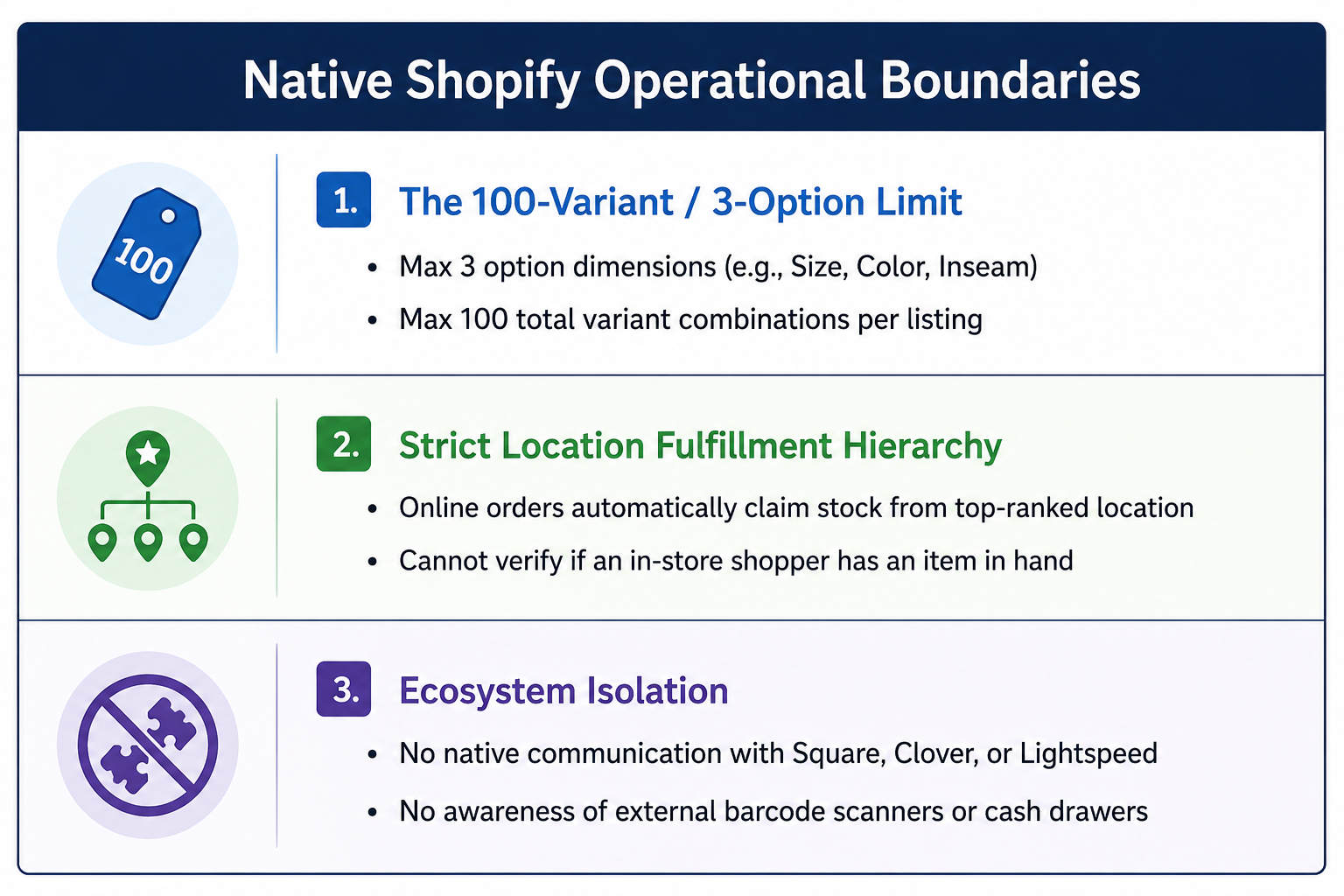
1. The 3-Option Ceiling
Shopify allows up to 2,048 variants per product, but each product can have only three options, such as Size, Color, and Material. Most products fit within that limit. Products that need a fourth option do not, such as shoes sold by size, width, color, and material, or trousers sold by waist, inseam, color, and fit. Retailers have to split those products into separate web listings, often one per color, even though each is a single product in the POS. That makes matching Shopify listings to POS records more work before stock can sync.
2. Rigid Location Priority Logic
Shopify routes online order fulfillment based on a fixed location ranking. If your physical store is set as your primary fulfillment hub, incoming online orders immediately claim units off your sales floor. If a local customer is holding that item in their hands at your cash register, an inventory conflict occurs immediately.
3. Limited Visibility Into External POS Transactions
Sales and inventory changes processed through a separate POS may not automatically update Shopify. Without an integration, retailers may need to reconcile inventory changes between the two systems.
Why Physical Stores Keep Their Existing POS
Physical retailers often rely on an existing POS that already supports their in-store operations. Connecting that system with Shopify eCommerce allows them to coordinate online and in-store inventory while maintaining familiar workflows.
For established brick-and-mortar operators, replacing an existing POS can create several operational challenges:
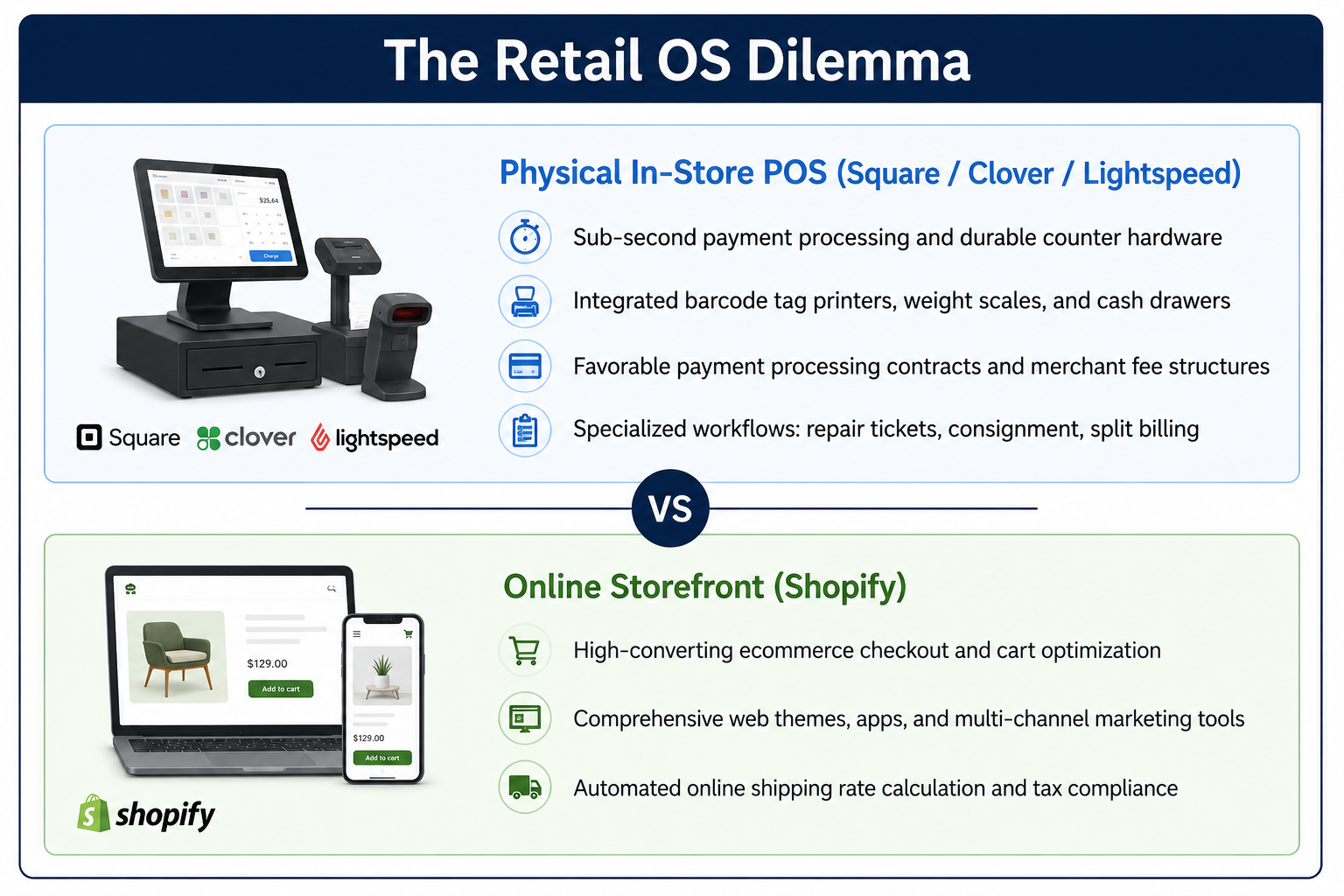
- Hardware Reliability and Counter Ergonomics: Square, Clover, and Lightspeed have spent years engineering purpose-built countertop terminals, customer-facing payment displays, heavy-duty cash drawers, and industrial barcode label printers built for continuous physical use.
- Payment Processing Contracts: Many independent merchants operate under negotiated merchant agreements or grandfathered credit card processing rates. Abandoning their POS hardware often means accepting higher per-transaction processing fees or breaking fixed-term processor contracts.
- Cashier Speed and Familiarity: Staff already know how to process returns, find customer records, issue store credit, and handle split payments. Replacing a familiar POS can require additional training and disrupt established checkout workflows.
- Specialized Retail Workflows: Specialty retailers may rely on POS-specific features that support their established in-store processes. Replacing the existing POS can require changes to workflows that staff already use.
Physical store owners do not need to replace their cash register. They need their cash register to communicate automatically with their Shopify store.
The Two-Channel Disconnect: Common Failures in Disconnected Setups
Running an in-store POS and a Shopify website as isolated databases leads to predictable failure modes across daily retail operations:
Shopify Inventory Management Strategies for Syncing Your Physical Register
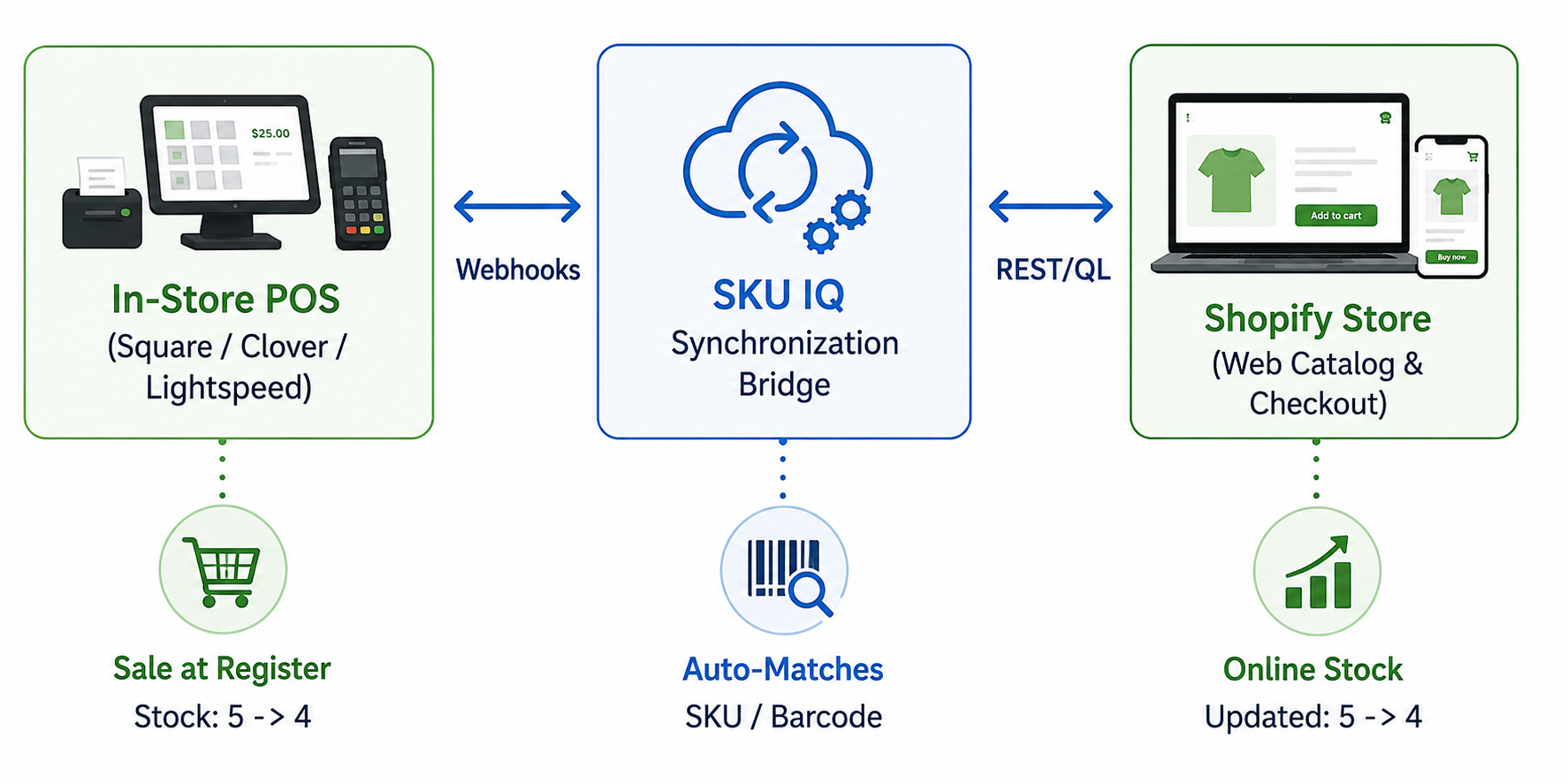
Bridging your physical storefront and Shopify requires structured product data, clear system rules, and automated integration middleware.
1. Establish Attribute-Level Authority
Before connecting systems, define which platform owns each specific product field:
- POS as the Operational Master: Controls in-store retail pricing, barcode assignments, sales tax categories, and physical stock counts.
- Shopify as the Marketing Master: Controls rich web descriptions, search engine title tags, online photography, and digital product tags.
Clear field ownership helps prevent changes in one system from affecting unrelated product data in the other. For example, updating a Shopify product description should not alter the SKU or barcode stored in the POS.
2. Standardize Universal SKUs and Barcodes
Reliable synchronization depends on consistent product identifiers. Ensure every parent product and individual variant has a unique SKU or UPC/barcode formatted identically in both systems. Eliminate generic placeholders (such as "0000" or "MISC") so software can automatically link records. Then confirm that inventory tracking is turned on in Shopify for every product you plan to sync, since untracked items have no stock count to update.
3. Implement Real-Time Two-Way Webhook Decrementing
Use synchronization middleware that operates via event-driven API webhooks. When an item sells at your physical checkout counter, the middleware receives an instant alert and decrements available inventory on Shopify within seconds. When an online order completes on Shopify, the software decrements the stock record inside your POS.
4. Bulk Push Existing POS Catalogs to Shopify
Manually recreating a large POS catalog in Shopify can require significant staff time. Connected retail software can read your POS catalog and push products, variants, prices, and stock counts directly into Shopify as draft or published listings in a single guided process.
5. Calculate Reorder Points with Multi-Channel Velocity
When calculating vendor replenishment, combine sales velocity across both channels using this formula:
Reorder Point = (In-Store Daily Sales + Shopify Daily Sales) × Supplier Lead Time + Safety Buffer
If an item sells 4 units per day in-store and 2 units per day online, your daily demand is 6 units. If your supplier requires an 8-day lead time and you maintain a 12-unit safety buffer, your reorder point is 60 units. Evaluating total demand prevents purchasing stock too late.
6. Cycle Count Fast-Moving Inventory Regularly
Weekly cycle counts can help retailers check fast-moving products without relying solely on a full annual inventory count. Compare physical counts against both your POS and Shopify records to catch receiving errors and shrinkage early.
Evaluating POS-to-Shopify Integration Solutions
When selecting software to connect your physical register with Shopify, evaluate providers against these operational criteria:
- Exact Platform Support: Does the software offer native integration for your specific pairing (e.g., Square + Shopify, Clover + Shopify, or Lightspeed + Shopify)?
- Sync Latency: How quickly does inventory update after a transaction, and does the integration use real-time or scheduled synchronization?
- Attribute Controls: Can you configure which system controls prices, descriptions, and images?
- Reconciliation Tooling: Does the platform provide an onboarding Link Report to identify mismatched SKUs before activating live sync?
- Activity Logging: Can staff inspect a chronological history of inventory decrements and order sync events to resolve discrepancies quickly?
Simplify Shopify Inventory Management With SKU IQ
Physical retailers need an inventory workflow that matches how their business operates in the real world. Your walk-in customers and digital shoppers draw from the same physical stock, which means your sales channels require coordinated inventory data.
With SKU IQ, you can connect your existing POS, including Square, Clover, and Lightspeed, directly to Shopify eCommerce store without changing your counter hardware or payment processor.
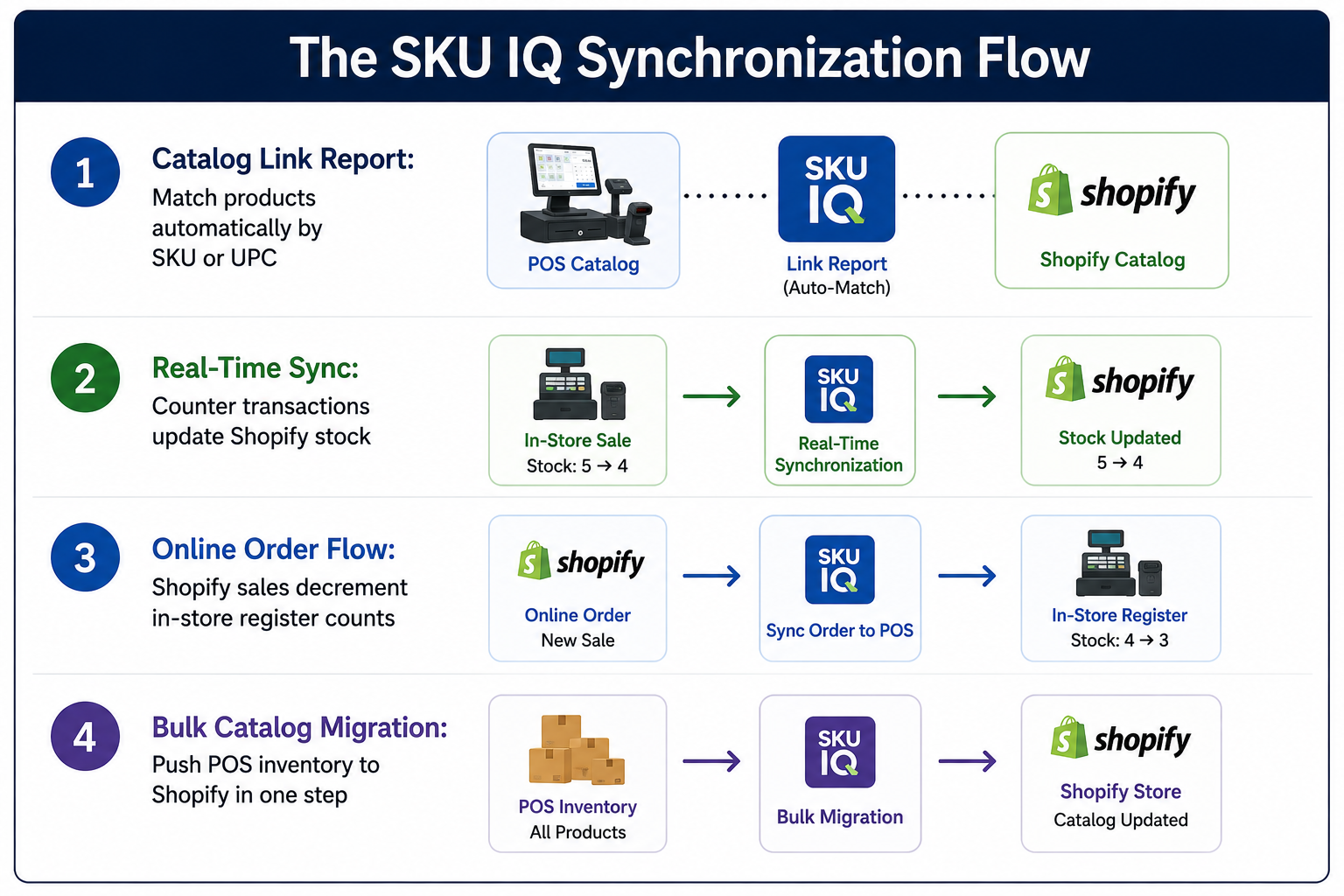
SKU IQ provides a Link Report that helps identify and match products across both catalogs before synchronization begins.
Retailers setting up Shopify can also use SKU IQ’s catalog push functionality to move product information from their POS to their online store.
To get started, connect your Shopify store to SKU IQ and audit ten high-volume products across your POS and Shopify store to confirm SKU formatting. Then, link a pilot batch of products to see real-time synchronization in action.
Ready to connect your physical store with Shopify? Start your free trial with SKU IQ today.
FAQs
1. How does Shopify calculate available inventory versus on-hand inventory?
On-hand inventory represents the physical units located within your building. Available inventory subtracts units already committed to open, unfulfilled orders or held as safety stock. Shopify displays available stock on your website so customers only purchase units ready to be fulfilled.
2. Can I connect Square, Clover, or Lightspeed to Shopify without switching registers?
Yes. Connected-retail middleware like SKU IQ links your existing POS system with Shopify, automatically synchronizing inventory counts, orders, and product data between your register and online storefront in real time.
3. Will syncing my POS with Shopify overwrite my online product descriptions?
No. With attribute-level authority controls, you can configure your in-store POS to govern stock counts and retail prices, while Shopify retains web descriptions, SEO titles, photography, and online collections.
4. How can retailers handle Shopify’s variant and option limits?
Shopify now allows up to 2,048 variants per product, up from its long-standing limit of 100. Each product can still have only three options, such as Size, Color, and Material. Retailers whose products need a fourth option, such as width for footwear, still need to split them into separate listings (for example, one listing per color) or use catalog management software. Stores on Shopify Plus can also group separate products into a single listing with Shopify’s Combined Listings app.
5. What happens when an item sells in-store and online at the exact same moment?
With real-time webhook synchronization, the in-store transaction updates Shopify’s available inventory within seconds. If the in-store sale depletes the last remaining unit, Shopify marks the item sold out online, preventing duplicate purchases.
6. What is the fastest way to migrate an existing POS catalog to Shopify?
Using a bulk catalog push tool through connected retail middleware allows you to export your active POS products, variants, and quantities directly into Shopify as draft or active listings, eliminating manual data entry.
Share this blog:







Sync and Manage Inventory Across Your Retail Systems
- No more spreadsheets or manual updates
- Real-time sync between POS and eCommerce
- One product catalog, every sales channel
- Save hours managing multiple systems

Ready to stop worrying about inventory?
Start a free trial and experience how much easier retail operations become when your systems stay in sync.