

Updated
November 4, 2026
How to Connect Clover Inventory to Shopify: Setup and Sync Checklist
Learn how to connect Clover inventory to Shopify using SKU IQ. This guide covers plan requirements, product matching, setup steps, inventory sync settings, and testing. It also explains how to troubleshoot stock discrepancies, manage product variants, and maintain accurate inventory across both sales channels.


TL;DR
- Inventory record inaccuracies affect 50%–70% of retail SKUs, highlighting the importance of accurate stock tracking across Clover and Shopify.
- SKU IQ connects supported Clover Retail plans with Shopify, syncing inventory quantities in both directions in about three minutes on average.
- Matching SKUs, product structures, and active statuses helps prevent linking errors before connecting Clover and Shopify catalogs.
- Test 10 products across six scenarios, including sales, returns, and stock adjustments, before syncing your entire catalog.
- Weekly checks of product links, variants, and sync timing help identify inventory discrepancies and maintain accurate stock records.
Inventory errors can quickly lead to overselling when Clover and Shopify show different stock counts. A 2025 study published in The International Review of Retail, Distribution and Consumer Research highlights earlier research indicating that inventory record inaccuracies affect 50%–70% of retail SKUs at a given time.
Consider a toy store with one puzzle left. A customer buys it online at night, but Clover still shows one available the next morning. Another sale could leave the store unable to fulfill both orders.
This guide explains how to set up Clover Shopify inventory sync, test product updates, troubleshoot discrepancies, and maintain accurate stock counts.
Can Clover inventory sync with Shopify?
Yes. A connector such as SKU IQ links Clover Retail POS with Shopify eCommerce, allowing stock quantities to update in both directions. Selected product fields, including prices and descriptions, can also sync according to your chosen settings.
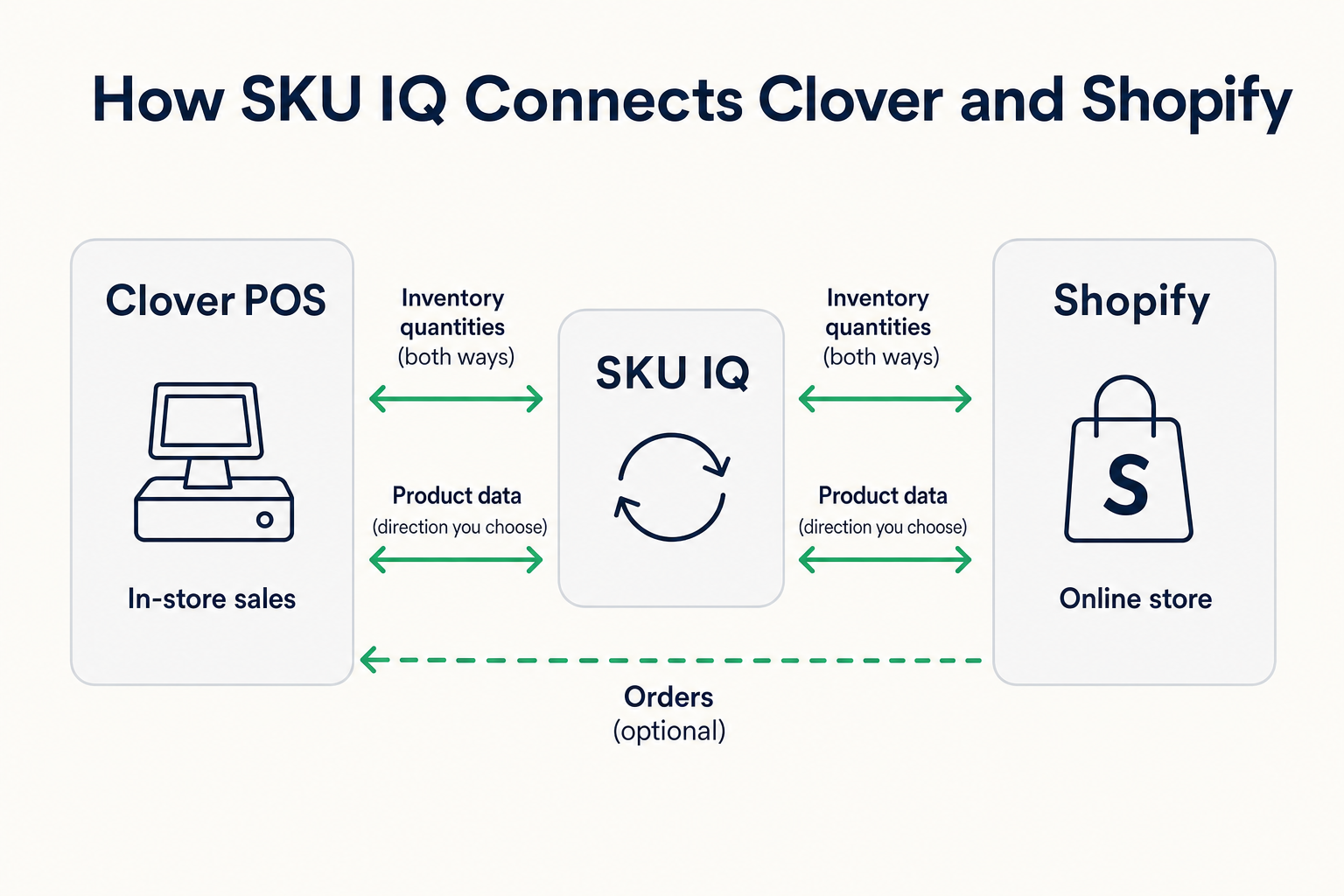
Each system keeps its current job, with SKU IQ passing stock changes between them.
On the Shopify side, the connection works with Shopify eCommerce and excludes Shopify POS. The Clover Shopify integration is designed for one Clover location syncing to one Shopify store.
Shops with two or more locations should talk to SKU IQ before a trial. Tier-by-tier details sit on the Clover platform page.
What should you check before connecting Clover and Shopify?
Plan eligibility and stock tracking determine whether the connection works correctly. Complete these five checks before linking products.
1. Confirm your Clover plan and region
Open the Clover Online Dashboard and go to Settings > View All Settings > Billing and Statements > Service Plan. A pass means a Standard or Advanced Retail plan on a US or Canadian account. The walkthrough for checking your Clover service plan shows each screen.
2. Confirm your Shopify plan
Your Shopify plan must include inventory tracking plus third-party app support. The Starter plan lacks both, and the Retail plan lacks app support.
Check Settings > Plan in Shopify admin, as the Shopify plan requirements guide describes. Free trial stores also fall short.
3. Turn on Track Stock in Clover
The setting sits under Settings > View All Settings > Business Operations > Inventory, per SKU IQ's steps to turn on Track Stock. Select Edit, switch the setting on, then enable automatic item updates.
With tracking off, Clover can send zero or null stock values, which raises overselling risk. Allow negative stock only when your Shopify store also uses negative counts.
4. Turn on inventory tracking in Shopify
Shopify manages inventory tracking at the product or variant level. Open each product you intend to sync and enable tracking in its Inventory section.
Check the setting before linking products, especially for items with multiple sizes or colors.
5. Export a backup from both systems
In Clover, open Items > Item list and choose Export from the three-dot menu, as the steps to export your Clover item list show. Shopify offers a product CSV export from its Products page. Keep both files, since they hold your starting counts if a link sets the wrong number.
The table below summarizes the five checks and their expected results.
Table 1: Five checks to finish before SKU IQ touches either catalog.
How do you prepare a Clover catalog for clean matching?
Identifiers and product structure decide whether the Link Report can pair an item. Fix both in Clover before connecting.
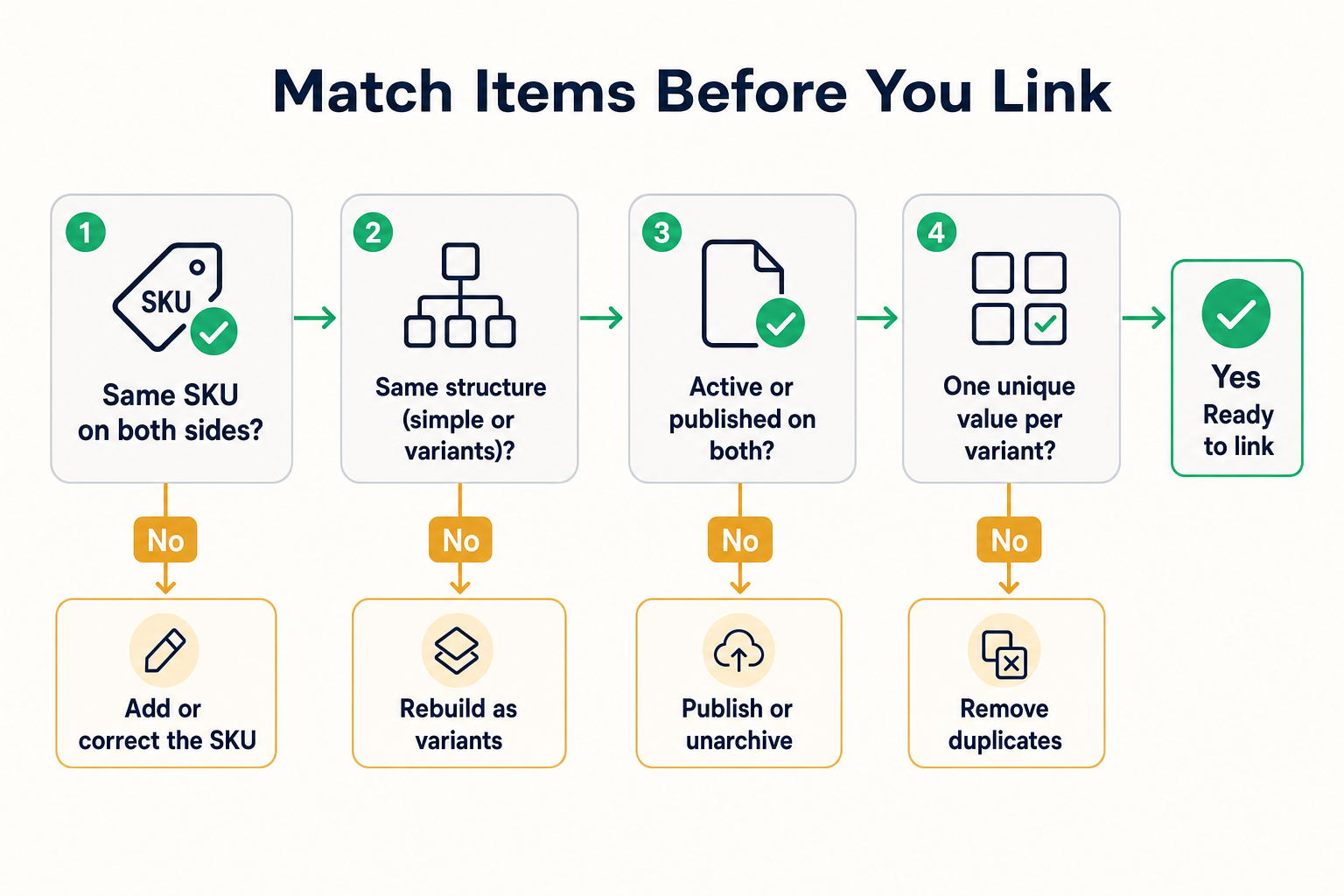
The Link Report pairs a Clover item with its Shopify counterpart when the matching requirements are met.
1. Give each item one unique identifier
A SKU gives the Link Report its clearest match. Title-only matching also works when titles are identical, including special characters. Under the Link Report matching rules, a title-only pair also requires a matching price or brand.
Small differences count. "Puzzle - Lighthouse 1000" in Clover will miss "Puzzle: Lighthouse 1000" in Shopify, even though a person sees one product.
2. Keep variants as variants
Build sizes and colors as Clover item variants, because the sync carries variants and leaves modifiers out. Clover offers variants only on its retail plans, which line up with the supported plans. The Clover inventory guide covers how to set up Clover item variants step by step.
3. Plan around the barcode limit
Clover stores barcode data in its Product ID field, which the sync currently excludes. UPC barcodes also fall outside the supported field sync.
Assign a SKU to every item before linking products. Keep barcode information in each platform for your existing scanning workflows.
4. Remove duplicates and drafts
Two items with the same title can cause matching errors. So do two variants that both read Black / M, because the Link Report relies on one unique value per variant.
Items also need active or published status on both sides. Archived and draft products stay off the report.
How do you connect Clover to Shopify step by step?
Setup takes six steps inside SKU IQ. Step four carries the biggest decision: which system holds the right starting count. The SKU IQ setup process groups the same flow into four stages.
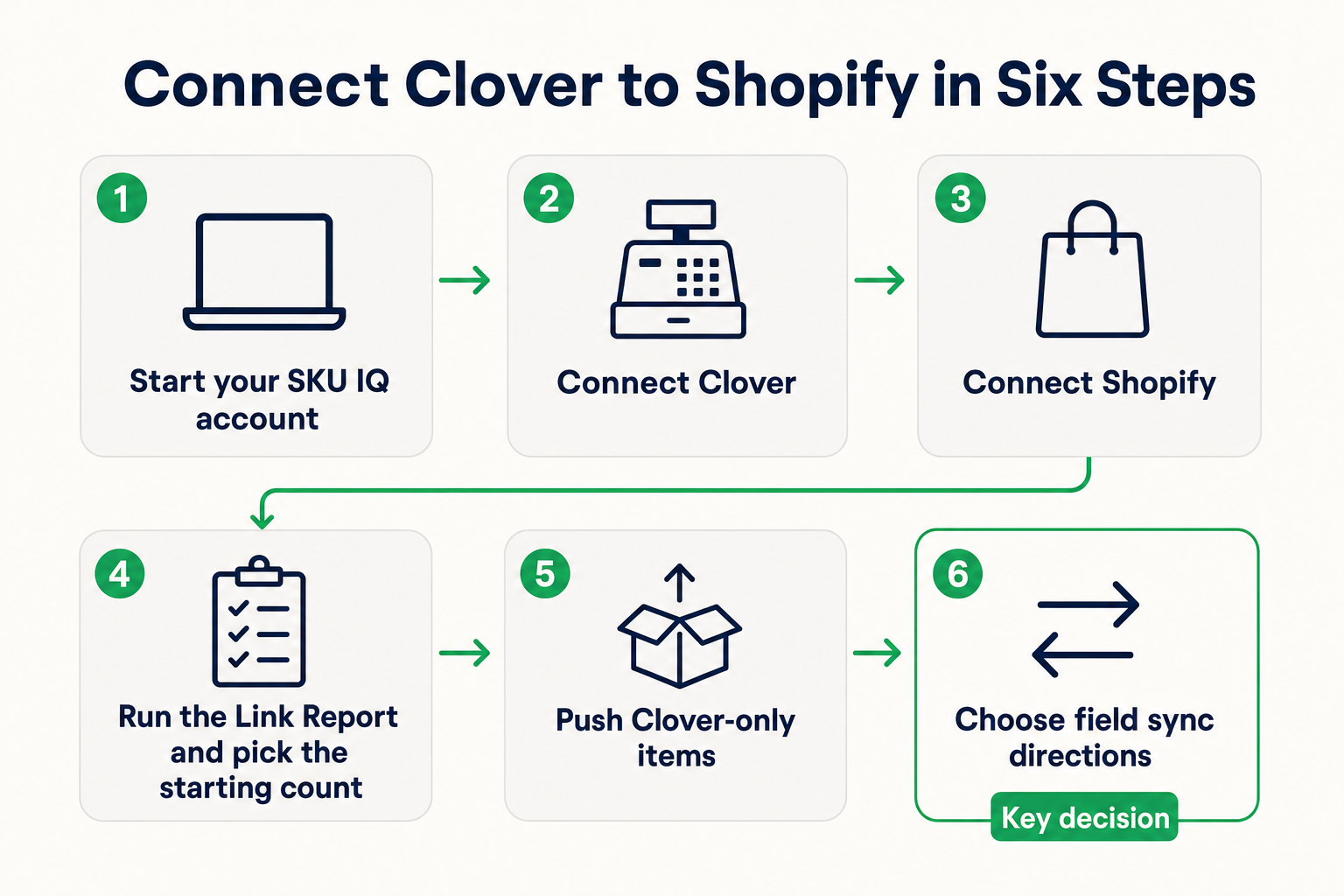
Step 1: Start your SKU IQ account on a computer
Select Clover as the point of sale and Shopify as the eCommerce platform during registration. A desktop or laptop works best because some setup pages may not display fully on mobile screens.
Step 2: Connect Clover and pick the right business
Log in with your Clover credentials and select the correct business if your account manages multiple businesses. An incorrect Merchant ID may prevent inventory from loading. Billing runs through Clover or SKU IQ.
Step 3: Connect Shopify with your myshopify address
Shopify connects through the storename.myshopify.com address, which can differ from your public domain. Copy it from your Shopify admin to avoid connecting the wrong store.
Step 4: Run the Link Report and choose the starting count
The Link Report compares product titles and SKUs across both catalogs. It can also use shared UPCs where supported by the matching rules.
Your inventory remains unchanged until you confirm the matches. Review each pair and select the Primary System whose quantity matches your physical stock.
That system's quantity becomes the shared starting count. Check low-stock products carefully before confirming the link.
Step 5: Push items that exist only in Clover
Pushing an item creates a copy in Shopify and links it to the original Clover item. Paid plans push in batches of 50 items, each taking about one hour. A bulk push for larger catalogs starts at $200 for up to 1,000 items, per bulk push pricing.
Step 6: Choose field sync directions
Field sync is optional and configured separately for each supported field. A retailer might take prices from Clover and descriptions from Shopify because counter staff manage prices in Clover.
Field sync is included with the Plus plan and available as a $15 add-on for Basic, according to the supplied pricing details. Set the directions before testing. This gives each field a clear source of truth.
What syncs between Clover and Shopify, and how fast?
Stock quantities sync in both directions, and seven product fields follow the direction you set. The table below shows which data syncs, the direction of each sync, and a simple test to check that updates reach the other system.
Table 2: Stock syncs both ways, while selected product fields follow the direction you set.
Stock changes reach the other system in about three minutes on average. Busy platforms and rate limits can stretch that, per the article on average sync time.
Paid online orders appear in the Clover Web Dashboard within 20 minutes and are marked as External Payment, as described in the order syncing guide.
Product photos remain manual for this integration. Upload them directly in Shopify before launch.
How do you run a small-catalog pilot before linking everything?
A 10-product pilot proves the sync on your own catalog before you link hundreds of items. SKU IQ recommends testing one or two products, but testing 10 covers more product types.
Run it during the trial. One person works the register while another watches a laptop.
1. Choose 10 products that mirror your catalog
The Shopify inventory guide shows how Shopify variant products are built. The following mix covers common retail scenarios.
- Simple items: 3 products with no variants
- Variant products: 3 products sold by size or color
- Clover-only items: 2 products to push into Shopify
- Low-stock item: 1 product with one or two units on hand
- Recent edit: 1 product changed in the last week
2. Run six test events
Each event mirrors a normal trading day, so run them one at a time. Use the six tests below to check how Clover and Shopify handle sales, inventory adjustments, product updates, and returns. Compare the results against the expected outcomes before moving to the next test.
Table 3: Six test events show whether stock counts and field edits behave as expected.
3. Log expected and actual results
Use a separate spreadsheet row for each test event. Record the following details so you can compare results after launch.
- Time: When the event happened
- Product: Product name and SKU
- Expected and actual counts: The expected inventory quantity and the actual quantity shown in the other system.
- Minutes to update: Time until the change appeared
The minutes column sets your baseline for slow updates after launch. Also log any manual step, such as a return adjusted by hand.
4. Decide the next step from your log
Expand to the full catalog when all six events pass across the ten pilot products. If one event fails, fix the affected item and repeat the test.
Pause the rollout and contact Support if the same failure continues after the repair. Resolve repeated errors before connecting the remaining catalog.
What reliability criteria should a live Clover Shopify sync meet?
Update timing and link coverage are the two criteria to watch first. Each criterion below has a result you can check on screen.
- Timing: Updates land within the minutes your pilot log recorded.
- Coverage: Every product sold in both channels shows as linked on the Products page, and the Link Report shows zero yellow warning marks.
- Direction: Each edited field follows the source system you chose for it.
- Variants: Your product with the most options syncs every variant correctly.
- Orders: Each paid Shopify order appears in the Clover Web Dashboard when order sync is on.
Large variant sets deserve a closer look. Shopify raised its limit to 2,048 variants per product in October 2025. Its developer changelog warns that apps on older product APIs may break past 100 variants.
Bulk edits call for pacing too. A high sync activity warning appears after 10,000 sync requests in one hour, and syncing then slows down. Every event stays queued and syncs later.
How do you fix Clover and Shopify counts that drift apart?
Start with the product link and Clover's stock tracking setting. These checks address common causes before you change product records or request a catalog reimport.
1. Confirm the product is linked
Links wait for your confirmation, so a product added after setup may sit unlinked. Check the Products page in SKU IQ for its linked pair. Made-to-order pieces can stay unlinked on purpose, as the article on when to leave some items unlinked explains.
2. Check Track Stock and item status
When Track Stock is disabled in Clover, the system may send zero or null quantities to Shopify. Archived or draft products can also fall outside the sync. Enable tracking where needed and restore the correct product status before checking counts again.
3. Repair a structure mismatch
A simple item cannot be paired with a variant product, except under Clover's SKU-matching exception. The help center documents three repairs:
- Archive and recreate: Archive the mismatched product, then rebuild it with the right structure.
- Delete and push: Delete the wrong version, then push the correct product across.
- Edit in place: Add the missing SKU when only an identifier is absent.
Choose the repair that preserves the correct product details and stock history.
If the cause remains unclear, use the table below to match common sync issues with their likely causes and recommended fixes. Start by checking product identifiers, inventory settings, and variant structures.
Table 4: Match each symptom to its likely cause before you change product records.
4. Reset the count from a physical recount
Count the stock on the shelf and correct the quantity in Clover. The linked product should pass that updated count to Shopify.
Check the online quantity afterward to confirm that the change reached the other system.
5. Ask Support for a catalog reimport
A burst of edits inside 30 minutes can leave SKU IQ behind your latest changes, and Support can reimport the catalog. The same team reconnects a wrong Merchant ID, as the guide to common setup mistakes describes.
What should you review each week after going live?
Review new products and variants weekly because catalog changes can create unpaired records. The four checks below keep the catalog and the counts in step.
- New products: Link or push each new item, or ask Support to set up automatic product pushing in one direction.
- New variants: Confirm that each added size or color appeared on the other side.
- Timing spot check: Sell one item and compare the update time with your pilot baseline.
- Shelf count: Count your three best sellers monthly and compare their physical quantities with both systems.
Physical stock counts remain important after launch. Syncing reflects recorded inventory changes, while physical counts verify actual stock levels.
A short weekly review keeps new products and variants linked.
Connect Clover and Shopify with SKU IQ
Managing inventory across Clover POS and Shopify doesn't have to mean updating stock counts in two places. SKU IQ connects your in-store and online sales channels, helping you keep product information and inventory quantities consistent without replacing either platform.
With SKU IQ, you can:
- Match existing products: Use the Link Report to pair products across Clover and Shopify.
- Add products to Shopify: Push Clover-only items to your online store without rebuilding each listing.
- Sync inventory automatically: Update stock quantities in both directions as sales and inventory changes occur.
- Manage product details: Sync supported fields, including prices, titles, and descriptions, based on your preferred settings.
- Access online order records: Enable optional order syncing to view paid Shopify orders in the Clover Web Dashboard.
You can schedule a free one-on-one setup call to get help connecting your stores and configuring sync settings.
Keep selling through Clover at the counter and Shopify online while SKU IQ handles inventory updates between them.
Start your 14-day free trial with SKU IQ and test the connection with 10 products before syncing your full catalog.
Frequently asked questions about Clover Shopify inventory sync
1. Does Clover integrate with Shopify natively?
Native integration is unavailable between the two platforms. A connector such as SKU IQ links Clover's retail POS with Shopify eCommerce. Linked products then share stock changes in both directions.
2. How long does a Clover Shopify inventory sync take?
Stock changes take about three minutes on average to reach the other system. Platform performance and API rate limits can lengthen that window.
3. Which Clover plans work with SKU IQ?
Support covers Clover's Standard and Advanced Retail plans. The merchant account must be based in the US or Canada. Restaurant and service plans fall outside support, as does Retail Basic.
4. Do barcodes and images sync between Clover and Shopify?
Barcodes and images both stay outside the Clover and Shopify sync. Clover stores barcodes in its Product ID field, which the sync leaves out. Upload product photos in Shopify.
5. Can Shopify orders show up in Clover?
Paid Shopify orders can appear in the Clover Web Dashboard within 20 minutes once order sync is on. These orders do not appear on the Clover terminal, and their payment method is listed as External Payment. Contact Support to turn the feature on.
6. Can a single Clover item link to a Shopify product with variants?
Separate Clover items can link to the variants of one Shopify product. That pairing matches by SKU only, so the SKU on each Clover item must match its Shopify variant. Other mixed structures must be repaired before linking.
7. What happens to stock when a customer returns an item?
Return and exchange invoices stay outside order sync. Process the refund where the sale happened, then cancel the synced invoice. Adjust stock by hand on both systems.
Share this blog:







Sync and Manage Inventory Across Your Retail Systems
- No more spreadsheets or manual updates
- Real-time sync between POS and eCommerce
- One product catalog, every sales channel
- Save hours managing multiple systems

Ready to stop worrying about inventory?
Start a free trial and experience how much easier retail operations become when your systems stay in sync.