

Updated
October 27, 2026
How to Set Up Inventory Tracking in Clover POS and Keep It Synced Online
Clover inventory tracking helps retailers manage stock, barcodes, and low-stock alerts at the register. SKU IQ connects Clover with eCommerce platforms to automatically sync stock levels, reduce manual updates, and prevent overselling.


TL;DR
- Accurate Clover inventory tracking starts with consistent SKUs, barcodes, costs, and quantity tracking for every physical product.
- Product variants should track separate stock quantities, while modifiers are better suited for add-ons such as gift wrapping or embroidery.
- Matching SKUs and product identifiers helps connect Clover variants with the correct products and quantities in an eCommerce store.
- Automated two-way synchronization keeps inventory aligned as products sell, return, or receive quantity adjustments across physical and online channels.
- SKU IQ connects Clover with supported eCommerce platforms to automate inventory updates, centralize online orders, and reduce manual catalog management.
Running a physical retail store requires accurate stock information across the sales floor and stockroom. Clover POS can serve as the operational center for independent retailers. It processes customer payments and scans items at checkout. Clover also records transaction data for daily reporting.
Retail operations often extend beyond the physical store. Adding an eCommerce storefront creates another inventory system that must stay aligned with Clover. A physical cash register and a digital shopping cart run on separate databases. An in-store sale may leave the online quantity unchanged without synchronization. An online sale can create the same discrepancy in Clover.
Without a deliberate tracking system, retail owners find themselves managing manual inventory adjustments, spreadsheet imports, and the frustration of cancelling orders for products they no longer have on the shelf.
This guide covers Clover inventory setup and product variants. You’ll also learn how online synchronization works and how SKU IQ connects Clover with your eCommerce store.
What is Clover Inventory Management?
Clover inventory management is the built-in system for creating product catalogs and tracking on-hand quantities. Retailers can also configure low-stock alerts and use barcodes at checkout. It updates stock levels in real time as in-store sales, returns, and manual adjustments occur at the register.
The native Clover Inventory App is available through the Clover Web Dashboard and supported Clover devices. Tracked items include inventory quantities and product costs, giving retailers more accurate stock records.
Key Parts of a Tracked Clover Product
Accurate Clover inventory tracking depends on five key product fields:
- Item Name: The customer-facing title that appears on printed receipts, customer-facing displays, and your register screen.
- Price and Cost: Price is what your customer pays at checkout. Cost represents your wholesale purchase price from your vendor. Entering unit cost is essential for calculating Cost of Goods Sold (COGS) and evaluating gross profit margins.
- SKU (Stock Keeping Unit): An alphanumeric code you assign internally to identify the exact product. The SKU is the primary anchor used to connect and sync your Clover catalog with an online store.
- Product Code (UPC Barcode): The manufacturer’s standard 12-digit barcode. Clover devices equipped with built-in camera scanners or external handheld scanners use this code to instantly pull up the item and deduct inventory at checkout.
- Track Quantity Toggle: The master switch for inventory control. By default, Clover can sell items without tracking stock counts. You must deliberately toggle "Track Quantity" on for an item’s on-hand count to decrease when purchased.
Step-by-Step Guide: Setting Up Inventory Tracking in Clover POS
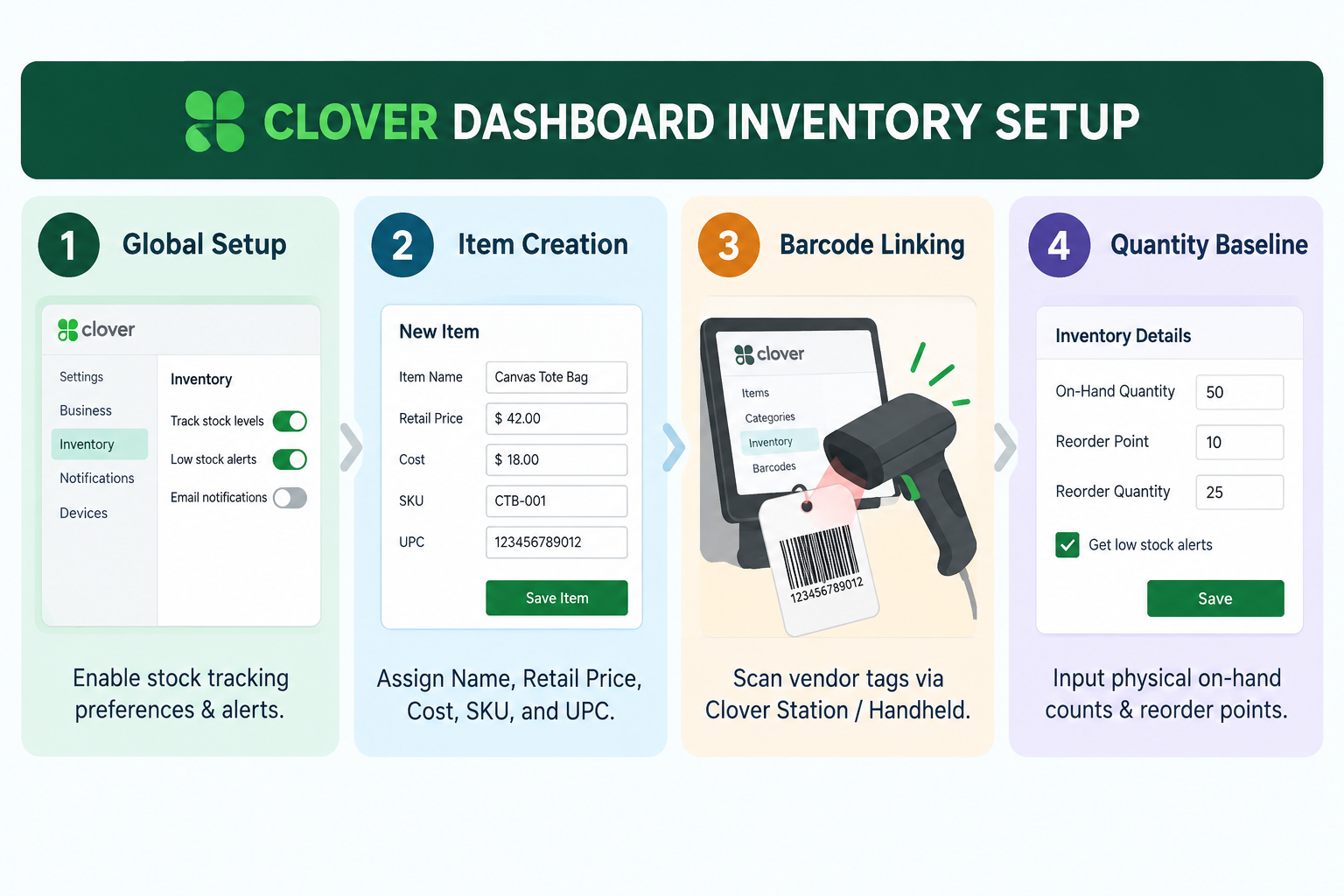
Setting up clover inventory tracking properly from the start ensures your numbers remain clean as your product catalog grows. Follow these four steps inside your Clover dashboard.
Step 1: Navigate Global Inventory Preferences
Log in to your Clover Web Dashboard and select Inventory from the left-hand navigation menu. Click into Settings to establish your store-wide defaults. Here, confirm that your system allows quantity tracking and define how you want your register to behave when an item reaches zero units (for example, displaying an "out of stock" warning to your cashier).
Step 2: Create Tracked Items Individually
For boutique retailers adding new seasonal arrivals, creating items directly in the dashboard or on your Clover Station is straightforward:
- Click Items > Add New Item.
- Enter the Item Name, Price, and wholesale Cost.
- Assign a unique SKU, such as DRS-FLR-RED-S.
- Scan the product barcode into the Product Code field using your handheld barcode scanner.
- Scroll to Quantity and toggle the switch to Track Quantity.
- Input your initial on-hand count based on a physical count of your shelf stock.
Step 3: Manage Catalogs in Bulk via Spreadsheet (CSV)
If you are moving hundreds of existing products into Clover, manual data entry on a touchscreen is impractical:
- In your Clover Web Dashboard, go to Inventory > Items and click Spreadsheet Operations.
- Download Clover’s pre-formatted Excel or CSV template.
- Paste your existing vendor data into the corresponding columns: Item Name, Price, Cost, SKU, Product Code, and Quantity.
- Barcode formatting: Set the Product Code column to Text in Excel before adding UPCs. Standard number formatting may remove leading zeros from UPCs and create incorrect barcode values.
- Upload the completed file back to Clover and review the confirmation screen to verify that your quantities and SKUs transferred without formatting errors.
Step 4: Configure Reorder Points and Low-Stock Alerts
Low-stock alerts help retailers reorder popular products before quantities reach zero. Within each tracked item's settings, define your Low-Stock Alert threshold (for example, alert when stock drops to 3 units). Clover can flag low-stock items based on the configured threshold. Retailers can use these alerts to plan replenishment before inventory runs out.
Clover Modifiers vs. Variants: What’s the Difference?
Clover modifiers and item variants serve different purposes. Variants represent physical versions of a product, while modifiers represent customizations or add-ons selected during a sale.
For example, Small, Medium, and Large t-shirts should be variants because each size has separate inventory. Gift wrapping or custom embroidery works as a modifier because it customizes the purchase without representing separate stock.
A practical rule is to use variants for physical stock that require separate quantities. Use modifiers for customizations or services added to the purchase.
1. Why Using Modifiers for Product Variants Causes Problems
Using modifiers for physical variations can make inventory counts inaccurate. If Small, Medium, and Large are configured as modifiers, Clover cannot maintain an independent stock count for each size.
This structure can also cause problems when connecting Clover with an eCommerce store. Online variants need to match the correct physical products so inventory updates apply to the right size, color, or other option.
2. How to Set Up Item Variants in Clover
Use Item Variants when each product option requires its own SKU and inventory quantity.
To set them up in Clover:
- Go to Inventory > Items with Variants.
- Select Add Item with Variants.
- Create Attribute Groups, such as Size or Color.
- Add options such as S, M, and L or Black and White.
- Review the variant combinations Clover generates.
- Add the appropriate SKU, barcode, and quantity to each variant.
Each physical variation should have the identifiers and stock quantity required to track it separately.
3. How Clover Variants Map to Your eCommerce Store
Correctly structured Clover variants can be matched with corresponding variants in your eCommerce catalog. For example, a Medium dress in Clover should match the same Medium dress online through its product identifiers.
Matching SKUs and product identifiers help synchronization software connect each Clover variant with its corresponding online variant. When a variant sells in-store or online, the inventory change can then be applied to the corresponding product.
With your Clover catalog structured correctly, the next step is keeping those inventory quantities synchronized across your physical and online stores.
How to Keep Clover Inventory Synced With Your Online Store
Once your Clover inventory is configured accurately in your store, the next challenge is keeping those stock levels aligned with your website.
1. Why Manual Inventory Updates Create Problems
Some retailers manage Clover and online stock with manual updates. Staff may record Clover sales in a spreadsheet and update online quantities later. This creates a delay between the physical count and the quantity customers see online.
This manual workflow breaks down quickly for three reasons:
- The Time Sink: Spending 45 to 60 minutes every evening reconciling stock numbers pulls focus away from marketing, merchandising, and customer service.
- Inevitability of Human Error: Transposing numbers, forgetting a line item, or missing a returned item leads to compounding discrepancies.
- The Saturday Rush Blind Spot: If a boutique sells its last three ceramic vases on a busy Saturday afternoon, those items remain visible and purchasable online until the owner manually updates the site hours later. When an online customer buys that same vase at 6:00 PM, an overselling crisis occurs.
2. How Real-Time Bidirectional Synchronization Works
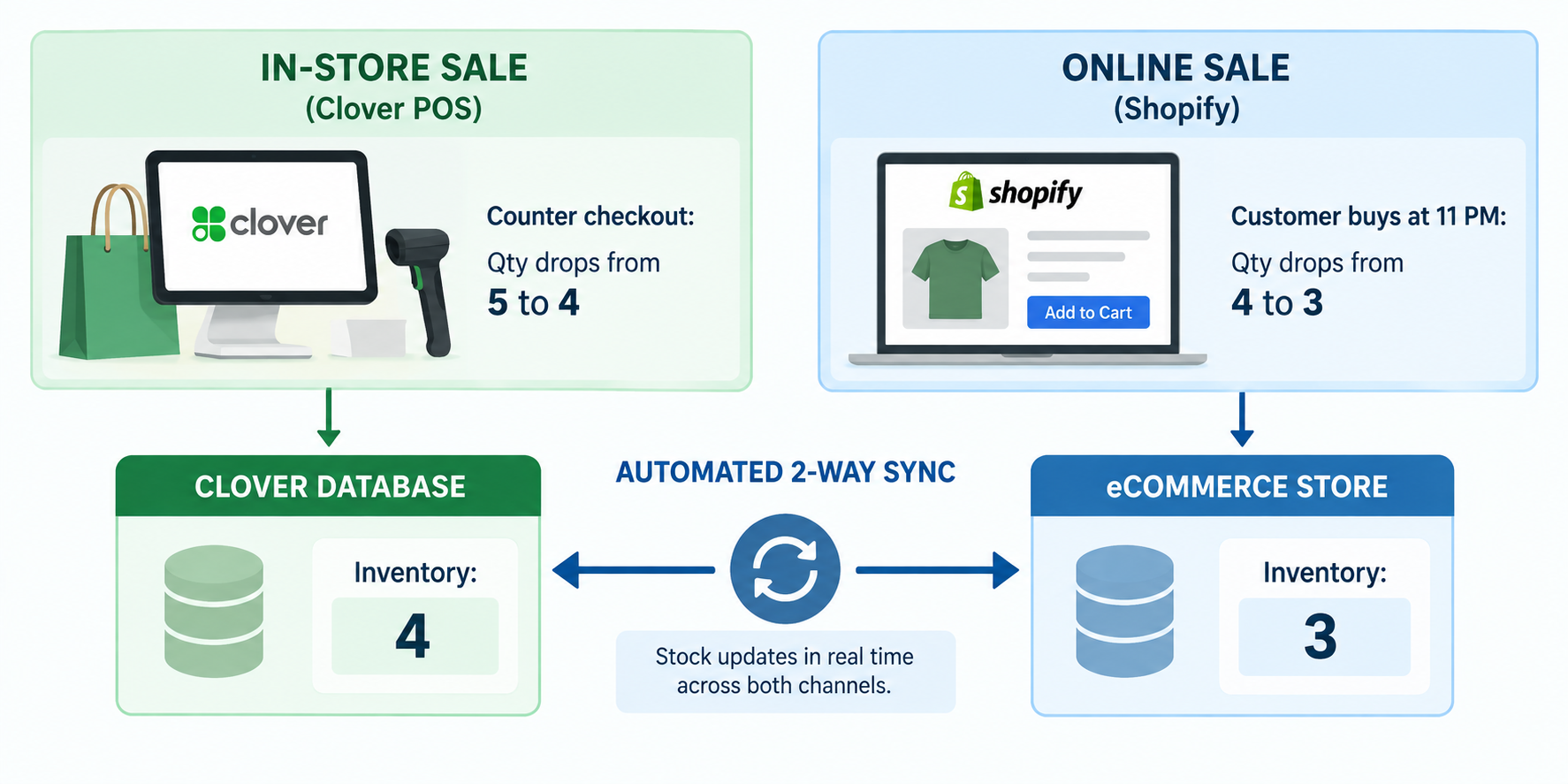
Solving this operational challenge requires automated two-way inventory synchronization. Rather than relying on human intervention, software monitors both endpoints continuously via API:
- Physical Store Event: A customer purchases an item at your counter. Your Clover Station processes the payment and decrements the item's on-hand quantity from 5 to 4. Within seconds, the sync engine fires an update to your online store, reducing available online stock to 4.
- eCommerce Store Event: An online shopper purchases the same product at midnight. Your eCommerce platform records the order and decrements its stock to 3. The sync engine immediately communicates with Clover, updating the on-hand quantity on your register to 3 before your store opens the next morning.
- Cross-Channel Consistency: Whether an item is sold, returned, or manually adjusted on either platform, the changes propagate across both systems automatically.
Aligning Your Accounting Workflow, Orders, and COGS
Accurate inventory records also support financial reporting and inventory valuation. Disconnected sales records can increase reconciliation work and make inventory reporting less consistent.
1. Tracking True Cost of Goods Sold (COGS)
Recording unit costs in Clover gives retailers cost data that can support margin and inventory reporting. If a customer buys a $50 blouse that costs you $20 from your vendor, Clover registers $30 in gross profit.
When your online store connects to this data flow, connected sales and cost data can support more consistent COGS reporting across channels. Without consistent cost tracking, business owners often evaluate revenue while overlooking inventory acquisition expenses, resulting in an inaccurate picture of net operational profitability.
2. Centralizing Online Orders at the Register
A major headache for retail bookkeepers is reconciling two completely separate merchant accounts and transaction logs. When online orders route directly into your Clover system as completed, paid transactions, your Clover daily register summaries reflect your business's total performance.
Centralized order records can give store staff access to online purchase history. They can also simplify reconciliation between physical and online sales.
3. Synchronizing with Accounting Software (QuickBooks and Xero)
Rather than manually typing sales figures from two different dashboards into QuickBooks Online or Xero, a unified inventory and order flow allows clean daily summary syncs. This eliminates:
- Double-counting revenue from disconnected platform payouts.
- Sales tax calculation discrepancies between municipal in-store rates and destination-based eCommerce sales tax rules.
- Discrepancies between physical asset valuations on your balance sheet and your actual stockroom counts.
Common Clover Inventory Pitfalls and Practical Fixes
Even experienced retailers run into inventory tracking issues. Watch out for these four operational pitfalls:
How SKU IQ Connects Your Clover POS to Your Online Store
Clover manages inventory at your physical store, while SKU IQ connects that inventory with your online storefront. It works as a no-code connection between Clover and supported eCommerce platforms. These include Shopify, WooCommerce, Wix, BigCommerce, and Squarespace.
With SKU IQ, you can keep your existing Clover checkout workflow while automating inventory and product updates across channels.
- Match existing products: The Link Report identifies matching SKUs and barcodes across Clover and your online catalog, helping you resolve discrepancies before syncing.
- Choose your source of truth: Control which platform manages stock, pricing, product descriptions, and other catalog details.
- Sync inventory automatically: In-store sales update online quantities, while online orders adjust Clover inventory to keep stock aligned.
- Centralize online orders: Route eCommerce orders into Clover to simplify sales reporting and accounting workflows.
- Move catalog data: Push existing Clover products, variants, and stock quantities to your online store without rebuilding the catalog manually.
SKU IQ connects your physical and online operations while reducing manual inventory updates and keeping product data consistent across both channels.
Ready to connect your Clover POS and online store? Start your SKU IQ trial to connect your sales channels, automate inventory updates, and reduce time spent reconciling stock manually. Keep your Clover setup while managing in-store and online inventory through a connected workflow.
FAQs
1. Does Clover POS automatically track inventory out of the box?
Clover includes full inventory tracking capabilities, but quantity tracking is not turned on by default for every item. When adding an item in the Clover Inventory App, you must explicitly enable the "Track Quantity" toggle and enter your current on-hand stock count. If this toggle remains off, items will ring up normally at the register without reducing your inventory count.
2. What is the difference between Clover modifiers and variants?
Variants represent different physical versions of a product that carry their own unique SKUs, barcodes, and inventory quantities (such as a dress in Small, Medium, or Large). Modifiers are add-on options or customer requests (such as gift wrapping or custom embroidery) that alter a line item at checkout but do not track physical stock. Retail merchants should always use variants for sized or colored merchandise.
3. Can Clover sync inventory directly with Shopify or WooCommerce?
Clover does not feature native, automated two-way stock synchronization with third-party eCommerce platforms like shopify or woocommerce out of the box. To keep stock counts synchronized in real time and prevent overselling in-store and online, retailers use connected-retail software like SKU IQ, which links the two systems via API without custom programming.
4. What happens to my inventory when a customer returns an item in-store?
When you process a return on your Clover POS, the system prompts your cashier to decide whether the item should be returned to inventory. Selecting "Restock" immediately increases the on-hand quantity in Clover. If you have an active two-way sync platform connected, that returns unit updates on your online store automatically.
5. Can I upload my existing product catalog to Clover using a spreadsheet?
Yes. In the Clover Web Dashboard under Inventory, you can download Clover’s spreadsheet template (in Excel or CSV format), enter your item names, SKUs, barcodes, wholesale costs, retail prices, and stock counts, and upload the file. Be sure your barcode columns are formatted as text so spreadsheet software doesn't strip away leading zeros.
6. How does Clover handle barcode scanning for inventory?
Clover devices like the Station Duo and Clover Flex feature integrated barcode scanners, and you can also connect external USB or Bluetooth handheld scanners. As long as you have saved the product’s 12-digit manufacturer UPC or custom barcode into the "Product Code" field in Clover, scanning the tag at checkout instantly retrieves the item and deducts stock upon payment.
Share this blog:







Sync and Manage Inventory Across Your Retail Systems
- No more spreadsheets or manual updates
- Real-time sync between POS and eCommerce
- One product catalog, every sales channel
- Save hours managing multiple systems

Ready to stop worrying about inventory?
Start a free trial and experience how much easier retail operations become when your systems stay in sync.