

Updated
October 28, 2026
Wix POS Integration: How to Sync Your Register With Your Wix Store
Wix POS integration connects your existing register with your Wix store to help keep inventory and product data aligned. SKU IQ connects supported POS systems with Wix to help maintain accurate catalog and inventory information.


TL;DR
- Wix POS integration connects an existing register with a Wix store to keep supported inventory and product information aligned.
- Confirm your exact POS, edition, Wix setup, country, and stock-location requirements before choosing an integration route.
- Inventory, product fields, and orders can follow different sync directions, so verify each function separately for your POS + Wix connection.
- Match products and variants carefully before syncing, then test a small set to catch incorrect links or configuration issues early.
- SKU IQ connects supported POS systems with Wix to help manage product matching, catalog migration, inventory updates, and connected activity.
Wix POS integration can make it easier to manage your existing point-of-sale system and Wix online store without maintaining the same information twice. Online retail continues to grow, with US Census Bureau data showing that US e-commerce sales reached $340.2 billion in Q2 2026, up 12.2% from the same quarter in 2025.
As online sales grow, keeping retail data aligned becomes increasingly important. A useful connection goes beyond moving product names between platforms. You need to know how stock changes, which product details can update, and where supported order records appear.
This guide covers how to identify your setup and choose a connection. It also covers catalog preparation and first-sync validation. You will learn how to troubleshoot stock or order issues and how SKU IQ connects supported registers to Wix.
Wix POS integration: Definition and scope
Wix POS integration connects a point-of-sale system with a Wix online store. The connection can share supported product details, inventory quantities, and order data. In this guide, it means connecting your existing register software to Wix while keeping your current POS system.
The purpose is to reduce repeated updates between your physical shop and online store. What actually syncs, and in which direction, depends on the specific POS + Wix connection and its settings. Check product matching and stock updates separately. Review order creation independently because each function has its own support requirements.
POS identification and compatibility requirements
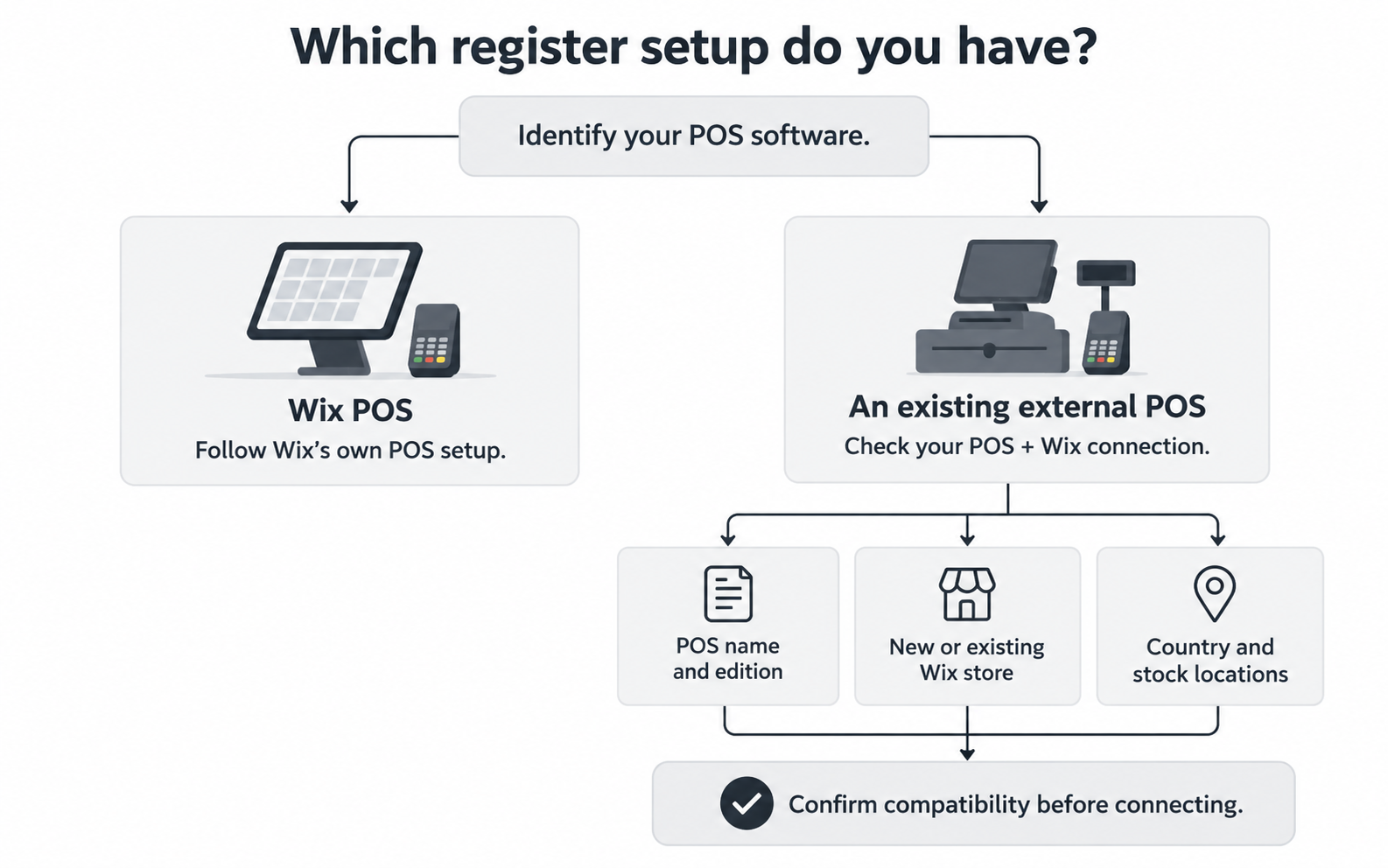
Your point-of-sale system, or POS, is the software you use to ring up purchases in your shop. Identify the software first, then check the brand associated with your card reader.
There are two distinct setups:
- Wix POS and a Wix store: You use Wix’s own in-person selling solution. Follow the requirements for that Wix POS setup.
- An external POS and a Wix store: You use a register such as Clover or Square and want to connect it to Wix. This is the setup covered here.
Before comparing integrations, record your POS name and edition. Then confirm your Wix store status, business country, and required stock locations. For Lightspeed, identify R-Series or X-Series rather than using “Lightspeed” alone.
Also list any apps already updating your products or stock. Share that list when reviewing a new connection so you can establish which tool should handle each job.
A specific compatibility question can give you a clearer answer: “Can this connection support my Clover and my existing Wix store?” This wording identifies the exact setup you need to connect.
Connection options for existing POS systems and Wix
A supported connection can let you keep your familiar register while adding an online sales channel. The right route depends on what already exists and where you want to manage product information.
SKU IQ documents connections for Clover + Wix, Lightspeed R-Series + Wix, Lightspeed X-Series + Wix and Square + Wix. Check these pair-specific pages for supported fields and limitations. Each POS + Wix connection can have different sync behavior.
There is also a separate Square route worth understanding. Wix documents creating a Wix site from an existing Square shop using the Wix app in Square. In that setup, supported product information is managed in Square. Manual inventory adjustments are also managed there. Check the applicable instructions separately for an existing Wix store or a SKU IQ connection.
Check eligibility for the exact route, too. Wix’s Square + SKU IQ walkthrough describes its feature as US-only and requires a Wix plan that accepts payments. Its general SKU IQ app article lists the US, Canada, Australia, and UK. Because the scopes differ, confirm which app and instructions apply to your account.
Choose based on the work you need done: linking two existing catalogs, adding products to a new store, or maintaining supported fields after setup.
Inventory, product data, and order synchronization
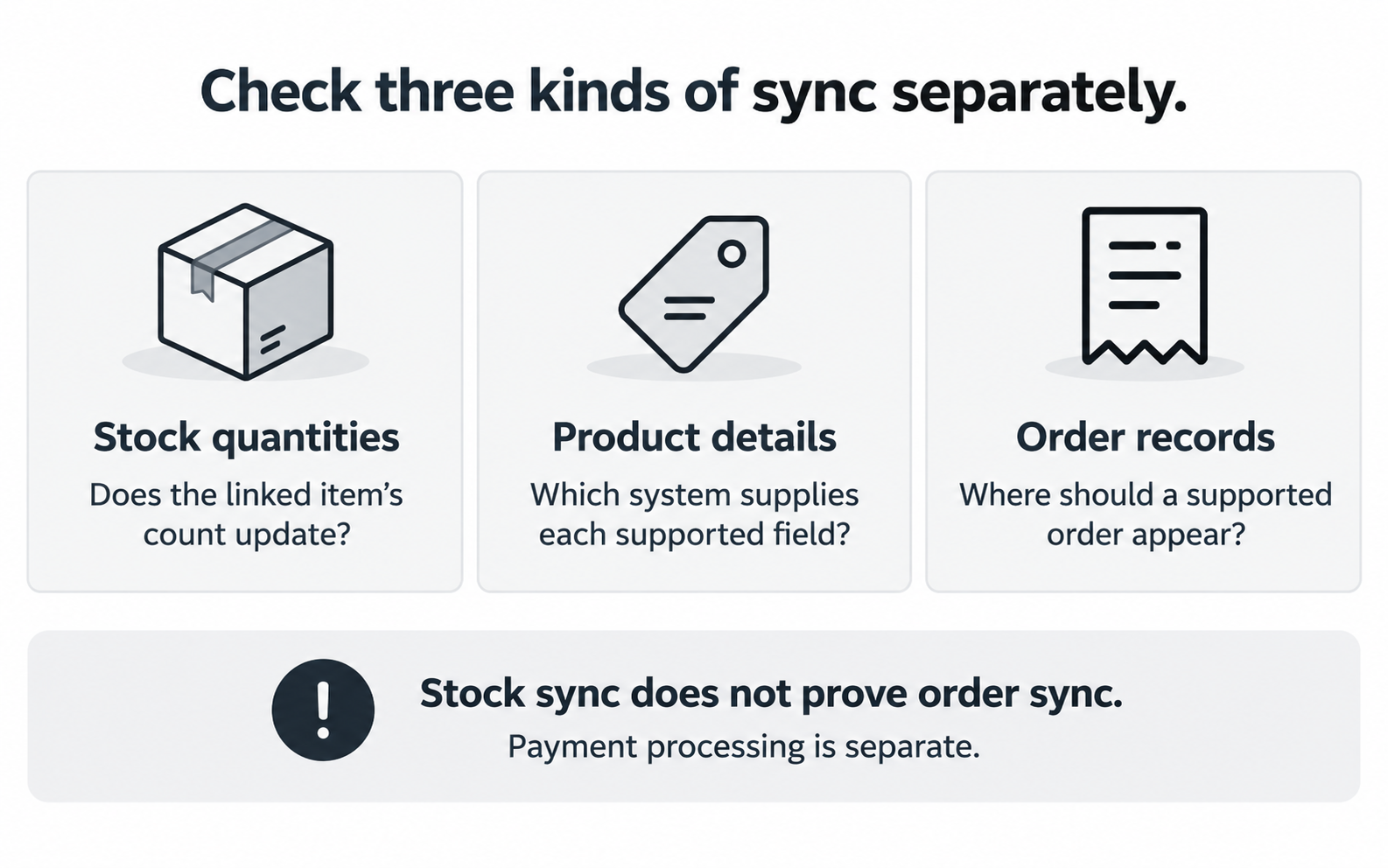
“Sync” means keeping information updated between systems. It does not tell you which information moves, which direction it travels, or what happens when something changes.
1. Inventory quantity updates
Inventory syncing concerns how many units are available. SKU IQ’s current Clover + Wix and Square + Wix pages list quantities as bi-directional, meaning updates can flow in both directions for those documented pairs. A sale on either side lowers the count on the other, which is how syncing helps prevent overselling in store and online.
Check which linked item and stock location an update affects. A matching total is not enough if the change reaches the wrong size or color.
2. Product fields and primary-system settings
A product has several fields: title, description, price, product code, and options such as size. Each supported field may have its own direction or primary-system setting.
The primary system is the platform chosen to supply a particular value. Before editing a price or description, establish where that change belongs. Do not assume every field follows the inventory rule.
Moving products into Wix during setup is also different from keeping those products updated afterward. A successful initial import does not establish support for every later change.
3. Order direction and destination records
An order appearing in a combined dashboard is different from an order record being created in your POS. Both are separate from processing a payment.
SKU IQ’s current Clover + Wix and Square + Wix pages list orders as “Online → POS” and specify “Not for payment processing.” Confirm the supported order types and settings for your account before relying on that workflow.
Ask separately about cancellations, refunds, fulfillment changes, and duplicate prevention. Do not infer their behavior from an inventory update or a general “order sync” description.
The key distinction: a stock count changing after a sale does not prove that the order was created in your other system.
Catalog preparation and product matching
A connection needs to know which product in your register corresponds to which product in Wix. Review that relationship before allowing ongoing updates.
A SKU, short for stock keeping unit, is a code used to identify an item. A variant is an option such as size or color. A navy T-shirt in medium should match the same variant online, not another item with the title “T-shirt.”
Start with the condition of your catalogs:
- Products already exist on both platforms: Review and link matching records rather than creating another copy of each product.
- Products exist on only one platform: Check catalog push or migration options, including which fields will transfer and what you will need to finish manually.
SKU IQ’s pair pages describe a Link Report that proposes matches using titles, SKUs, or UPC barcodes. You decide which matches to link. Review those suggestions and unmatched items before accepting them.
For each test product, check the variant, starting quantity, price, and the source chosen for supported fields. Save available catalog exports before bulk changes, and confirm which starting values will be retained.
The aim is not to move the most records as quickly as possible. It is to establish the correct product relationships so later updates reach the right items.
Wix POS integration setup and validation
Use the following sequence as a setup checklist. Exact screens and permissions depend on your POS + Wix connection.
1. Compatibility and account access
Check the POS edition, Wix site, app route, country, and stock-location requirements. Make sure the person completing the setup can authorize both accounts.
Agree on which existing apps will continue managing products or inventory. Avoid changing several connections at once while testing a new one.
2. Platform connection and authorization
For Square + Wix through SKU IQ, Wix’s documented sequence is to connect Square POS to Wix, add the SKU IQ app, create or access a SKU IQ account, and then connect Square and Wix within SKU IQ.
Wix explains that it cannot share your credentials with SKU IQ, so the Square connection within SKU IQ is a separate step. Use the current Wix walkthrough for the detailed instructions rather than applying that route to another POS. For Clover or Lightspeed, SKU IQ’s own guide shows how to connect your Wix store to SKU IQ.
3. Product matching and field configuration
Start with a small, representative set that includes a simple product and a product with variants. Resolve unmatched records and confirm the initial values before syncing.
Write down where you will maintain supported fields. Record the expected order destination separately, including any settings or order-type restrictions confirmed for your account.
4. In-store and online sales testing
For a simple test, suppose a linked variant starts with five units. Sell one in-store, then check whether the expected stock records show four.
Next, place an online order. Check the stock result and the supported order destination independently. Record the product code and transaction time. Add the outcome so you have a specific example if a mismatch occurs.
Test a manual stock adjustment from the configured source as well. If you need refunds or cancellations to update other records, validate those actions under the confirmed rules instead of assuming they work like a sale.
5. Validation review and catalog expansion
Review linked products and quantities before adding more items. Check supported order behavior separately. Resolve an unexplained mismatch while the test set is small.
Keep a short staff note identifying where stock adjustments should be made. Add the correct editing location for prices and descriptions. A connection is easier to maintain when everyone knows which system to use for each change.
Common synchronization issues and troubleshooting
Synchronization issues usually involve a specific product link or configuration. Identify the affected item and action before changing your connection.
- Stock has not changed. Check account connections, the product and variant link, the stock location, whether inventory tracking is turned on in Wix, and the documented update behavior. A delay alone does not identify the cause. Wix’s SKU IQ guidance recommends checking that both accounts are correctly connected and contacting support if the issue persists.
- A product appears twice. Compare its identifiers and review whether setup created a new item instead of linking an existing one. Review the product’s connections and order history before deleting a record.
- The price changes back. Check which system supplies the price and where the latest edit was made. Resolve the field rule before repeating the same edit.
- Stock changed, but the order is missing. Confirm that order creation is supported in the destination you are checking, then review the relevant settings and order type. Inventory syncing alone does not establish that an order should appear there.
- An image or variant did not transfer. Read the exact pair’s feature list. For example, SKU IQ’s current Clover + Wix page lists images and multi-store as unsupported. Broader platform descriptions should not override a pair-specific limitation.
For a SKU IQ support request, provide the POS pair and product code. Add the relevant order reference and timestamps. Explain the expected behavior and what actually happened. Use redacted screenshots while keeping passwords and full payment details private.
Simplify Wix POS Integration With SKU IQ
SKU IQ connects supported retail systems so you can keep your familiar POS while managing product information shared with Wix. It acts as a connection layer between supported systems, helping reduce repetitive catalog and inventory work.
For a supported POS + Wix setup, SKU IQ can help you:
- Match existing products: Use the Link Report to review suggested matches and choose which records to link across existing catalogs.
- Move catalog data: Use available migration options when products exist on one platform and need to be added to another.
- Keep supported information updated: Sync inventory quantities and configure supported product-field rules based on your specific POS + Wix connection.
- Review connected activity: Use SKU IQ’s Wix integration to view product and order information while following pair-specific sync rules.
These capabilities can reduce repetitive catalog work as your product range grows. They also provide a clearer process for maintaining connected inventory records.
Ready to simplify Wix POS integration? Start your free trial with SKU IQ and keep your retail data connected across supported systems.
FAQs
1. Is Wix POS the same as a Wix POS integration?
No. Wix POS is Wix’s own in-person selling solution. In this guide, Wix POS integration means connecting an existing external POS, such as Clover or Square, to a Wix store. Identify which setup you have before following connection instructions.
2. Can I keep my existing register when I sell on Wix?
You may be able to if your POS software supports a suitable connection. SKU IQ documents Clover + Wix and Square + Wix integrations, but that does not establish compatibility with every register or card reader. Check your POS edition and Wix setup first.
3. Does Wix POS integration sync orders in both directions?
Do not assume so. SKU IQ’s current Clover + Wix and Square + Wix pages list online-to-POS order data and exclude payment processing. Confirm the supported direction and order types for your account. Two-way quantity syncing does not establish two-way order creation.
4. Can I connect Square to Wix without SKU IQ?
Wix documents a separate route for creating a Wix site from a Square shop using the Wix app in Square. Specified product fields and inventory adjustments are managed in Square. Check that route’s requirements rather than assuming it can be applied unchanged to an existing Wix store.
5. Do images, variants, and multiple locations sync too?
Check each feature separately. SKU IQ’s current Clover + Wix page lists images and multi-store as unsupported, while listing one-way Auto-Push New Variants as supported. Those details should not be generalized to Square, Lightspeed, or another Wix connection.
6. What should I do if my POS and Wix inventory do not match?
Check account connections, linked products and variants, starting quantities, and configuration. If the mismatch persists, send support a specific example with timestamps. Avoid repeatedly importing or deleting products as a blanket fix; first establish which record or update is incorrect.
Share this blog:







Sync and Manage Inventory Across Your Retail Systems
- No more spreadsheets or manual updates
- Real-time sync between POS and eCommerce
- One product catalog, every sales channel
- Save hours managing multiple systems

Ready to stop worrying about inventory?
Start a free trial and experience how much easier retail operations become when your systems stay in sync.