

Updated
November 4, 2026
How to Connect Square Inventory to Shopify for a Physical Retail Store
Connect Square inventory to Shopify to sync stock between your physical store and online shop. This guide covers setup requirements, product matching, inventory sync settings, multiple locations, order management, and troubleshooting. Learn how SKU IQ simplifies integration with two-way inventory syncing, automated stock updates, and centralized inventory management across both sales channels.


TL;DR
- Square inventory connects to Shopify through SKU IQ, enabling two-way stock syncing without replacing your existing POS or online store.
- Inventory updates take approximately three minutes on average, although syncing may take up to 20 minutes during peak periods.
- Product matching relies on shared SKUs, UPC barcodes, or exact product titles, with matching variation structures required for accurate inventory syncing.
- SKU IQ offers a 14-day free trial, while paid plans start at $19 per month for unlimited linked items and inventory syncing.
- Testing 10 products before syncing your full catalog helps identify stock discrepancies, variation mismatches, order syncing issues, and location-specific errors.
You can connect Square to Shopify using an integration app like SKU IQ to sync inventory between your physical store and online shop. Stock changes update across both platforms in about three minutes on average, helping reduce overselling.
Imagine a customer buying the last ceramic planter at your Square counter while Shopify still lists it as available. Another customer orders it online, leaving you with two orders and only one item.
According to a 2025 IHL Group and Brain Corp study, one in two major US retailers reported losing sales due to inventory accuracy issues.
This guide covers integration requirements, product matching, step-by-step setup, inventory syncing, managing locations and orders, and troubleshooting common issues.
Can you connect Square to Shopify?
Yes, through a connector app such as SKU IQ. It links Square's retail point of sale to your Shopify online store. Stock syncs both ways, and chosen product fields follow the direction you set.
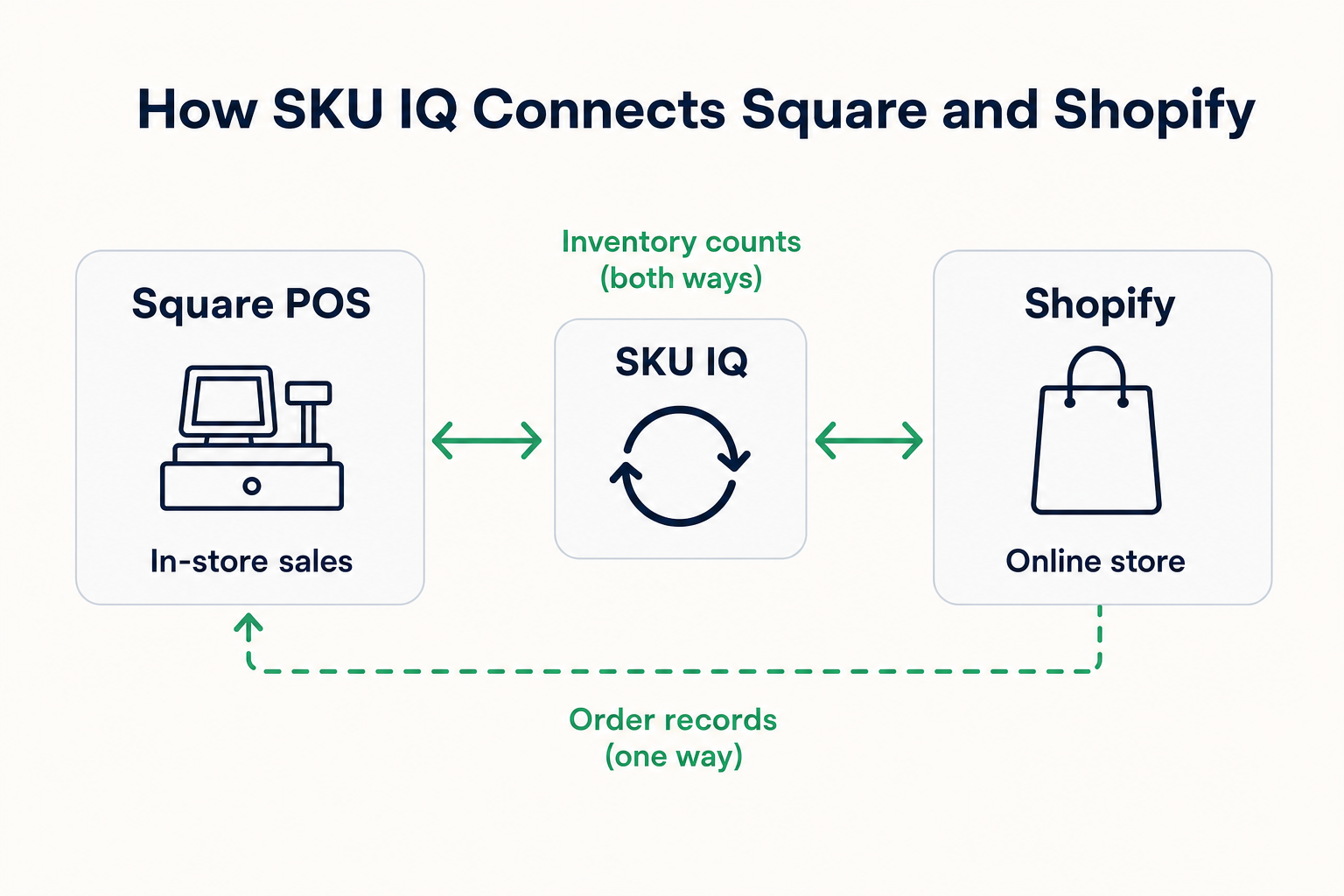
Square stays your cash register, and Shopify stays your online store. A catalog push only copies products across, so nothing migrates off either system. The Square Shopify integration page lists each supported field for this pair. The Square platform page confirms support for Square's retail point of sale. Square also lists SKU IQ in its App Marketplace collection for Shopify sellers syncing in-person and online stock.
What do you need before connecting Square to Shopify?
Your Square plan and stock-tracking settings decide whether the sync can read counts. Five checks cover both.
1. Check your Square plan
You need a Square plan with stock tracking and third-party app support. Square's plan guide describes its move to new tiers priced per active location.
SKU IQ's guide to check your Square plan still names the older Retail Plus and Premium plans. It excludes the free retail plan.
2. Check your Shopify plan
In Shopify admin, open Settings > Plan and confirm your plan allows third-party apps. SKU IQ's Shopify plan requirements name two plans that fall short: Starter lacks inventory tools and apps, and Retail lacks app support. Stores on a Shopify free trial need to upgrade first.
3. Turn on inventory tracking in Square
Go to Items in Square Dashboard, then Settings > Inventory, and switch on Inventory Tracking. Select Enable for all existing items, following the steps to turn on Square inventory tracking.
With tracking off, Square can report zero stock or a blank value, and items may show as sold out online. Set each count to the shelf number once tracking is on.
4. Turn on inventory tracking in Shopify
Shopify tracks stock per product through the Track Quantity toggle in its Inventory section. A bulk method for existing items appears in the guide to Shopify inventory tracking.
5. Export your Square item library
In Square Dashboard, open Items > Actions > Export Library and export All Items as an Excel file. The steps to export your Square item library show each screen. Save a Shopify product CSV export too, so both starting counts sit on file.
The table below sums up each check and its pass result.
Table 1: Five checks to finish before the first Link Report runs.
How should you set up Square items so they match in Shopify?
A Square item usually fails to link for one of two reasons. Its title differs from the Shopify listing, or its variations follow a different structure there.
1. Give every variation a SKU or UPC
The Link Report pairs products on a shared SKU or UPC and falls back to an exact title match. In Square's variation guide, each variation can carry its own SKU and price.
Spelling counts down to the punctuation. "Planter, Speckled 6in" in Square fails to pair with "Speckled Planter 6 in" on Shopify.
2. Build variations the same way on both sides
Both catalogs need the same structure: a parent product with matching variations, or a single item on each side. A linen tea towel sold in three colors needs three variations in Square and three variants in Shopify. The guide to Shopify variants walks through the Shopify side.
3. Use variations for versions and modifiers for add-ons
Square treats modifiers as choices added during a sale, like gift wrap on a candle. Variations are fixed versions, such as a 6-inch or 8-inch planter. Only variations sync, and the item and variant limits page confirms it.
4. Keep counts in whole numbers
Quantities sync in whole numbers only, so items sold by length or weight stay outside the sync. Ribbon sold by the foot is one example, and the article on whole-number quantities covers the rule.
5. Check product size limits
The same table caps Square at 250 variations per item and 25,500 items in total. Shopify raised its cap to 2,048 variants per product in October 2025, up from 100, in a developer changelog post.
How do you connect Square to Shopify step by step?
Setup runs in six steps, and the starting count you pick in step four carries the most weight. The SKU IQ setup process page groups the same flow into four stages.
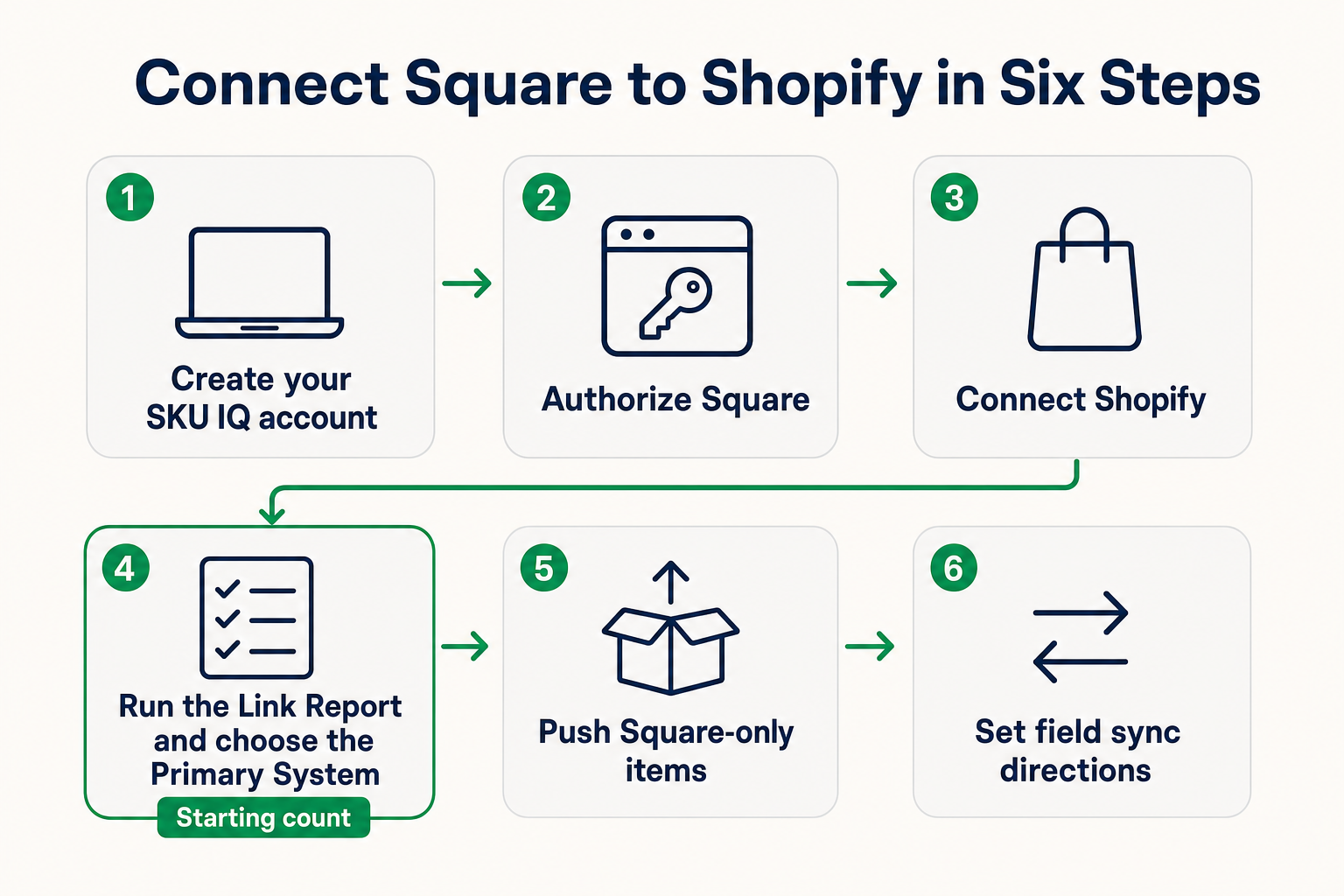
Step 1: Create your SKU IQ account on a computer
Pick Square as the point of sale and Shopify as the online store when you register. A laptop or desktop displays each setup page in full.
Step 2: Authorize Square
Click Connect, then sign in with your Square email and password in the new tab. Approving access returns you to the setup screen, as the guide to authorize Square shows.
Step 3: Connect Shopify with your myshopify address
Shopify connects through your storename.myshopify.com address, which can differ from the domain shoppers see. Copy it from the address bar in Shopify admin.
Step 4: Run the Link Report and choose the Primary System
The report lists proposed matches, and your data stays untouched until you confirm. On each pair, choose the Primary System whose counts match the shelf, since its number becomes the shared starting count.
Step 5: Push items that exist only in Square
A push creates a Shopify copy of a Square item and links the two, as the guide to linking versus pushing describes. Paid plans push up to 50 items per batch, and each batch takes roughly one hour. Larger catalogs can buy a bulk push, starting at $200 for up to 1,000 items.
Step 6: Set field sync directions
Field sync is optional and runs field by field, so one field can follow Square while another follows Shopify. The guide to field sync directions shows the Settings > Syncing Product Attributes screen.
A practical split takes prices from Square and descriptions from Shopify. Field sync comes with the Plus plan, or as a $15 add-on on Basic.
Which fields sync between Square and Shopify, and in which direction?
Stock counts move both ways, while each product field follows the direction you pick for it. A stock change lands in about three minutes on average, according to the average sync time article.
During peak traffic, the normal queue can stretch to about 20 minutes. Priority Sync jumps the queue with a usual response near 10 seconds, and it comes with the Pro plan.
Each row gives the sync direction and how firmly it is documented for this pair.
Table 2: Stock syncs both ways, and each product field follows the direction you choose.
Two rows still need confirmation. The pair page marks vendor and color with a check but calls them unsupported, and its image row disagrees with its FAQ. Upload product photos in Shopify directly until that is settled.
UPC barcodes sync on this pair, so a shop that scans at the counter can keep one barcode per variation in both systems. Set the barcode direction from the system staff use to receive stock.
Unit cost and tags stay in each system. A new wholesale cost entered in Square needs a matching edit in Shopify.
How does SKU IQ handle Square locations?
SKU IQ connects Shopify to one Square location by default. Shops with two or more locations choose between two setups, and Support configures either one.
Here is how each setup handles an online sale:
- One location: Shopify shares stock with your single Square location. Each online order deducts from it automatically.
- Several locations, automatic: Shopify shares stock with one chosen Square location. Your other locations keep their own counts.
- Several locations, manual fulfillment: You pick the location for each online order in your dashboard. The deduction syncs once you choose.
- Registers within a location: Sales land at the location level, since Square's API stops there. The article on terminal-level routing covers why.
The help center calls the one-location link its most popular setup. The multi-location setups guide includes a short video of the manual step.
Each added location costs $10, as listed on the pricing page. Multi-location shops should also talk with the team before starting a trial, as the pair page advises.
A second Square location adds one manual step for each online order.
How do Shopify orders show up in Square?
Paid Shopify orders appear on the Transactions page of the Square web dashboard once order sync is on. Sync runs in one direction you pick, and Support switches it on for your account.
Each direction works a little differently:
- Shopify to Square: A paid online order copies to Square's Transactions page within 1 to 30 minutes. The Order Source field reads SKU IQ, and card details stay in Shopify.
- Square to Shopify: In-store sales copy into Shopify instead, marked as paid and fulfilled. These take anywhere from 1 minute to 12 hours.
Each order copy in Square carries the totals and line items from Shopify. Customer details travel with it, and the transaction takes its name from the items bought.
Order sync runs apart from stock sync, so a slow order copy leaves stock timing unchanged. Every field per platform appears in the guide to how order syncing works.
How do you verify the sync before linking your full catalog?
Test each documented behavior on 10 of your own products during the trial. One or two products is the pair page's suggested start, and ten cover more catalog shapes.
1. Pick 10 products that match your catalog
Build the test set from this mix:
- Simple items: 3 products with no variations
- Variation items: 3 products sold by size or color
- Square-only items: 2 products to push into Shopify
- Low-stock item: 1 product with one or two units left
- Barcoded item: 1 product with a UPC on both sides
2. Test one behavior at a time
Run each test on its own, so a failed result points to one cause. Start with stock in both directions and field edits. Location and order tests come last, after Support sets them up.
Each behavior below gets one test and one pass result.
Table 3: One test per behavior confirms whether your setup matches what SKU IQ documents.
3. Log expected and actual results
Keep one spreadsheet row per test with these columns:
- Time and product: when the test ran and which SKU
- Expected count: the number the shelf supports
- Actual count: the number the other system shows
- Minutes to update: time until the change appeared
4. Decide from the log
Link the rest of the catalog once all five behaviors pass on all ten products. Fix and retest any failed row, and contact Support if the same failure returns.
What should you do when Square and Shopify counts disagree?
Rule out the two quickest causes first: an unlinked product and Square tracking switched off. The last two steps repair structure and counts.
1. Confirm the product is linked
Links wait for your go-ahead, so a product added after setup may sit unlinked. Check the Products page in your dashboard for its pair.
2. Check tracking and spelling
Tracking switched off in Square can send zero or blank stock to Shopify. A one-character title difference also blocks a title-only match, so compare names side by side.
3. Fix a structure mismatch
Rebuild the product so both sides carry matching variations, or delete the wrong copy and push the right one. The Link Report matching rules cover each case.
4. Reset from a physical count
Count the shelf and correct the number in Square. From there, the link carries it to Shopify, so pick the right Primary System if you relink.
Find your symptom in the table before you edit any records.
Table 4: Each symptom points to a likely cause and a matching fix.
Live chat covers anything these steps leave open, Monday to Friday from 8 a.m. to 4 p.m. Mountain Time. Outside those hours, a support ticket from the help page reaches the same team.
How can SKU IQ connect Square with Shopify?
SKU IQ connects Square POS with Shopify as a no-code layer between the counter and the online store. Each behavior this guide tested maps to a plan feature:
- Link Report: pairs products already in both catalogs
- Push: copies Square-only items into Shopify and links them
- Stock sync: on every plan with unlimited linked items, from Basic at $19 a month
- Field sync: included from Plus at $49 a month
- Faster sync: Priority Sync included on Pro at $99 a month
- Locations and orders: configured by Support for your setup
The 14-day trial opens every feature and includes a free one-on-one setup call. Field details sit on the Square Shopify integration page.
Keep Square at the counter and Shopify online. Start your free trial and test your products this week.
Frequently asked questions about connecting Square to Shopify
1. Does Square integrate with Shopify natively?
Square and Shopify keep separate stock records. A connector such as SKU IQ links Square's retail POS with your Shopify store. Linked products then share stock changes in both directions.
2. Can I use Square payments on my Shopify store?
The sync covers stock and product data, and payments stay with each platform. Online shoppers pay through Shopify's checkout, and a synced order arrives in Square as a record. Check Shopify's payment settings for the providers offered in your country.
3. How long does a Square to Shopify stock update take?
A stock change takes about three minutes on average. Busy periods can stretch the normal queue to about 20 minutes. Priority Sync, included on the Pro plan, usually responds in about 10 seconds.
4. Does the sync work with more than one Square location?
Yes, with a custom setup from Support. Shopify can share stock automatically with one chosen Square location. With two or more shared locations, you pick the location for each online order in the dashboard.
5. Where do Shopify orders appear in Square?
Paid Shopify orders copy to the Transactions page of the Square web dashboard within 1 to 30 minutes. Order sync runs in one direction, and Support switches it on. Each copy shows SKU IQ as its order source.
6. Do I need SKUs or barcodes to link Square products?
SKUs and UPCs make matching more reliable, though an exact title match also works. A title-only pair also needs a matching price or brand. Both sides must share the same product structure.
Share this blog:







Sync and Manage Inventory Across Your Retail Systems
- No more spreadsheets or manual updates
- Real-time sync between POS and eCommerce
- One product catalog, every sales channel
- Save hours managing multiple systems

Ready to stop worrying about inventory?
Start a free trial and experience how much easier retail operations become when your systems stay in sync.